
On This Page8 sections
Key Takeaways
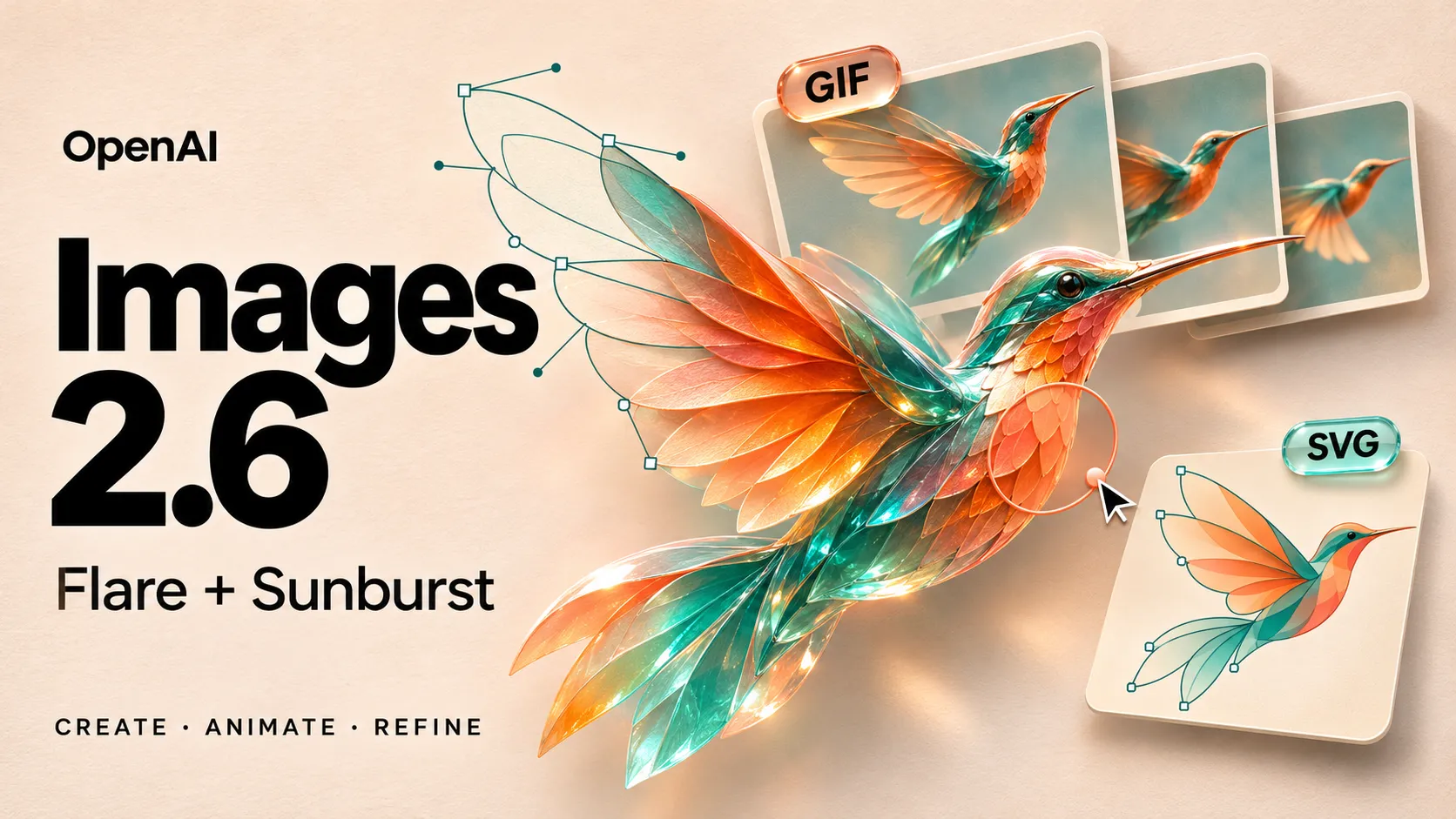
- OpenAI released Images 2.6 on November 4, 2026, bringing updated image generation to ChatGPT, Codex, and the API.
- OpenAI reports 50% faster generation, with Flare reaching six seconds in some low-quality configurations. These are vendor claims, not guaranteed response times.
- The release introduces GIF generation, SVG output in the API, and additional editing controls.
- Flare prioritizes fast iteration; Sunburst targets detailed visual work. Both support image generation and editing.
- Some GIF documentation remains inconsistent. Developers should validate limits and feature access before exposing them in a production interface.
Updated November 5, 2026.
What Is OpenAI Images 2.6?
Images 2.6 is OpenAI's updated image-generation release for creating and refining visual assets. The official announcement emphasizes faster iteration, better preservation of important details during editing, and new output options.
Its practical significance is the potential to shorten the complete creative workflow: generate a concept, correct specific details, and export an asset in a useful format.
A compelling first image is only part of that workflow. A product photograph becomes useful when its packaging remains accurate after a background change. A mascot animation becomes usable when its face and proportions remain consistent throughout the loop.
The most useful evaluation question is therefore whether Images 2.6 reduces the work required to produce an acceptable final asset.
What Changed From Images 2.5?
Flare and Sunburst are established model families. OpenAI introduced their 2.5 versions on September 8, 2026, alongside improvements to reference-image fidelity and repeated edits. Sketch, templates, and image comments also appeared in the Images 2.5 release.
Images 2.6 extends that foundation with faster generation, GIF creation, API SVG output, and more control over editing. Image markup was already available in ChatGPT; this release brings it to the API.
This distinction matters when assessing an upgrade. Existing reference-based workflows should be evaluated for measurable improvements, while animation and vector output require separate acceptance criteria.
Flare vs. Sunburst: Which Model Should Developers Choose?
The two API model IDs are gpt-image-2.6-flare and gpt-image-2.6-sunburst.
| Decision factor | GPT-Image-2.6 Flare | GPT-Image-2.6 Sunburst |
|---|---|---|
| Official positioning | Fast iteration | Detailed visual work |
| Core capabilities | Generate and edit images | Generate and edit images |
| Suggested first evaluation | Interactive previews and frequent revisions | Detailed compositions and demanding edits |
| Main acceptance question | Is the result good enough within the response-time target? | Does the additional detail improve the final asset? |
The positioning follows the official Flare and Sunburst model pages; the evaluation criteria are practical recommendations.
A reasonable application strategy is to test Flare for previews and Sunburst for difficult assets. However, switching models between a draft and its final version should itself be evaluated: a higher-detail result is only useful if it preserves the approved design.
Avoid selecting a model from a single attractive example. A catalog workflow may care more about label preservation than artistic detail, while a poster workflow may prioritize typography and composition.
How to Use Images 2.6 in ChatGPT
According to the ChatGPT Images help page, standard image generation is available across subscription tiers. Images with thinking is available to Plus, Pro, and Business, with Enterprise and Edu support planned.
To create an image, describe it in a conversation or choose Images. To edit, upload a picture or select an existing generated image and describe the change.
GIF creation is rolling out separately. Users can request a looping animation or upload a still image to animate. ChatGPT can revise GIFs it created, but it cannot edit an uploaded animated GIF.
Reference photos can also be saved under a name and reused in later chats with an @ mention.
For a recurring character, maintain a short visual specification alongside the reference: colors, proportions, clothing, and details that must survive every revision. This provides concrete criteria for reviewing the output.
Quality vs. Complexity: Two Different Controls
The official prompting guide separates rendering quality from planning complexity:
| Parameter | Purpose | Documented values |
|---|---|---|
quality | Controls visual detail and rendering fidelity | auto, low, medium, high, xhigh, max |
complexity | Controls planning before rendering | low, medium, high |
Both 2.6 models default to high complexity when the field is omitted. OpenAI recommends testing low complexity for focused edits.
Consider two failures:
- The composition is correct, but lettering is unclear: compare quality settings.
- The lettering is clear, but objects have the wrong relationship: revise the instructions and compare complexity settings.
These controls address different problems. Increasing both at once makes it difficult to identify which change helped.
For example, a background replacement may need high visual fidelity while requiring relatively little scene planning. A crowded instructional poster may need substantial planning even when its visual style is simple.
GIF Generation: Example Request and Documentation Caveats
The image-generation guide documents GIF output through POST /v1/images/generations. Frame dimensions, frame count, and the number of requested animations must fit the model's pixel budget. GIF output does not support streaming or partial-image previews.
An illustrative request body is:
{
  "model": "gpt-image-2.6-flare",
  "prompt": "Create a looping animation of a small turquoise robot tending a potted sunflower. The robot tilts a watering can, pours a short stream, then returns to its starting pose. Keep the camera fixed, the flower upright, and the robot's proportions consistent. Plain cream background. No text.",
  "output_format": "gif",
  "size": "auto",
  "quality": "medium",
  "complexity": "low",
  "frame_count": 9,
  "frame_duration_ms": 200,
  "n": 1
}
The example uses documented request fields and has not been executed as a benchmark. Decode the returned data[0].b64_json value into bytes and save it with a .gif extension.
Nine frames at 200 milliseconds per frame produce a nominal 1.8-second loop at five frames per second. This is a useful configuration for testing simple motion, rather than a promise of smooth video-like animation.
The documentation disagrees on some limits as of November 5:
| Detail | Image-generation guide | API endpoint reference |
|---|---|---|
| Frame count | 2–64 | 2–16, with preview-access language |
| GIF output from image edits | Described as unsupported | GIF-related fields remain listed |
These differences should not be resolved by assuming the most permissive interpretation. Use the generations endpoint for the initial integration and validate supported settings with the target account.
A production GIF interface should also inspect the first-to-last-frame transition. A visually attractive sequence can still make a poor loop if its ending pose does not reconnect naturally with its opening pose.
SVG Output: What It Produces and When It Helps
SVG generation produces static vector content without embedded raster images, scripts, or external resources. The documented pipeline creates a reference image and then authors the SVG, with charges for both stages.
Use output_format: "svg" and n: 1. The generation reference excludes streaming, partial images, custom compression, and SVG editing from this workflow.
Potential applications include icons, decorative illustrations, and early logo concepts. A useful original prompt is:
Design an original vector emblem for a neighborhood seed library.
Combine a seed pod and an open book into one simple geometric symbol.
Use dark green and warm ivory, with a transparent background.
No lettering, gradients, shadows, or photographic textures.
The silhouette should remain recognizable at 24 pixels wide.
A valid SVG still needs design review. Inspect it at the smallest intended display size, check unwanted shapes, and verify that recoloring works as expected.
For a website, also compare file size and rendering behavior against a manually simplified version. Editable paths are useful, but they do not automatically produce an efficient icon system.
Markup Editing: Turn Visual Feedback Into an API Input
Markup gives the model a visual indication of where an edit belongs. The image-edit reference describes a transparent PNG overlay that matches the first input image's dimensions after orientation. It must retain transparent pixels and cannot be combined with a mask. The generation guide explicitly documents markup for supported 2.6 models.
A practical editor can keep three components separate:
- The original image.
- An annotation layer containing circles, arrows, or sketches.
- Written instructions explaining the intended change.
Example instruction:
Change the backpack inside the orange circle from red fabric to navy fabric.
Preserve its seams, zipper, straps, dimensions, and position.
Keep the person's face, clothing, pose, lighting, and background unchanged.
Remove the orange annotation from the final image.
The overlay identifies the target; the text defines the operation and preservation requirements.
For browser-based editors, pay particular attention to coordinate conversion. If the displayed preview is smaller than the uploaded image, annotations must be exported in the original image's coordinate space. Otherwise, a correctly drawn circle can arrive at the wrong location.
Review the whole output, including areas outside the annotation. ChatGPT's own editing documentation warns that changes can extend beyond a selected region.
Images 2.6 API Pricing
The official pricing page lists identical standard token rates for Flare and Sunburst:
| Token category | Input per million tokens | Cached input per million tokens | Output per million tokens |
|---|---|---|---|
| Text | $5.00 | $1.25 | — |
| Image | $8.00 | $2.00 | $30.00 |
These listed rates match the corresponding standard rates for the 2.5 models. Cached rates should not be treated as a blanket discount on every request.
Equal token prices do not establish equal cost per finished asset. Compare the actual billable usage and the proportion of results that pass review.
For example, 2,000 billable image-output tokens at $30 per million cost $0.06 for that output component. This hypothetical calculation excludes input charges and any additional generation stages.
A more useful business metric is:
Cost per accepted asset = total generation spend / accepted assetsIf a hypothetical batch costs $12 and produces 80 accepted assets, the generation cost is $0.15 per accepted asset. The same spend yielding 40 accepted assets costs $0.30 each.
This calculation exposes a tradeoff that a price table cannot: a model that requires fewer corrections may be more economical even when an individual request consumes more tokens.
How to Evaluate the Speed Claim
OpenAI's six-second example applies to Flare at low quality. It should not become the loading-time promise for a high-detail editing or animation product.
For an application, measure the complete interval between submission and a usable downloaded asset. Include network transfer, decoding, validation, and retries where they occur.
A useful evaluation sheet should record:
| Metric | What it reveals |
|---|---|
| Median completion time | Typical waiting time |
| 95th-percentile completion time | Slow requests that affect user experience |
| First-pass acceptance rate | How often generation solves the task immediately |
| Unwanted-change rate | Whether edits damage approved details |
| Cost per accepted asset | The economic effect of retries and failures |
Choose assets that expose meaningful errors: a package with a small label, a character with distinctive clothing, a crowded poster, and a loop with a clearly defined starting pose.
Define rejection criteria before comparing results. For example, a product edit fails if its label changes, even when the background looks excellent. This prevents aesthetic preference from hiding operational defects.
Limitations and Safety Findings
Production review should check text, product geometry, character identity, transparent edges, and animation continuity. For factual graphics, verify every label and relationship independently of the visual presentation.
OpenAI's Images 2.6 system card evaluates 3,077 adversarial requests. In the tested configurations, unsafe outputs not blocked by the evaluated checks changed from 1.92% to 1.72% for Sunburst and from 1.49% to 2.14% for Flare. Neither overall difference was statistically significant.
These are offline adversarial-test outcomes, not estimates of what ordinary users receive. The system card also explains that harmful meaning can emerge across animation frames, creating additional moderation challenges.
The relevant operational lesson is to inspect animations as sequences and evaluate the final exported asset, rather than approving a request solely because its first frame looks correct.
Conclusion
OpenAI Images 2.6 gives creators and developers more options for producing still images, short animations, and vector assets. Its value depends on how reliably those outputs meet the requirements of a real workflow.
Start with one representative task. Compare the two models, document unacceptable changes, and measure both waiting time and cost per accepted result. For GIF integrations, confirm account access and supported limits before offering advanced controls.
Open ChatGPT to explore a creative brief, or use the official image-generation guide to build a small API evaluation. Expand adoption when the results demonstrate a clear improvement in usable output.
Continue Reading
More articles connected to the same themes, protocols, and tools.

Referenced Tools
Browse entries that are adjacent to the topics covered in this article.