On This Page8 sections
Key Takeaways
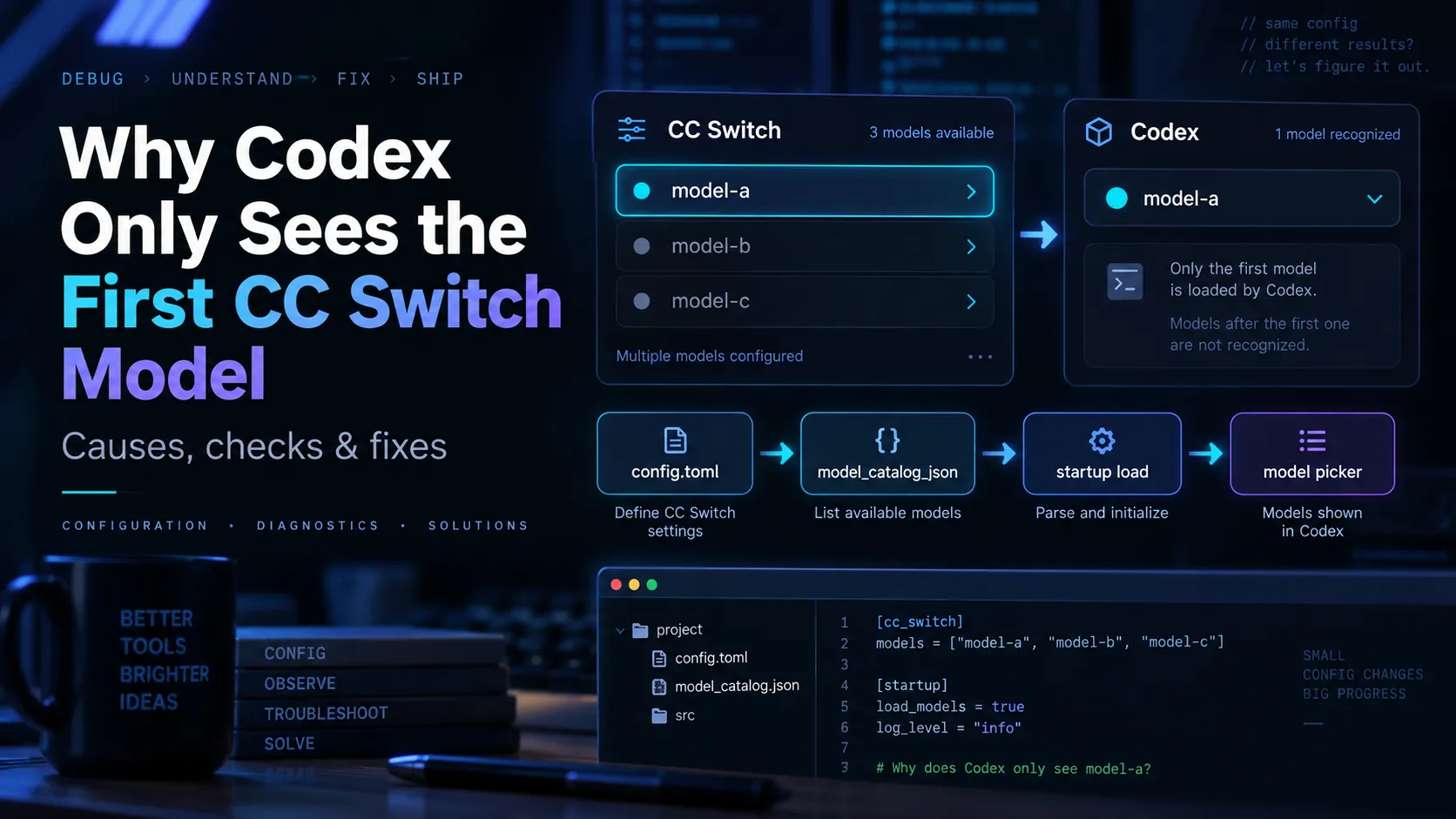
- The first model in CC Switch is not just cosmetic. In the current CC Switch integration, the active/default model is written to Codex's top-level
modelsetting, while mapped models are exposed throughmodel_catalog_json. - Codex loads a custom model catalog at startup. Changing the catalog while Codex is already running may not update the active model list until Codex is fully restarted.
- Codex Desktop and Codex CLI do not behave identically with third-party model catalogs. CC Switch's own current documentation says the Codex app may use the first configured model by default even when multiple mapped models exist, while the CLI
/modelflow can expose mapped models after a restart. - If only one model exists in
cc-switch-model-catalog.json, the problem is upstream of Codex. CC Switch has not generated or saved the expected multi-model catalog. - If multiple models exist in the catalog but Desktop still shows only one, the problem is usually catalog loading, Desktop model-gating behavior, or model metadata compatibility rather than the API key itself.
- Chat Completions-only providers may require CC Switch local routing. Codex expects a Responses-compatible interface for this workflow, so protocol conversion can be necessary for providers that expose only Chat Completions.
Quick Answer
If Codex only recognizes the first model configured in CC Switch, the most likely explanation is that CC Switch is correctly setting the first model as the active default, but Codex Desktop is not treating the remaining mapped models as selectable models.
There are three layers to check:
~/.codex/config.toml— which provider and default model Codex is actually using.~/.codex/cc-switch-model-catalog.json— whether CC Switch generated all expected models.- Codex's effective model catalog after startup — whether Codex actually loaded those entries.
This matters because CC Switch writes the active model and provider into config.toml, and providers with model mapping also receive a generated cc-switch-model-catalog.json referenced by model_catalog_json.
The fastest first test is:
grep -nE '^(model|model_provider|model_catalog_json)' ~/.codex/config.tomlThen inspect the generated catalog:
jq '.models | map({slug, display_name, visibility})' ~/.codex/cc-switch-model-catalog.jsonIf the second command shows several models but Codex Desktop still exposes only the first, the catalog exists and the issue is probably on the Codex loading/UI side rather than in CC Switch's provider definition.
Why the First CC Switch Model Becomes the Codex Default
CC Switch maintains two related concepts that are easy to confuse:
- the active model
- the model catalog
The active model is written to the root of Codex's configuration:
model_provider = "custom"
model = "model-a"
model_catalog_json = "cc-switch-model-catalog.json"
The provider itself is defined separately:
[model_providers.custom]
name = "custom"
base_url = "https://api.example.com/v1"
wire_api = "responses"
experimental_bearer_token = "..."
CC Switch's current documentation describes this structure directly: the top-level model selects the active model, while providers with model mapping generate cc-switch-model-catalog.json and connect it through model_catalog_json.
That means a configuration such as:
Provider X
├── model-a
├── model-b
└── model-c
does not mean Codex automatically treats all three as equally active. One model still has to be the current model. In practice, the first configured model commonly becomes that default.
This is why the symptom often looks like:
CC Switch: model-a, model-b, model-c
Codex:     model-a
The key question is whether model-b and model-c are missing from the generated catalog or merely missing from the Desktop picker.
Root Cause 1: Codex Loads model_catalog_json Only at Startup
This is one of the most important details in the current Codex configuration implementation.
The Codex configuration source describes model_catalog_json as an optional model catalog that is applied on startup only. Per-thread config overrides do not reapply it dynamically.
So this sequence can fail:
1. Start Codex
2. Open CC Switch
3. Add model-b and model-c
4. Save the provider
5. Return to the already-running Codex app
6. Expect the picker to update immediately
The file may have changed correctly on disk, but the running Codex process can still be using the model catalog it loaded earlier.
Fix
Fully quit Codex and reopen it.
On macOS, use Cmd + Q, not just the red window-close button.
For CLI sessions, terminate the existing process and start a new one.
A terminal-level reset can also be used when appropriate:
pkill -f codexThen relaunch Codex.
CC Switch's own troubleshooting guide specifically recommends restarting Codex after saving provider/model mapping changes because a running Codex process may not hot-load the generated catalog.
Root Cause 2: Codex Desktop Has Different Custom-Model Behavior Than the CLI
A second source of confusion is assuming that Codex Desktop and the Codex terminal interface expose third-party models in exactly the same way.
They do not always do so.
CC Switch's current Codex routing documentation states that the Codex app does not fully support multi-model selection for this custom-provider workflow and may use the first configured model by default. The same documentation notes that restarting can make mapped models available to the CLI /model flow even when the Desktop picker does not expose them as expected.
This produces an important diagnostic split:
CC Switch catalog contains multiple models
          |
          +--> Codex CLI /model sees them
          |
          +--> Codex Desktop picker shows only one
If that is the result, repeatedly editing API keys or reinstalling CC Switch is unlikely to address the actual problem.
The problem is more likely Desktop-side model gating or metadata handling.
Root Cause 3: CC Switch Generated Only One Catalog Entry
Before blaming Codex Desktop, inspect the file CC Switch generated.
Run:
jq '.models | length' ~/.codex/cc-switch-model-catalog.jsonThen:
jq -r '.models[]?.slug' ~/.codex/cc-switch-model-catalog.jsonExpected output might look like:
model-a
model-b
model-c
If the file contains only:
model-athen Codex cannot display model-b or model-c because they were never written into the catalog.
In that case, return to CC Switch and verify the provider's Model Mapping configuration. Providers with model mapping are the ones for which CC Switch generates the custom catalog.
Root Cause 4: model_catalog_json Is Missing or in the Wrong Place
The catalog can exist on disk while Codex never loads it.
Check:
grep -n 'model_catalog_json' ~/.codex/config.tomlA valid configuration should include a root-level setting such as:
model_catalog_json = "cc-switch-model-catalog.json"A subtle TOML mistake is placing the setting after a table header in a way that makes it part of that table rather than a top-level key.
For example, this is conceptually wrong:
[model_providers.custom]
name = "custom"
base_url = "https://api.example.com/v1"
model_catalog_json = "cc-switch-model-catalog.json"
The catalog path is a Codex-level configuration setting, not a provider-table field. Codex's configuration schema defines model_catalog_json at the main configuration level.
Root Cause 5: The Catalog Exists but Its Metadata Does Not Match What Desktop Expects
A model catalog is more than a list of names.
Codex model entries can include metadata controlling:
- visibility
- reasoning levels
- context window
- tool behavior
- supported APIs
- speed tiers
- display information
Recent CC Switch issue reports show cases where third-party entries existed in cc-switch-model-catalog.json, yet Codex Desktop still treated them as custom or failed to expose them normally because generated metadata did not align with the Desktop picker's expectations.
This is especially relevant when:
- the catalog clearly contains two or more models;
modelmatches one of the catalog slugs;- Codex can use a model when explicitly configured;
- but the Desktop picker does not list the same model correctly.
What to inspect
jq '.models[] | {
  slug,
  display_name,
  visibility,
  supported_reasoning_levels,
  additional_speed_tiers
}' ~/.codex/cc-switch-model-catalog.json
Do not assume that having a slug alone guarantees that Desktop will show the model exactly like a built-in OpenAI model.
Root Cause 6: The Provider Uses Chat Completions Instead of Responses
Protocol compatibility is another common failure mode.
Codex's custom-provider path is built around a Responses-compatible interface. A third-party service may instead expose an endpoint modeled on:
/v1/chat/completionsIf that provider cannot accept Codex-style Responses requests directly, simply changing the model name is not enough.
CC Switch includes local routing specifically for this type of compatibility layer. Its routing documentation explains that native Responses providers can connect directly, while Chat Completions-style upstreams can require routing takeover and protocol conversion.
The flow becomes:
Codex
  |
  | Responses request
  v
CC Switch local router
  |
  | converted request
  v
Third-party Chat Completions API
If the first model happens to work because it is mapped correctly while another model depends on different protocol handling, the result can look like a model-list problem even though it is actually a routing problem.
Check these three states
For a routed third-party provider, verify:
- the intended provider is active in the Codex tab;
- CC Switch local routing is running;
- Codex routing is enabled for that provider.
CC Switch's troubleshooting documentation recommends checking exactly this alignment when traffic reaches the wrong provider.
A Reliable Diagnostic Workflow
Use the following order instead of randomly reinstalling components.
Step 1: Confirm the Active Model
grep -nE '^(model|model_provider|model_catalog_json)' ~/.codex/config.tomlA typical result is:
model_provider = "custom"
model = "model-a"
model_catalog_json = "cc-switch-model-catalog.json"
If model = "model-a", Codex is expected to start with model-a. That alone does not prove the other models are unavailable.
Step 2: Count the CC Switch Models
jq '.models | length' ~/.codex/cc-switch-model-catalog.jsonInterpretation:
1→ CC Switch generated only one model.2or more → continue to the next step.
Step 3: List the Slugs
jq -r '.models[]?.slug' ~/.codex/cc-switch-model-catalog.jsonConfirm that the exact upstream model IDs are present.
Model IDs are often case-sensitive and provider-specific, so Model-B, model-b, and provider/model-b should not be treated as interchangeable unless the gateway explicitly aliases them.
Step 4: Fully Restart Codex
Do this after modifying the provider or model mapping.
The custom catalog is loaded at startup, so checking the UI before a restart can produce a false diagnosis.
Step 5: Inspect Codex's Effective Model Data
Current Codex builds include:
codex debug modelsThis command is useful for determining what Codex actually loaded. However, recent Codex issue reports note that its output can be extremely large and may include embedded model instruction templates, so avoid pasting the complete output publicly without reviewing it first.
For a quick local check, search the output for the expected model slug:
codex debug models | grep -F 'model-b'If it appears there but not in Desktop, that strongly points to picker/UI behavior rather than catalog generation.
Step 6: Compare CLI and Desktop
Open the Codex CLI and check the interactive model selector:
/modelIf the CLI sees multiple models but Desktop does not, stop editing the provider definition. The catalog is already reaching Codex.
At that point the Desktop picker is the likely limitation.
Troubleshooting Matrix
| Symptom | Most likely cause | Best next action |
|---|---|---|
| Catalog contains only one model | CC Switch model mapping | Fix Model Mapping in CC Switch |
| Catalog contains several models, but Codex was already open | Stale startup catalog | Fully restart Codex |
CLI /model shows several models, Desktop shows one | Desktop custom-model gating | Use CLI or switch provider/default model in CC Switch |
model_catalog_json is absent | Catalog not connected to Codex | Re-save mapped provider or repair root config |
| Models are present but marked custom/hidden | Catalog metadata mismatch | Inspect visibility/reasoning/speed-tier metadata |
Requests fail with /responses or 404 errors | Protocol mismatch | Enable/configure CC Switch local routing |
| Selected model reaches the wrong API | Routing/provider state mismatch | Verify active provider and local routing |
| Explicit model works but picker omits it | UI/catalog visibility issue | Diagnose effective catalog instead of API auth |
The Most Stable Workaround: One CC Switch Provider Entry Per Primary Model
If the goal is reliability rather than having every third-party model inside one Desktop dropdown, a practical workaround is to create separate CC Switch provider entries.
Instead of:
My Gateway
├── model-a
├── model-b
├── model-c
└── model-d
use:
My Gateway - Model A
My Gateway - Model B
My Gateway - Model C
My Gateway - Model D
Each entry has its own default model.
Then switching in CC Switch rewrites the active model/provider configuration directly, avoiding dependence on Desktop correctly exposing every mapped model in one picker.
This is less elegant than a unified model menu, but it aligns with the fact that CC Switch already manages the top-level active model and provider fields when switching providers.
When a Multi-Model Provider Is Still Worth Using
A single provider with multiple model mappings is still useful when:
- Codex CLI is the primary interface;
/modelcorrectly lists the custom entries;- the upstream gateway supports all model IDs through one API;
- all models use compatible protocol behavior;
- model metadata is generated correctly.
This configuration is especially attractive for OpenAI-compatible gateways, local routers, and aggregators.
The important distinction is that model mapping can be valid even when Desktop does not render every mapped model as expected.
Common Mistakes
Closing the Codex Window Instead of Quitting the App
On macOS, closing a window may leave the application process alive.
Use Cmd + Q after changing a custom model catalog.
Editing the Catalog but Not the Active Model
Adding model-b to the JSON catalog does not automatically change:
model = "model-a"The catalog defines candidates; model defines the active default.
Assuming an Upstream /models Endpoint Controls the Desktop Picker
An API gateway can advertise many models while Codex still uses a local/effective catalog for selection.
The relevant question is not only:
What models does the API have?It is also:
What models did Codex load into its effective catalog?Using the Wrong Model ID
Third-party gateways frequently use IDs such as:
vendor/model-name
model-name-latest
model-name-2026-09
The ID in CC Switch needs to match what the upstream actually accepts unless a routing alias translates it.
Treating auth.json as the Third-Party Provider Configuration
CC Switch's documentation distinguishes Codex's official ChatGPT login in auth.json from third-party provider settings in config.toml. Third-party provider credentials and endpoint settings belong to the provider configuration, while auth.json is associated with the official login flow.
So deleting or repeatedly regenerating auth.json is usually the wrong fix for a missing CC Switch custom model.
Advanced Check: Is a Custom Catalog Hiding Built-In Models?
A custom model_catalog_json can also change which models appear compared with Codex's built-in catalog.
Recent Codex reports show situations where a model remained bundled or directly invocable but disappeared from the effective picker because a custom catalog overrode the startup model list.
If built-in OpenAI models unexpectedly disappear after enabling CC Switch model mapping, temporarily test without the custom catalog:
cp ~/.codex/config.toml ~/.codex/config.toml.bakThen remove or comment out the model_catalog_json line, fully restart Codex, and compare the picker.
Do this only as a diagnostic step. CC Switch may rewrite the setting the next time the provider is switched.
Recommended Configuration Strategy
For users who regularly switch between OpenAI models and third-party coding models, the most predictable setup is:
Official OpenAI provider
        |
        +--> Use Codex's native model picker

Third-party Provider A
        |
        +--> One reliable default model

Third-party Provider B
        |
        +--> One reliable default model

Multi-model third-party gateway
        |
        +--> Prefer CLI /model when it exposes the full catalog
This separates two jobs:
- CC Switch chooses the provider and default model.
- Codex chooses among models only when its active interface reliably supports the custom catalog.
That separation avoids many cases where a valid API configuration is mistaken for a broken model picker.
Conclusion
When Codex only recognizes the first model in CC Switch, the first model is usually not being selected by accident. It is the model CC Switch wrote as the active Codex default.
The correct diagnosis is to determine where the other models disappear:
CC Switch Model Mapping
        ↓
cc-switch-model-catalog.json
        ↓
model_catalog_json
        ↓
Codex startup catalog
        ↓
CLI /model
        ↓
Desktop model picker
If the models disappear at the first or second step, fix CC Switch's mapping. If they disappear after Codex startup, restart Codex and inspect the effective catalog. If the CLI can see them but Desktop cannot, the problem is likely the current Desktop custom-model selection path rather than the provider itself.
For the most dependable setup today, use CC Switch to control the active provider/default model, keep custom model catalogs simple, restart Codex after catalog changes, and use the CLI /model selector when Desktop does not expose mapped third-party models correctly.
Continue Reading
More articles connected to the same themes, protocols, and tools.



Referenced Tools
Browse entries that are adjacent to the topics covered in this article.