VS Code Remote Development
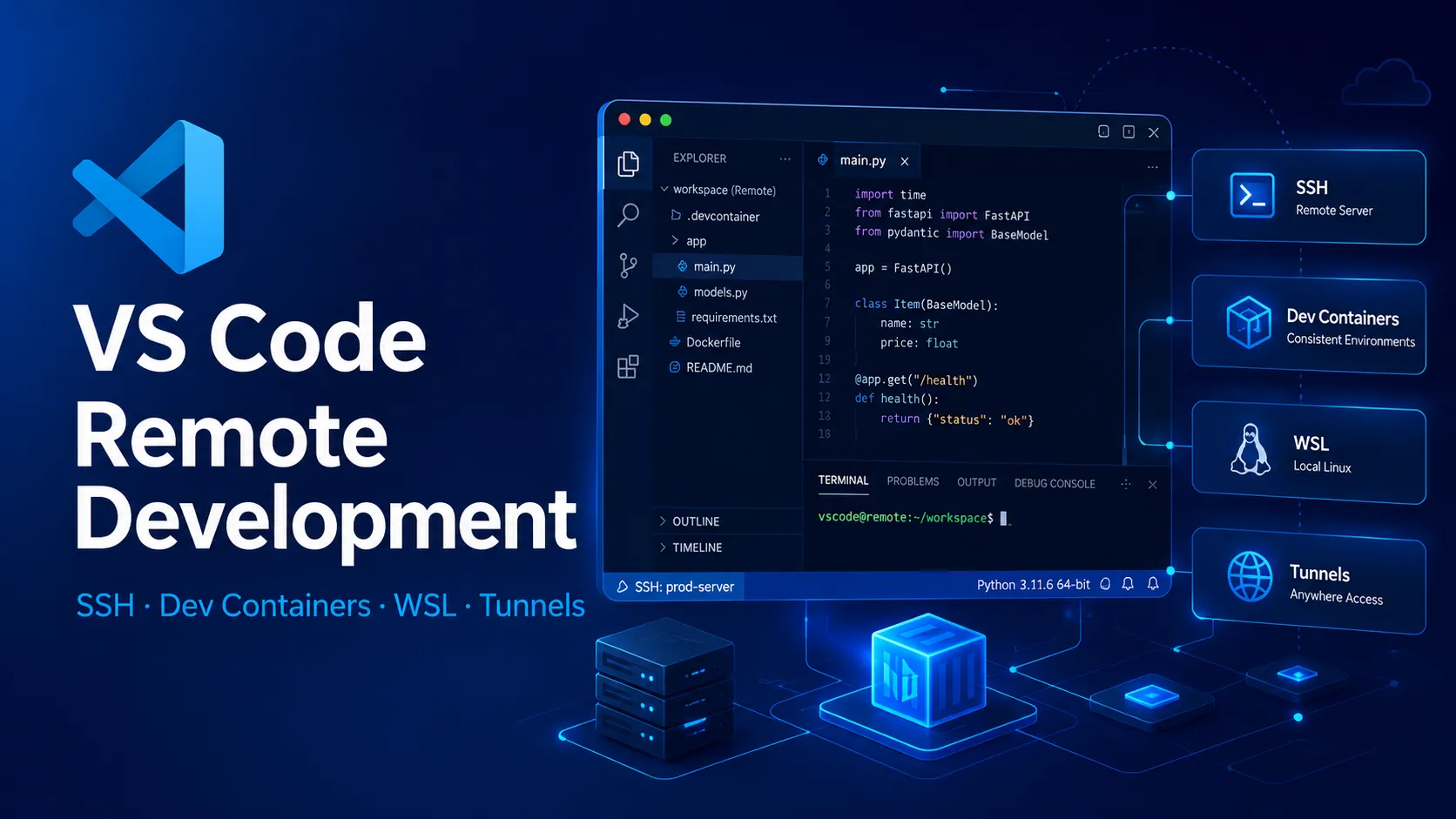
VS Code Remote Development lets developers keep the familiar VS Code interface while running code, tools, terminals, and extensions in SSH hosts, containers, WSL, or tunnels. It is a practical bridge between local editing comfort and remote compute.
VS Code Remote Development is a strong default when developers want remote execution without giving up the VS Code desktop workflow; it is less suitable when the organization wants a fully managed, browser-first, or entirely open-source remote IDE platform.
Pricing Plans
Remote Development Extension Pack
Free Microsoft extension pack for VS Code that includes Remote - SSH, Remote - Tunnels, Dev Containers, and WSL.
Remote Infrastructure
Compute, VMs, containers, SSH hosts, WSL setup, or cloud infrastructure are provided separately by the user or organization.
GitHub Codespaces
Managed cloud development environments can be opened from VS Code, but Codespaces has separate GitHub pricing and quotas.
Core Features
1Remote Targets
- Open folders on SSH hosts, VMs, or remote machines
- Develop inside Docker or compatible dev containers
- Use WSL as a Linux development environment on Windows
- Connect through Remote Tunnels without configuring SSH
2Local-Feeling Development
- Runs commands and many extensions on the remote side
- Uses VS Code Server for remote workspace access
- Supports IntelliSense, debugging, terminals, and file editing
- Keeps source code on the remote target when configured that way
3Environment Consistency
- Supports devcontainer.json for repeatable toolchains
- Matches local work to deployment operating systems
- Enables larger or specialized remote hardware
- Works across separate project-specific environments
4Enterprise Controls
- Compatible with VS Code enterprise policies
- Supports extension allowlists and private marketplace workflows
- Works with managed telemetry, update, and network policies
- Can be preinstalled in managed developer images
Pros
- Keeps the familiar VS Code desktop workflow while using remote compute.
- Excellent fit for Linux-on-Windows, containerized, and server-side development.
- Avoids copying entire source trees onto the local machine in many workflows.
- Dev Containers make team environments more reproducible.
- Remote - SSH is lightweight compared with a full browser cloud IDE.
- Works well with the broader VS Code extension ecosystem.
Cons
- Remote extensions and VS Code Server are not fully open source.
- Performance depends heavily on network quality and remote host resources.
- Some extensions behave differently when split between local and remote hosts.
- Remote Tunnels rely on Microsoft dev tunnels and may not fit locked-down environments.
- Organizations need clear extension and credential policies for remote machines.
- Not a managed environment platform by itself; infrastructure remains your responsibility.
Why Choose VS Code Remote Development?
VS Code Remote Development is best understood as a workflow layer rather than a cloud IDE. The editor remains familiar, but the project runtime moves closer to where the code actually needs to run: a Linux server, a container, WSL, a VM, a workstation, or a private environment behind a network boundary.
That makes it especially useful for teams that already have infrastructure and do not want every project to become a managed cloud workspace. Instead of changing the whole development platform, teams can standardize how developers connect to existing environments. The tradeoff is that VS Code gives the remote editing experience, but it does not automatically solve provisioning, access control, cost tracking, or lifecycle management for the machines behind it.
Core Workflow
The normal workflow starts with a local VS Code window and a remote target. After connection, VS Code shifts the workspace execution model so terminals, language services, debuggers, and many extensions run where the project lives. This is the core reason Remote Development feels different from simple file synchronization: the editor UI is local, while the development environment is remote.
For teams, the important design question is not only how to connect. It is where the source of truth should live. Some projects should live entirely in a remote machine. Others should use a reproducible container definition. Windows teams may prefer WSL for Linux compatibility without managing a separate VM. Infrastructure-heavy teams may prefer SSH into existing hosts. The best setup depends on whether the main pain is dependency drift, hardware limits, operating-system mismatch, or secure access to private resources.
Use Cases
The most practical use case is developing against an environment that is hard to reproduce locally. Examples include GPU machines, large monorepos, hardware-adjacent systems, Linux-only services, customer-site debugging, internal networks, and projects with heavy dependency stacks. In those cases, moving only the editor UI locally is simpler than trying to clone the whole runtime onto every laptop.
Remote Development is also a good fit for onboarding when the team invests in repeatable environment definitions. A new contributor can connect to a prepared host or container instead of spending a day aligning compilers, runtimes, package managers, certificates, and OS-level dependencies. The workflow becomes much stronger when combined with clear documentation, stable base images, and scripted bootstrap steps.
Comparison to Alternatives
Compared with GitHub Codespaces or Gitpod, VS Code Remote Development is less of a managed platform and more of a flexible connection model. Codespaces and Gitpod can handle provisioning and workspace lifecycle more directly, while Remote Development is better when teams already control their servers, containers, or private networks.
Compared with JetBrains Gateway, the decision often follows editor preference and language stack. JetBrains Gateway is attractive for teams invested in JetBrains IDEs, while VS Code Remote Development fits teams already standardized on VS Code and its extension ecosystem. Compared with code-server, Microsoft’s remote extensions preserve the official VS Code client workflow, while code-server is more browser-oriented and self-hosted.
Best Configuration
The strongest configuration starts with one remote pattern per project. Mixing ad hoc SSH hosts, mutable containers, and local fallbacks can create more confusion than it solves. Teams should decide whether a repository is primarily SSH-based, container-based, WSL-based, or managed through a separate workspace platform, then document that path clearly.
For container-based projects, keep the environment definition small, reproducible, and close to production without turning the container into an all-purpose developer desktop. For SSH-based projects, standardize host setup, shell defaults, authentication, file permissions, and extension expectations. For Remote Tunnels, review whether the network path is acceptable for the organization before making it the default.
Migration Notes
A migration from local-only development should begin with the slowest or most fragile projects first. Good candidates are repositories where onboarding is painful, dependencies are OS-specific, or builds exceed laptop resources. Do not migrate every project at once. Start with one workflow, measure whether setup time and build reliability improve, then turn the pattern into internal documentation.
The main migration risk is assuming that remote development is only an editor setting. In practice, it changes where credentials live, where secrets are read, where extensions execute, and how developers debug networked services. Before standardizing it across a team, review SSH keys, token storage, extension allowlists, firewall rules, and cleanup policies for old remote workspaces.
Best For
- Developers who want local VS Code UX with remote Linux, cloud, or container environments.
- Teams standardizing development environments with dev containers.
- Windows users building Linux-targeted applications through WSL.
- Engineers working on remote servers, VMs, HPC machines, or customer environments.
- Organizations that prefer owning infrastructure instead of adopting a fully managed cloud IDE.
Not Ideal For
- Teams that need a fully browser-native managed IDE with built-in workspace provisioning.
- Organizations that require every remote component to be open source.
- Products that want to embed VS Code Server into a public commercial service.
- Developers working with unstable network connections.
- Teams that do not want to manage remote machines, SSH access, containers, or endpoint security.
Privacy Notes
VS Code Remote Development installs and runs VS Code Server or remote extension components on the target environment. VS Code documentation states that telemetry can be configured or disabled, and the Remote Development FAQ says the remote extensions follow VS Code GDPR policies. Remote Tunnels transmit data through Microsoft dev tunnels, so regulated teams should review network and data-flow requirements before adoption.
Alternatives
Sources
Update History
- Jul 1, 2026: Directory entry reviewed against official VS Code Remote Development docs, Marketplace listing, FAQ, telemetry, enterprise, and VS Code Server pages.
Related Tools
More listings in a similar part of the directory.





VS Code Remote Development Articles
Guides, comparisons, and launch notes connected to this listing.