
Figma Make
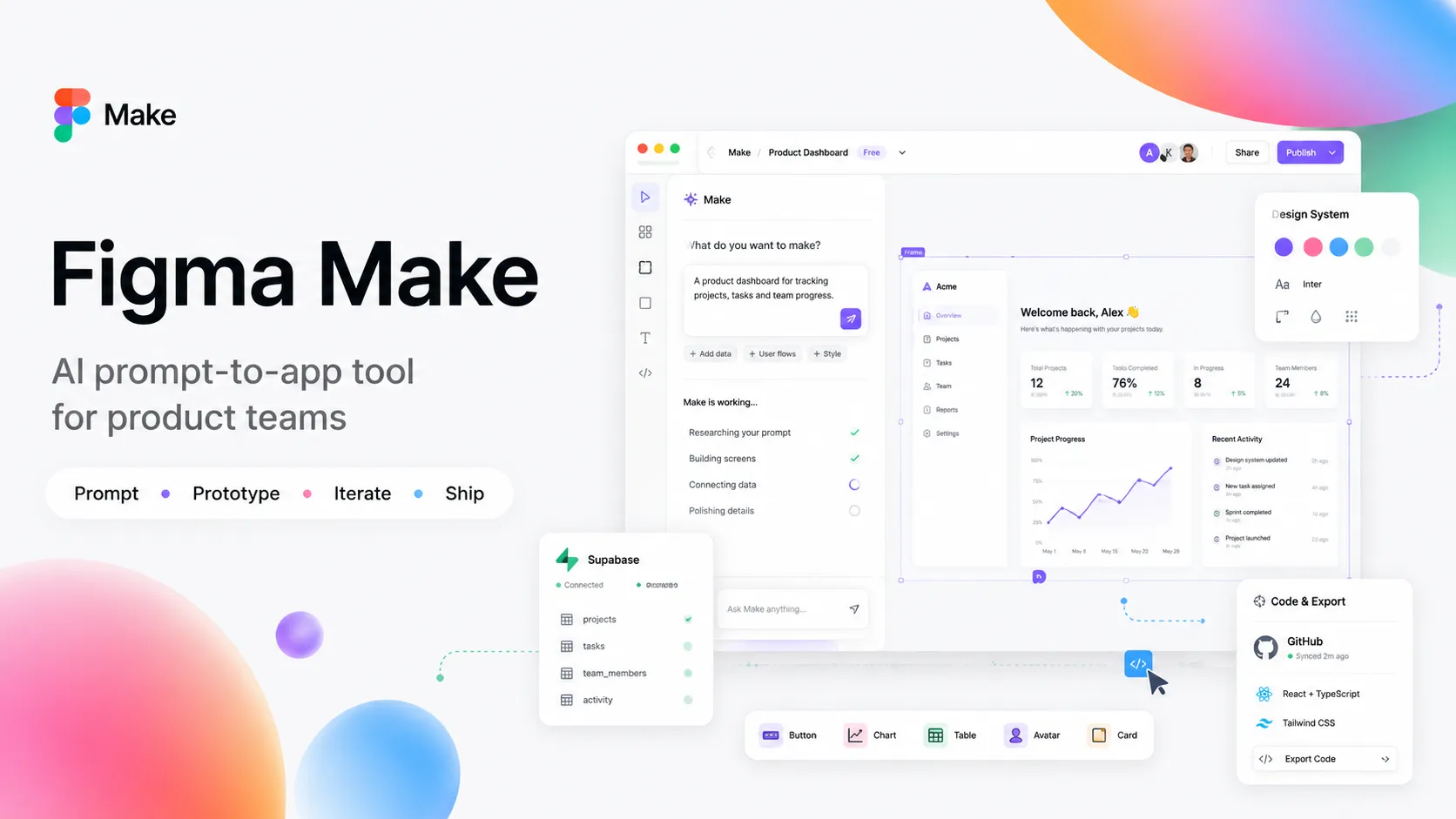
Figma Make is a design-native AI app builder that connects Figma designs, prompts, prototypes, GitHub, Supabase, and MCP-based developer workflows.
Information checked: Jun 16, 2026 ·View sources
Tool details
- Type
- App builders
- Platforms
- Browser, Figma, Figma Design, Figma Sites, GitHub, Supabase, Claude Code, Codex, Cursor, VS Code, Xcode
- Free plan
- Yes
- Open source
- No
- Bring your own key
- No
- Local models
- No
Overview
Best for
- Design-led teams turning Figma files into functional prototypes
- Product managers and designers testing app ideas before engineering handoff
- Teams that want to preserve design-system context during AI generation
- Interactive prototypes that need real data through Supabase
- Workflows that connect Figma Make prototypes to Cursor, Claude Code, Codex, VS Code, or Xcode through MCP
Strengths
- Excellent fit for teams already designing in Figma.
- Turns design files and prompts into working prototypes without leaving the Figma ecosystem.
- Strong bridge between product design, prototyping, GitHub, and AI coding agents.
- Supabase support makes it more practical for data-connected app experiments.
- Model selector, plan mode, and custom skills add more control than basic prompt-to-app tools.
Limitations & trade-offs
- Developers who want a full local IDE or terminal-first coding workflow
- Teams building backend-heavy products where UI prototyping is not the bottleneck
- Projects that require immediate production-grade code without engineering review
- Organizations that cannot allow cloud AI tools to process design or product context
- Teams outside the Figma ecosystem that do not use Figma files, libraries, or design systems
- Full Figma Make access is centered on Full seats in paid Figma plans.
- AI credit usage varies by model, complexity, and context size.
- Generated apps still need engineering review before production use.
- Not a replacement for a full IDE, backend platform, or production deployment pipeline.
- Some advanced workflows depend on Figma-specific products such as libraries, MCP, Dev Mode, and team permissions.
Get started
Pricing & usage limits
Official pricingFree tier · From $16
Free limited access to Figma products with 150 AI credits/day, up to 500 AI credits/month.
Paid Full seat with unlimited files/projects, team libraries, MCP Server, and 3,000 AI credits/month.
Annual plan with unlimited teams, shared libraries, centralized admin tools, and 3,500 AI credits/month.
Annual enterprise plan with advanced security, custom workspaces, SCIM seat management, and 4,250 AI credits/month.
Additional shared AI credits can be purchased through pay-as-you-go or subscription options.
Pricing checked: Jun 16, 2026 · Subscription, usage limits, and model costs may be billed separately.
Features & details
Prompt-to-App Creation
- Generate functional prototypes from prompts
- Start from existing Figma designs
- Iterate through AI chat
- Interactive preview with generated code
Design-Aware Editing
- Point and edit specific UI elements
- Attach Figma designs to prompts
- Use style context from Figma libraries on paid plans
- Copy previews back as editable Figma Design layers
Code and Handoff
- Direct code editing inside Figma Make
- Export code based on seat permissions
- Push Make projects to GitHub
- Use Make context through Figma MCP resources
App Data and Publishing
- Supabase backend connection
- Secret and API key storage through Supabase
- Public web publishing
- Figma Community publishing workflow
AI Control
- Model selector for Figma Make
- Plan mode for complex tasks
- Custom skills on paid plans
- AI credit visibility after prompts
Why Choose Figma Make?
Figma Make is most compelling when the design file is already the center of the product workflow. Instead of exporting static specs or asking an AI coding tool to infer intent from screenshots, teams can start from actual Figma context and use AI to generate an interactive prototype or early web app directly inside the same ecosystem.
That gives Figma Make a different role from a typical AI code editor. It is less about replacing engineering work and more about compressing the distance between product idea, interface design, user testing, and implementation exploration. Designers can move beyond clickable mockups, PMs can test workflows earlier, and engineers can receive a more concrete artifact than a static design handoff.
Core Workflow
A strong Figma Make workflow usually starts with a well-scoped frame, product requirement, or existing design system. The first prompt should explain what the prototype needs to prove: the target user, key interactions, data assumptions, states, and constraints. Figma Make can then generate the first working version and continue through chat-based iteration.
For small refinements, point-and-edit is usually faster than rewriting a full prompt. For larger changes, plan mode is a better fit because it gives the model a chance to inspect context and align on scope before generating or changing code. For repeatable team workflows, custom skills can turn design reviews, accessibility checks, or product-specific conventions into reusable instructions.
The most important habit is to treat each Make file as an experiment with a clear purpose. A prototype for usability testing, a prototype for stakeholder buy-in, and a prototype intended for engineering handoff should be prompted and reviewed differently.
Use Cases
Figma Make works well for onboarding flows, dashboards, lightweight SaaS concepts, internal tools, landing-page interactions, product concept demos, design-system examples, and prototypes that need more realistic behavior than Figma’s traditional prototyping mode.
It is especially useful when a team needs to validate interaction logic before engineering commits to a build. For example, a designer can attach a Figma frame, ask Make to turn it into a responsive flow, add sample data, connect Supabase if needed, and publish a working version for feedback.
Comparison to Alternatives
Compared with Lovable and Bolt.new, Figma Make is more tightly integrated with the design process. Lovable and Bolt.new may be better when the goal is to quickly create a standalone web app from a blank prompt, while Figma Make is stronger when the project begins with Figma assets, design-system context, and design review workflows.
Compared with v0, Figma Make is less narrowly focused on React component generation and more focused on turning design intent into a functional prototype. v0 is often a better fit for developers building production React and Next.js interfaces, while Figma Make is better for product teams that want to iterate inside Figma before deciding what should become production code.
Compared with Cursor or Claude Code, Figma Make is not a general coding environment. The stronger workflow is complementary: use Figma Make to create and validate the prototype, then use Figma MCP and GitHub to carry relevant context into an engineering tool.
Best Configuration
For teams already using Figma professionally, the best setup is to keep design libraries clean, name frames and components clearly, and use style context intentionally. Figma Make performs better when the source design is structured enough for the model to understand hierarchy, intent, and reusable patterns.
For developer handoff, connect GitHub early and use MCP resources when moving from prototype to production. The goal is not to blindly paste generated code into the main app. Instead, engineers should extract the useful structure, behavior, and styling intent, then adapt it to the production framework, component library, routing model, and data layer.
For teams using AI credits carefully, reserve heavier models and plan mode for complex tasks. Use simpler prompts and smaller context selections for routine edits so credit usage stays predictable.
Migration Notes
Teams moving from traditional Figma prototypes should start by converting a single high-value flow rather than an entire product surface. Pick a flow where real interaction matters: setup, checkout, dashboard filtering, onboarding, or an AI feature demo. This makes it easier to evaluate whether Figma Make improves decision-making instead of just creating a more impressive demo.
Teams moving from prompt-to-app tools should treat Figma Make as a design-first layer rather than a full-stack replacement. It can generate useful interactive web apps, but productionization still requires review of architecture, accessibility, security, data handling, and maintainability.
For organizations with strict IP or data policies, review AI feature access, content training settings, publishing controls, and Supabase secret handling before enabling broad usage. The best rollout is usually controlled: start with non-sensitive prototypes, define what data can be used in prompts, and document when a Make output is allowed to move into engineering review.
Model support & data privacy
Supported models
- Gemini 3 Flash
- Gemini 3.1 Pro
- Claude Sonnet 4.6
- Claude Opus 4.7
- GPT-5.5
Privacy & data handling
Figma Make is part of Figma AI. Figma’s AI Terms state that user Input and Output are Customer Content and that customers retain rights to them. Figma says content training is optional through admin settings; Professional teams have content training on by default, while Organization and Enterprise plans have it off by default. Teams should review AI settings, privacy terms, and Supabase/API key handling before using proprietary designs, customer data, or regulated information.
Guides, reviews & fixes
View allNo published guides yet. Start with the official documentation above.
Product updates
No verified product updates listed yet. Follow this tool to see new relevant content in Saved.
See the content timelineAlternatives
Sources & verification
Verification dates record when this directory checked the information. Product release dates appear separately above.
Directory revision history
Created initial directory entry using official Figma Make, pricing, help center, developer documentation, AI terms, and privacy sources.