


Cursor
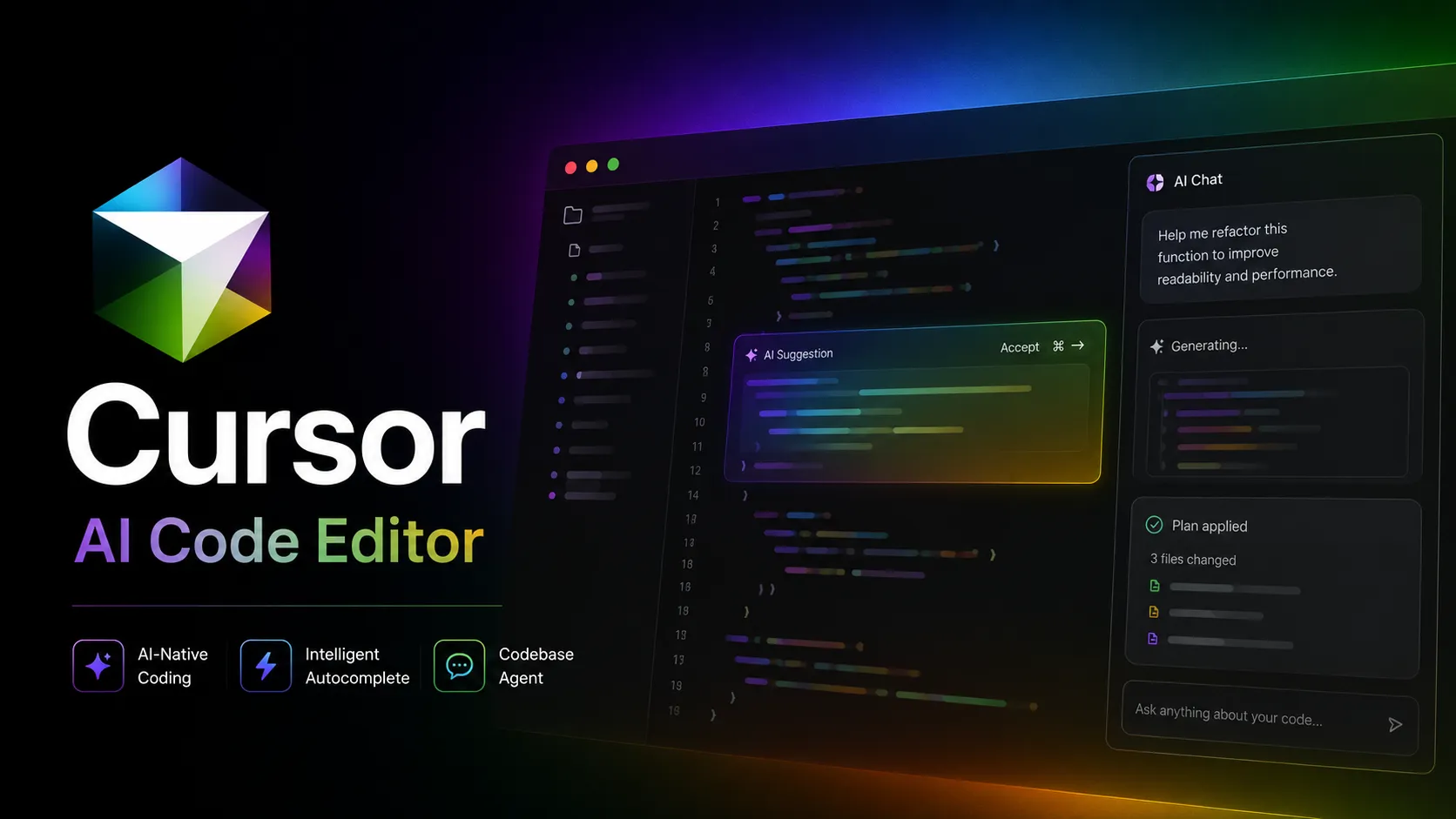
Cursor is an AI coding and cloud development platform that combines a VS Code-based editor, local and cloud agents, CLI workflows, Origin code hosting, repository collaboration, and prompt-to-app creation.
Information checked: Aug 29, 2026 ·View sources
Tool details
- Type
- AI editors
- Platforms
- macOS, Windows, Linux
- Free plan
- Yes
- Open source
- No
- Bring your own key
- Yes
- Local models
- No
Overview
Best for
- Developers who want an AI-first editor without leaving the VS Code-style workflow.
- Teams working in medium to large codebases where repository context matters.
- Builders who use AI for refactoring, feature implementation, debugging, tests, and code review support.
- Organizations that need admin controls, SSO, usage analytics, and privacy settings.
Strengths
- Feels familiar for VS Code users while adding AI-native workflows.
- Strong balance between autocomplete, inline edits, chat, and agentic coding.
- Good fit for large existing codebases because context is central to the product.
- Supports BYOK for major model providers.
- Team and Enterprise plans include practical admin and governance controls.
Limitations & trade-offs
- Developers who require a fully open-source editor.
- Teams that need all inference to stay strictly local by default.
- Users who only want lightweight autocomplete and do not need agentic workflows.
- Organizations that cannot allow code context to pass through a vendor-managed backend.
- Pricing can become harder to predict for heavy agent users because usage is plan-based and may include on-demand usage.
- BYOK requests still pass through Cursor backend for prompt construction.
- Local model workflows are not as straightforward as pure local-first editors.
- Teams moving from VS Code should still review extension compatibility and policy requirements.
- Agentic coding requires disciplined review to avoid accepting broad changes too quickly.
Get started
Pricing & usage limits
Official pricingFree tier · From $20
Hobby$0 / month
Free plan with limited Agent requests and limited Tab completions.
Pro$20 / month
Individual plan with extended Agent limits, frontier model access, MCPs, skills, hooks, and cloud agents.
Teams$40 / user/month
Team plan with centralized billing, admin controls, usage analytics, team privacy mode, SAML/OIDC SSO, and team marketplace.
EnterpriseCustom
Custom plan with pooled usage, invoice billing, SCIM, repository/model/MCP controls, audit logs, service accounts, and priority support.
Pricing checked: Jun 4, 2026 · Subscription, usage limits, and model costs may be billed separately.
The X Subscription (X Pass) Explained: Pricing, Grok, Cursor, Hidden Costs, and Whether It's Worth Switching in 2026Cursor 2.0 Deep Dive: Composer, Multi-Agent Coding, Pricing, Security Risks, and the AI IDE RaceEveryGen MCP Guide 2026: Setup, AI Video Tools, Pricing, and Both Servers ExplainedFeatures & details
AI Coding Workflow
- Context-aware code completion
- Inline editing with natural language
- Repository-aware chat and agent workflows
- Cloud agents for delegated tasks
Codebase Context
- Semantic codebase search
- Project indexing
- Rules and reusable instructions
- MCP, skills, and hooks support
Team & Enterprise Controls
- Centralized billing and administration
- Usage analytics
- SAML/OIDC SSO
- Team-wide privacy mode
- Model, repository, and MCP access controls on Enterprise
Cloud Development Platform
- Origin repositories and pull requests
- GitHub synchronization and code browsing
- Cloud-agent subscriptions and long-running goals
- Custom Modes and isolated subagent VMs
- Start-from-scratch app generation with live browser preview
- Vercel publishing workflow
Why Choose Cursor?
Cursor is most useful when AI is not just an autocomplete layer, but part of the whole coding loop. The editor combines familiar VS Code-style navigation with AI actions that can read project context, modify files, explain code, create tests, and work through larger changes.
The main reason to choose Cursor is workflow density. Instead of copying snippets between a browser chat window and an editor, the AI can operate where the code already lives. That makes it especially practical for refactoring, debugging, onboarding into unfamiliar repositories, and making small product changes across multiple files.
Cursor also appeals to teams because it does not force a completely new mental model. Developers who already know VS Code can usually understand the basic editor quickly, while gradually adopting AI-first habits such as rules, codebase questions, agent tasks, and review loops.
Core Workflow
A good Cursor workflow usually starts with narrow assistance and expands toward delegation. For example, a developer might use Tab for fast completions, ask chat to explain a file, use inline editing to rewrite a function, then ask an agent to implement a scoped task with tests.
The strongest pattern is to keep the AI close to the repository's actual constraints. Cursor works better when the project has clear structure, readable naming, tests, linting, and written conventions. Rules and project instructions can help the assistant follow house style instead of producing generic code.
For agentic work, the best habit is to treat Cursor like a junior pair programmer with very fast execution. Give it a concrete target, ask for a plan when the change is broad, review diffs carefully, and run tests before merging. The productivity gain comes from compressing repetitive steps, not from skipping engineering judgment.
Use Cases
Cursor is a strong fit for feature work that touches several files but still has clear acceptance criteria. Examples include adding a new API route, wiring a UI state flow, migrating a component, writing tests around existing logic, or finding the cause of a bug across a codebase.
It is also useful for codebase learning. New contributors can ask why a module exists, where a function is called, how a request flows through the app, or what files are likely involved in a change. This makes Cursor valuable not only for writing code, but also for reducing repository navigation cost.
For solo builders, Cursor can speed up prototype loops: generate a first implementation, inspect the result, tighten the prompt, then manually polish the final UX and edge cases. For teams, the value is more about consistency, reviewability, and reducing repetitive implementation work.
Comparison to Alternatives
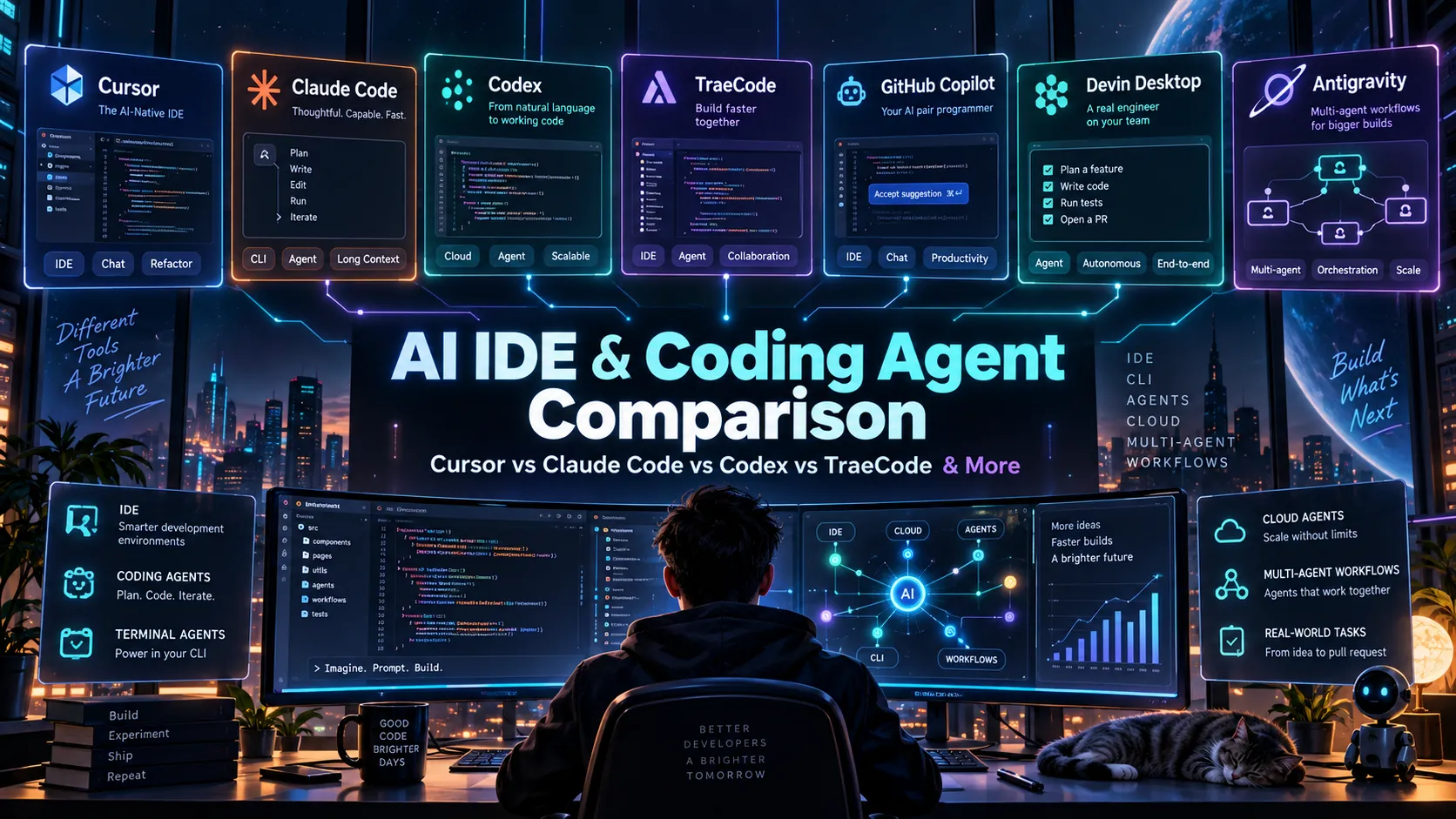
Compared with GitHub Copilot, Cursor feels more like a dedicated AI workspace than a plugin-style assistant. Copilot is often easier to adopt inside existing editor setups, while Cursor is more attractive when the team wants the editor itself to be designed around AI workflows.
Compared with terminal-first agents such as Claude Code or Codex-style tools, Cursor keeps the feedback loop visual. You can inspect files, diffs, diagnostics, and generated changes inside the editor. Terminal agents may be better for shell-heavy automation, while Cursor is often more comfortable for interactive code editing.
Compared with other AI IDEs such as Windsurf or Trae, the decision usually comes down to editor feel, model behavior, pricing tolerance, team governance, and how well the agent follows your repository conventions. Cursor has strong mindshare, but teams should still test it on their own codebase rather than choosing only by popularity.
Best Configuration
For individual developers, the best setup is usually to start with Privacy Mode enabled, index only the repositories where AI context is useful, and create project rules for naming conventions, test commands, framework assumptions, and preferred patterns.
For teams, configuration matters more than the editor install. Admins should define model access, review privacy settings, document approved MCP servers, and decide when agents may run commands automatically. Usage analytics can help identify whether developers are mostly using autocomplete, chat, or heavier agent tasks.
A practical Cursor rollout should include a short internal guide: how to prompt for changes, how to review AI-generated diffs, which commands are safe to auto-run, which files should not be edited by agents, and how to handle security-sensitive code.
Migration Notes
Teams moving from VS Code should review extension compatibility, workspace settings, devcontainer behavior, and security policy before a full migration. Cursor is familiar, but it is still a separate editor with AI-specific data flows and administrative settings.
The cleanest migration path is gradual. Start with a few engineers using Cursor on non-critical workflows, collect examples of useful prompts and failure cases, then turn those lessons into shared rules and team documentation.
For regulated or security-sensitive environments, the key question is not whether Cursor is productive, but whether its code indexing, prompt routing, model provider usage, and admin controls match internal policy. Enterprise controls can help, but they should be reviewed before broad adoption.
Practical Tradeoffs
Cursor's biggest advantage is also its main risk: it makes large code edits feel easy. That can accelerate real work, but it can also encourage shallow review if developers accept generated changes too quickly.
The best users are not passive. They break tasks into smaller prompts, ask for reasoning when needed, read the diff, run tests, and keep architectural decisions human-owned. Used that way, Cursor can become a productive coding environment rather than just a novelty AI layer.
August 2026 Platform Update: Origin and Cloud Agents
Cursor is no longer only an AI code editor. Its August 2026 releases add a repository and cloud-development layer around the editor:
- Origin code hosting: Cursor introduced repositories, pull requests, code browsing, and GitHub synchronization so agents can work directly around a hosted repository.
- Cloud-agent subscriptions and goals: Cloud Agents gained subscriptions, long-running
/goalworkflows, Custom Modes, and subagents that can run in separate virtual machines. - Start from scratch: A user can begin with a prompt without first connecting an existing source-control repository. Cursor creates the application, can save it to an Origin repository, and provides a browser live preview.
- Publishing path: The start-from-scratch workflow includes a route to publish through Vercel, bringing Cursor into direct comparison with prompt-to-app builders.
These changes move Cursor toward an AI coding and cloud development platform. Teams should now evaluate repository governance, agent compute, hosting lock-in, preview security, and the editor experience together rather than treating Cursor as an autocomplete product.
Official source: Cursor changelog.
Model support & data privacy
Supported models
- OpenAI
- Anthropic
- Azure
- AWS Bedrock
Privacy & data handling
Cursor offers Privacy Mode, which is intended to prevent code from being used for training and to enable zero-data-retention behavior with model providers. Cursor also states that BYOK requests still go through Cursor backend for final prompt building, and codebase indexing may upload code chunks to compute embeddings.
Guides, reviews & fixes
View all 32

Product updates
Official changelogCursorTool news
OpenAI Plans to End GPT Access in Cursor After the SpaceX AcquisitionOpenAI plans to end direct GPT model access in Cursor after its SpaceX acquisition. See what is confirmed, what remains unclear, and how developers should prepare.
Alternatives
 GitHub CopilotGitHub Copilot is a mainstream AI code assistant and developer workflow layer for teams that want AI support inside existing editors, GitHub repositories, pull requests, and terminal workflows.Cursor vs GitHub Copilot
 WindsurfWindsurf, now transitioning under the Devin Desktop brand, is an AI-native IDE for developers who want coding agents, codebase context, and editor workflows in one desktop environment.Cursor vs Windsurf
 TRAE / TraeCodeTRAE combines TraeCode, an AI coding environment for working with source files, and TraeWork, a task-oriented AI work assistant. This page focuses on choosing and setting up the coding workflow, reviewing changes and understanding subscription usage.Cursor vs TRAE / TraeCode
 Claude CodeClaude Code is Anthropic's terminal coding agent for repository work, subagents, hooks, MCP, and automation, with growing operational tooling for API cost analysis and feedback.Cursor vs Claude Code
 Codex CLIOpenAI Codex CLI is a terminal coding agent that combines repository editing and command execution with task-to-task coordination, parallel workflows, hooks, and the broader Codex platform.Cursor vs Codex CLI
 Zed AIZed AI is an open-source standalone AI code editor positioned around speed, agent review, flexible model access, and collaboration rather than VS Code compatibility.Cursor vs Zed AI
Sources & verification
Verification dates record when this directory checked the information. Product release dates appear separately above.
Official websiteCursor official websiteCursor pricingCursor BYOK documentationCursor data use and privacy overviewCursor enterprise model and integration managementCursor changelog
Directory revision history
Added Origin code hosting, cloud-agent subscriptions and goals, isolated subagent VMs, and start-from-scratch app creation with live preview.
Created directory profile with current pricing, privacy, BYOK, and enterprise governance notes.