

TRAE / TraeCode
TRAE combines TraeCode, an AI coding environment for working with source files, and TraeWork, a task-oriented AI work assistant. This page focuses on choosing and setting up the coding workflow, reviewing changes and understanding subscription usage.
Information checked: Sep 21, 2026 ·View sources
Tool details
- Type
- AI editors
- Platforms
- macOS, Windows, Linux
- Free plan
- Yes
- Open source
- No
- Bring your own key
- Not verified
- Local models
- Not verified
Overview
Best for
- Describe one observable result: for example, add a required field to an existing form and show an error without submitting invalid data. Include the relevant files, existing validation helper and the behavior that must stay unchanged.
- TraeCode is the starting point when your work depends on a repository, editor extensions, a terminal and reviewing file changes. TraeWork starts from tasks and deliverables. The names describe different working surfaces; do not assume that a feature, cloud-task limit or setup instruction applies equally to both. Older TRAE IDE tutorials can still explain useful concepts, but their interface labels may no longer match your installation.
Strengths
TRAE combines TraeCode, an AI coding environment for working with source files, and TraeWork, a task-oriented AI work assistant. This page focuses on choosing and setting up the coding workflow, reviewing changes and understanding subscription usage.
Limitations & trade-offs
No limitations documented yet.
Get started
Pricing & usage limits
Official pricingFree tier · From $20 · per month
Free$0 / month
Auto mode with limited usage and autocomplete.
Pro$20 / month
$20 monthly usage; Auto and available models; unlimited autocomplete; up to 10 TraeWork cloud tasks at once.
Pro+$60 / month
$60 monthly usage; up to 15 concurrent TraeWork cloud tasks.
Ultra$200 / month
$200 monthly usage; model early access; up to 20 concurrent TraeWork cloud tasks.
Pricing checked: Oct 3, 2026 · Subscription, usage limits, and model costs may be billed separately.
TRAE Pricing: TraeCode & TraeWorkTrae AI IDE Pricing 2026: The $3–$100 Plans, Hidden Usage Math, and Who Should PayFeatures & details
TraeCode, TraeWork and the older TRAE IDE name
TraeCode is the starting point when your work depends on a repository, editor extensions, a terminal and reviewing file changes. TraeWork starts from tasks and deliverables. The names describe different working surfaces; do not assume that a feature, cloud-task limit or setup instruction applies equally to both. Older TRAE IDE tutorials can still explain useful concepts, but their interface labels may no longer match your installation.
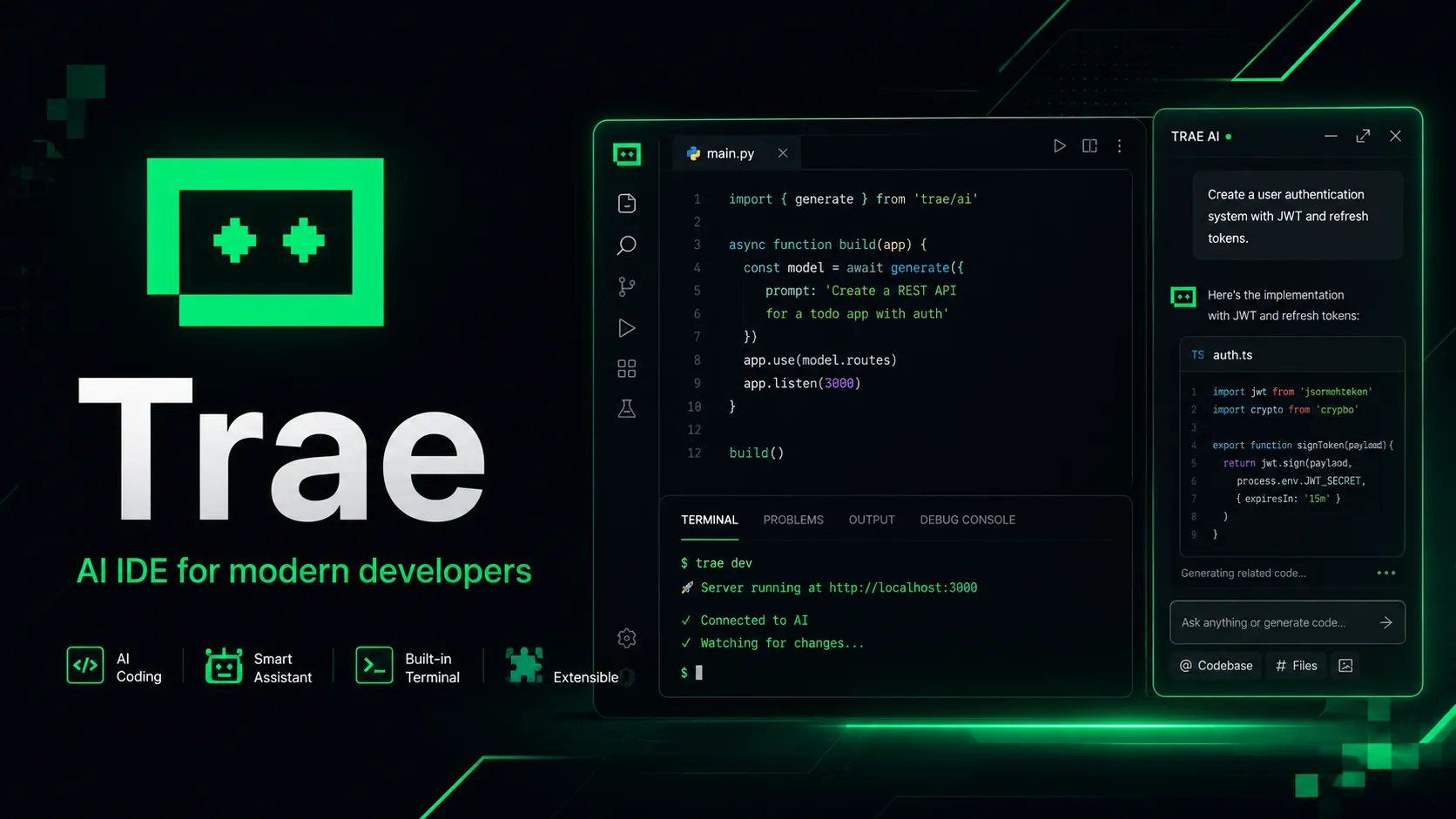
The developer-focused TRAE environment, with IDE and SOLO modes for working on software projects.
AI-native IDE · TRAE / ByteDance · macOS · Windows · Linux
Compare TraeWork and TraeCode , or visit the official download guide .
Suitable workflows
Developers who want code navigation and an agent in the same workspace.
Limitations and billing
Usage is metered. Check the model picker and regional plan before moving an existing workflow.
Capabilities we verified
Agent workflow · MCP · Rules / instructions · Skills · Memory
This is an evidence-based shortlist, not an exhaustive feature inventory. Omitted capabilities have not been checked for this record.
Pricing & usage
Paid from $20/mo
Subscription + metered model usage. The cost of metered usage or an external agent can be separate from the subscription.
Models & access
The official model list is dynamically rendered. Check the in-app picker; this guide does not promise specific model versions.
Project evaluation checklist
- Open a small, familiar project and confirm that your essential language tooling works.
- Give the agent one bounded change with an observable acceptance criterion.
- Review the diff, run the project’s checks and compare the result with your current workflow.
- Inspect usage after the task. Estimate a month of similar work, including any separate model or agent bill.
A complete first task: change, verify and review
-
Choose a small repository that already builds. Save a clean Git checkpoint and write down the command that currently passes. This gives you a baseline for distinguishing an existing problem from a generated regression.
-
Describe one observable result: for example, add a required field to an existing form and show an error without submitting invalid data. Include the relevant files, existing validation helper and the behavior that must stay unchanged.
-
Ask for a short plan before editing. Check that it names the affected components, data flow and verification command. Resolve missing context before allowing a broad refactor.
-
Review the diff in small batches. Check dependencies, generated files, environment variables and error handling as well as the visible result. Run the project checks and exercise both the successful and failing paths.
-
Inspect the usage record after the task. Record the accepted outcome, review time and usage consumed. Repeat on a second representative task before choosing a paid plan or moving a team workflow.
A task brief you can adapt
Goal: describe the user-visible change.
Context: list the relevant files and existing implementation.
Constraints: keep the public API and use the existing dependencies.
Verification: run the repository's documented checks and test the failure path.
Completion: summarize changed files, checks performed and remaining limitations.
When the result is not usable
A successful request does not prove the code works. If the agent edits the wrong files, reduce the scope and supply the entry point explicitly. If a command fails, reproduce it in the same terminal environment before changing the prompt. If an MCP connection fails, separate server startup, credentials and client configuration. If usage is exhausted, check the account balance and selected model before repeating the same request. Keep a failed patch small enough to revert without losing unrelated work.
Common questions before you switch
Does a paid subscription mean unlimited agent work?
No. Subscription price, included usage, model access and additional usage are different things. A plan with unlimited autocomplete does not imply unlimited model requests or cloud tasks.
Should I connect every MCP server at once?
Start with the one integration needed by your current task. Confirm that it starts, exposes the expected tools and receives only the intended project context before adding another.
How should I compare two AI editors?
Use the same repository, task and acceptance checks. Compare correct changes, review effort, setup friction and recorded usage. A long feature list does not establish which editor produces better code for your project.
Related TRAE guides
- TRAE product overview
- Trae IDE / TraeCode Download
- TraeCode Guide
- TraeWork Guide
- TRAE Pricing: TraeCode & TraeWork
- TRAE Models & Model Access
- TraeWork vs TraeCode (Trae IDE)
- Trae MCP Setup & Troubleshooting
- Rules for AI Coding Workflows
- Skills, Rules & MCP: What to Use
- TRAE Troubleshooting
International monthly USD snapshot checked on October 3, 2026. Taxes, annual billing, regional products and additional usage may differ. Included usage is not an unlimited token allowance.
Model support & data privacy
Privacy & data handling
Trae provides a privacy policy and a privacy mode document, but developers working with proprietary code should review data handling terms, disable nonessential data sharing where available, and avoid sending secrets or sensitive repositories to AI features.
Guides, reviews & fixes
View all 20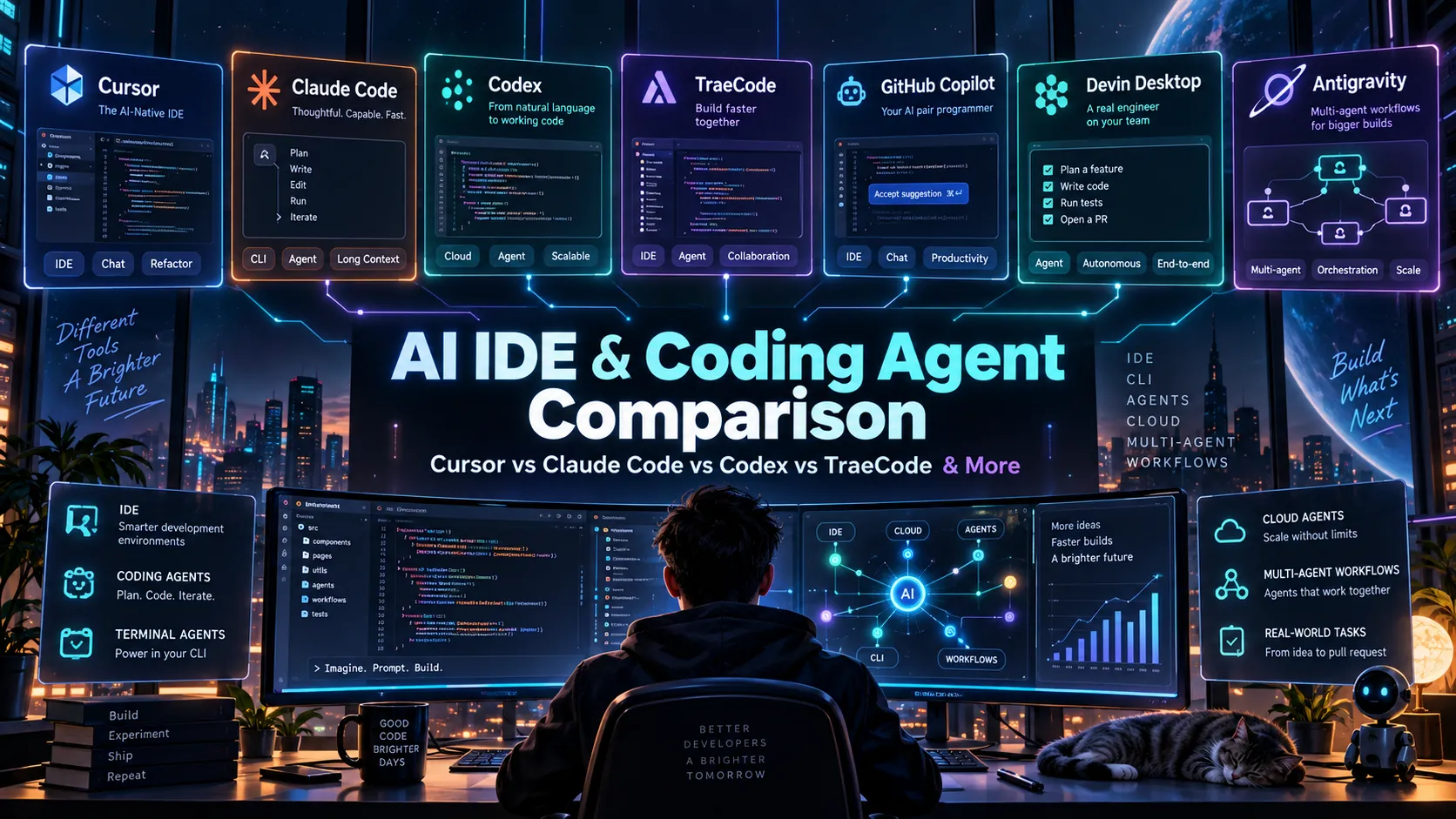
AI IDE & Coding Agent Comparison 2026: Cursor vs Claude Code vs Codex vs TraeCode and More
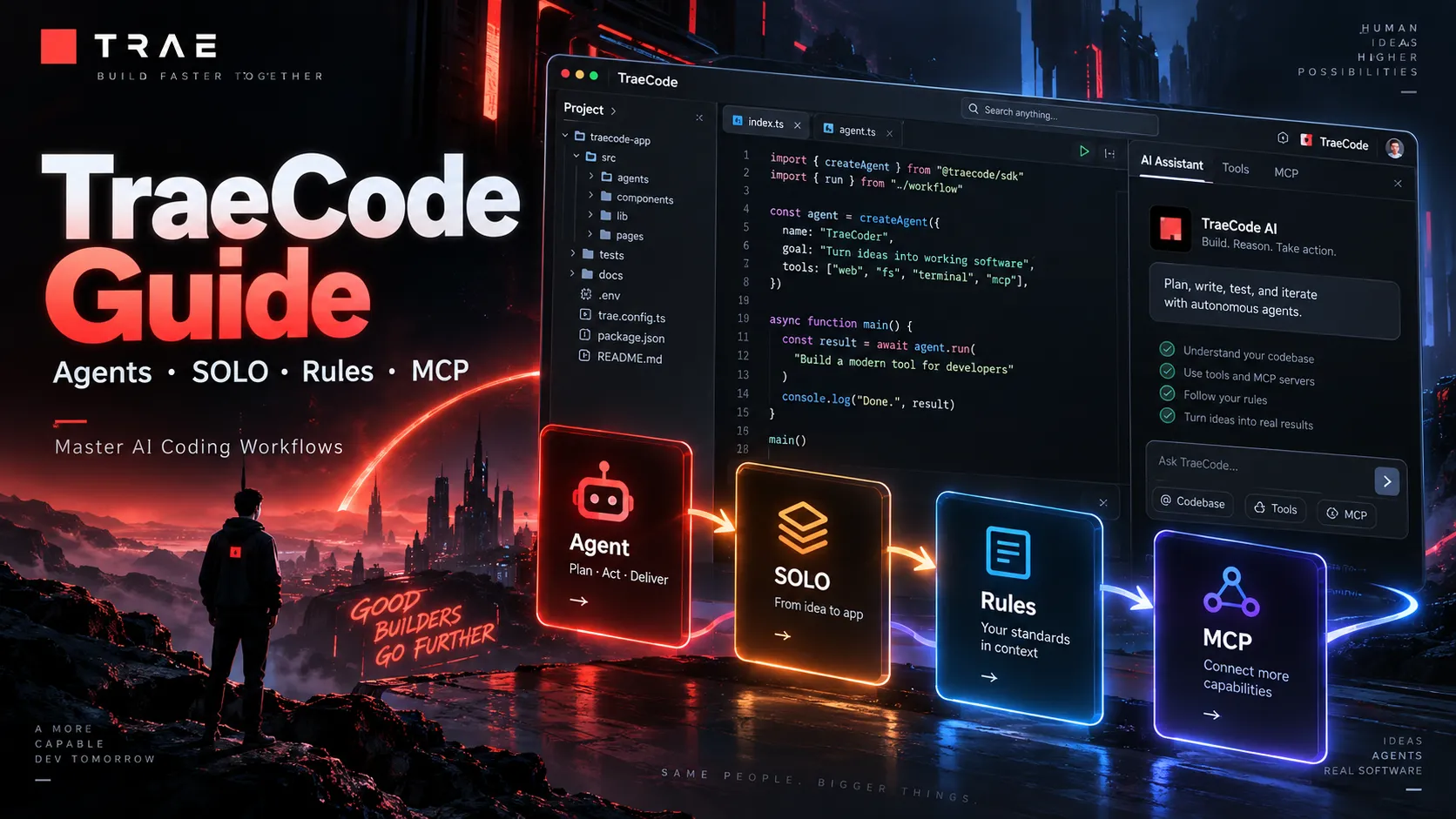
TraeCode Guide: How to Use TRAE for AI Coding, Agents, SOLO, Rules, MCP, and Real Projects
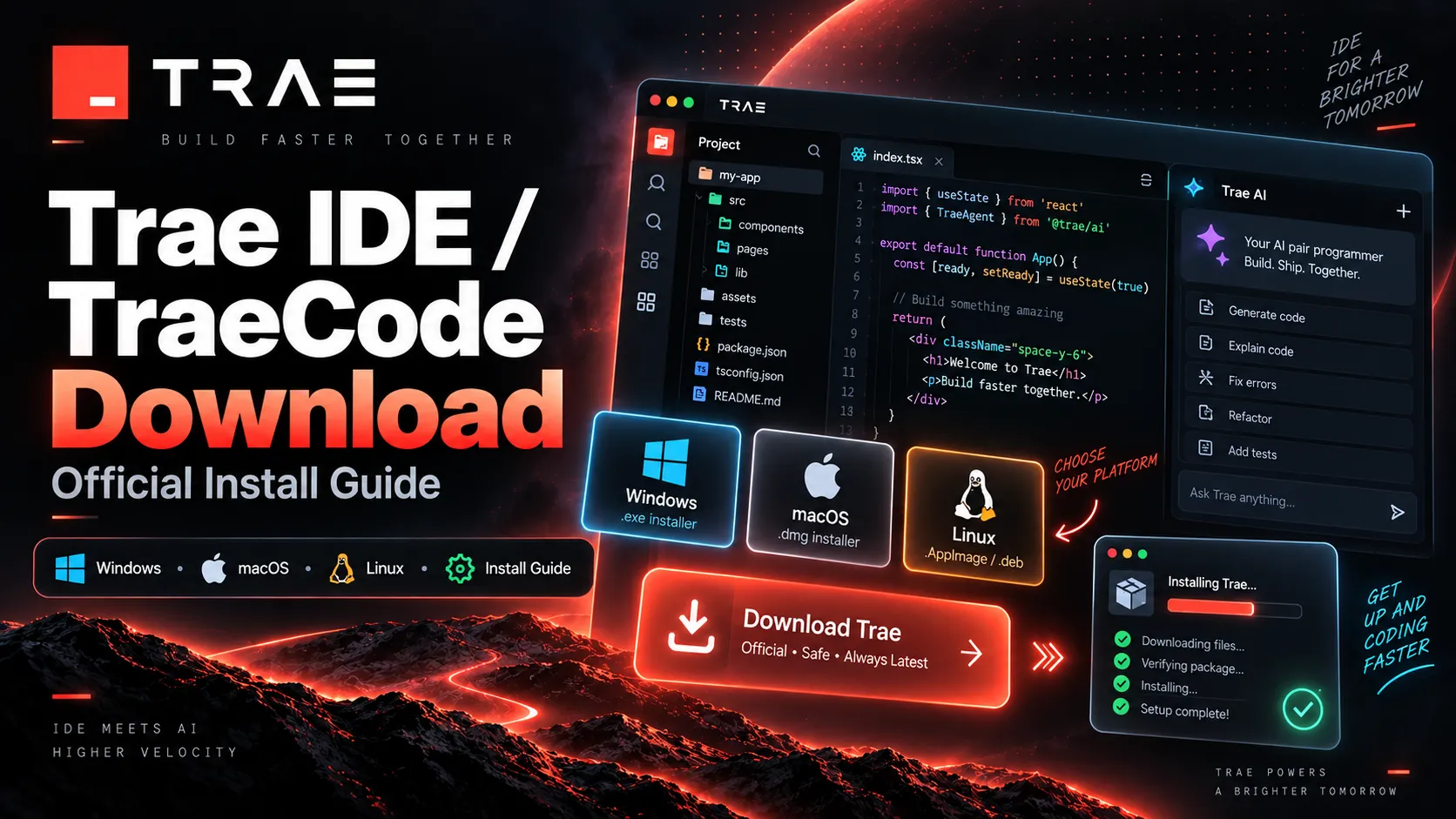
Trae IDE / TraeCode Download: Official Installation Guide for Windows, macOS, and Linux
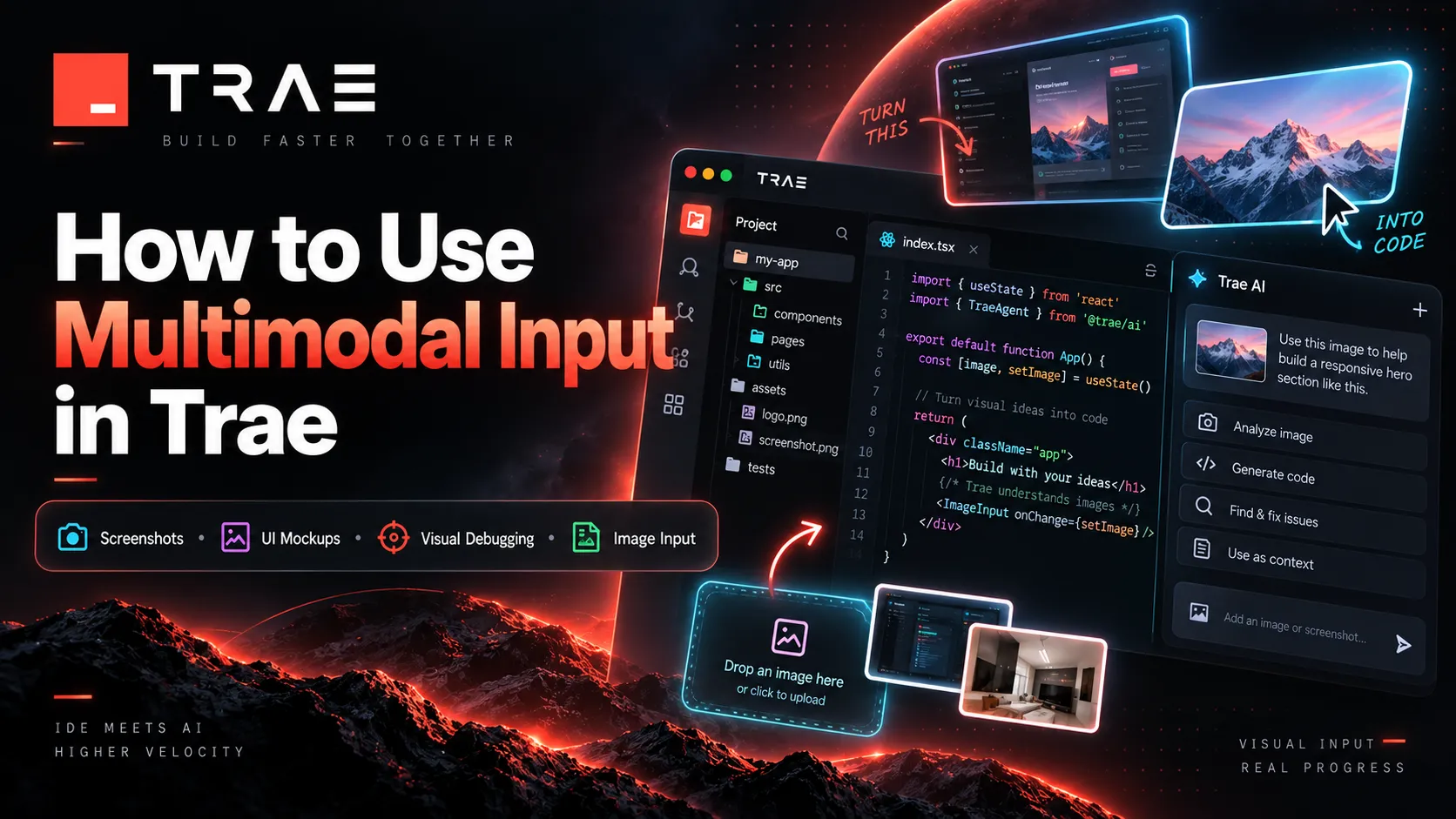
How to Use Multimodal Input in Trae: Images, Screenshots, UI Mockups, and Visual Debugging
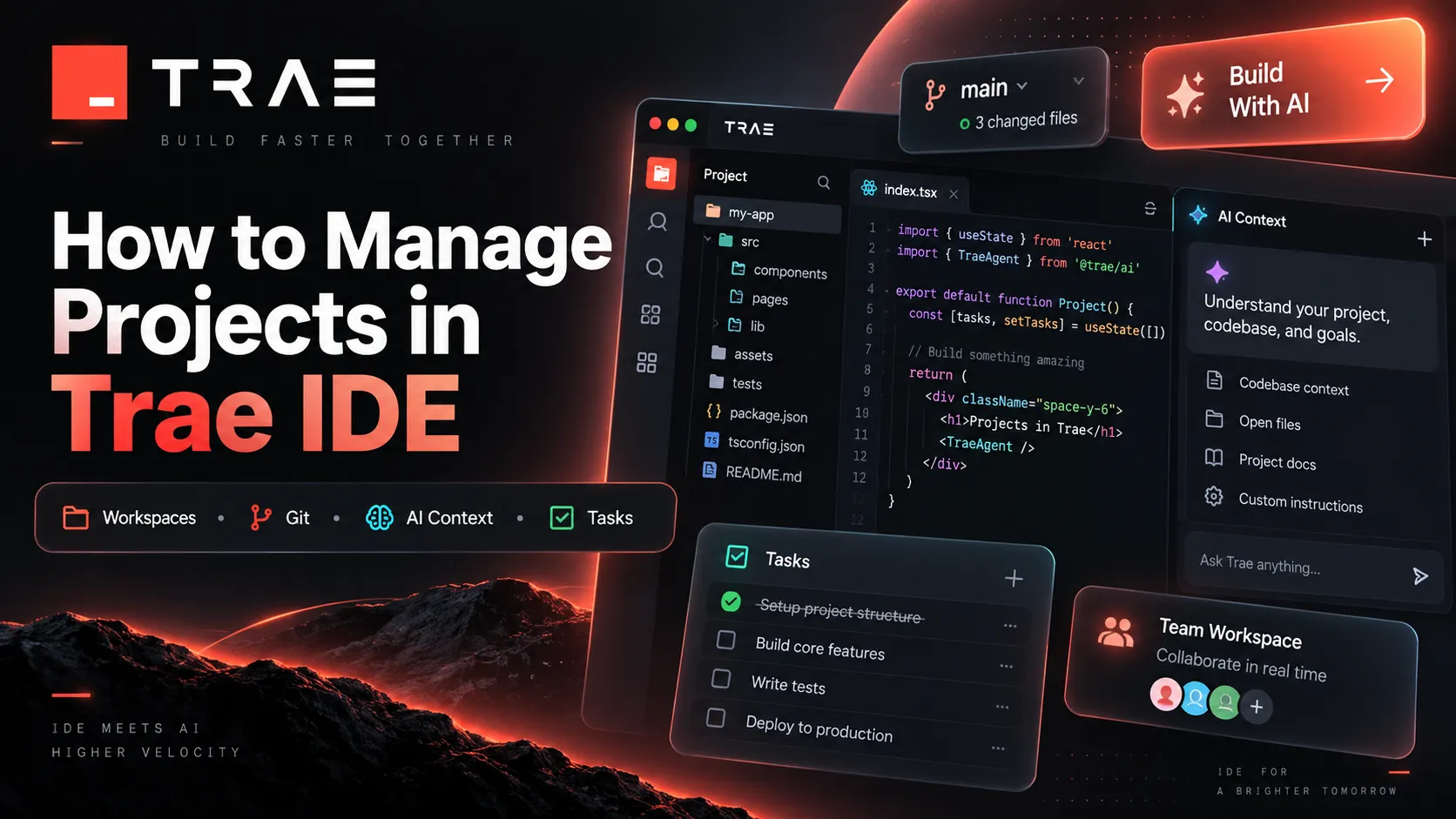
How to Manage Projects in Trae IDE: Workspaces, Git, AI Context, and Tasks
Product updates
No verified product updates listed yet. Follow this tool to see new relevant content in Saved.
See the content timelineAlternatives
 CursorCursor is an AI coding and cloud development platform that combines a VS Code-based editor, local and cloud agents, CLI workflows, Origin code hosting, repository collaboration, and prompt-to-app creation.TRAE / TraeCode vs Cursor
 WindsurfWindsurf, now transitioning under the Devin Desktop brand, is an AI-native IDE for developers who want coding agents, codebase context, and editor workflows in one desktop environment.
 GitHub CopilotGitHub Copilot is a mainstream AI code assistant and developer workflow layer for teams that want AI support inside existing editors, GitHub repositories, pull requests, and terminal workflows.
 Claude CodeClaude Code is Anthropic's terminal coding agent for repository work, subagents, hooks, MCP, and automation, with growing operational tooling for API cost analysis and feedback.
 ClineCline is an open-source, model-flexible AI coding agent for developers who want agentic file editing, command execution, browser use, MCP tools, and human-in-the-loop control inside existing development environments.
 ContinueContinue is an open-source AI coding agent and IDE extension ecosystem focused on configurable model access, repository-defined AI checks, and team-controlled coding workflows.
 JetBrains AIJetBrains AI is an IDE-native AI coding assistant and agent layer for JetBrains IDEs, positioned as an integrated alternative to standalone AI editors and generic coding extensions.
 Replit AIReplit AI is an all-in-one browser-based AI software creation platform that combines prompt-to-app generation, a cloud IDE, built-in infrastructure, publishing, and collaboration.
Sources & verification
Verification dates record when this directory checked the information. Product release dates appear separately above.
Directory revision history
International monthly USD snapshot checked on October 3, 2026. Taxes, annual billing, regional products and additional usage may differ. Included usage is not an unlimited token allowance.
Created directory entry using official Trae website, pricing page, and documentation references.