On This Page8 sections
Key Takeaways
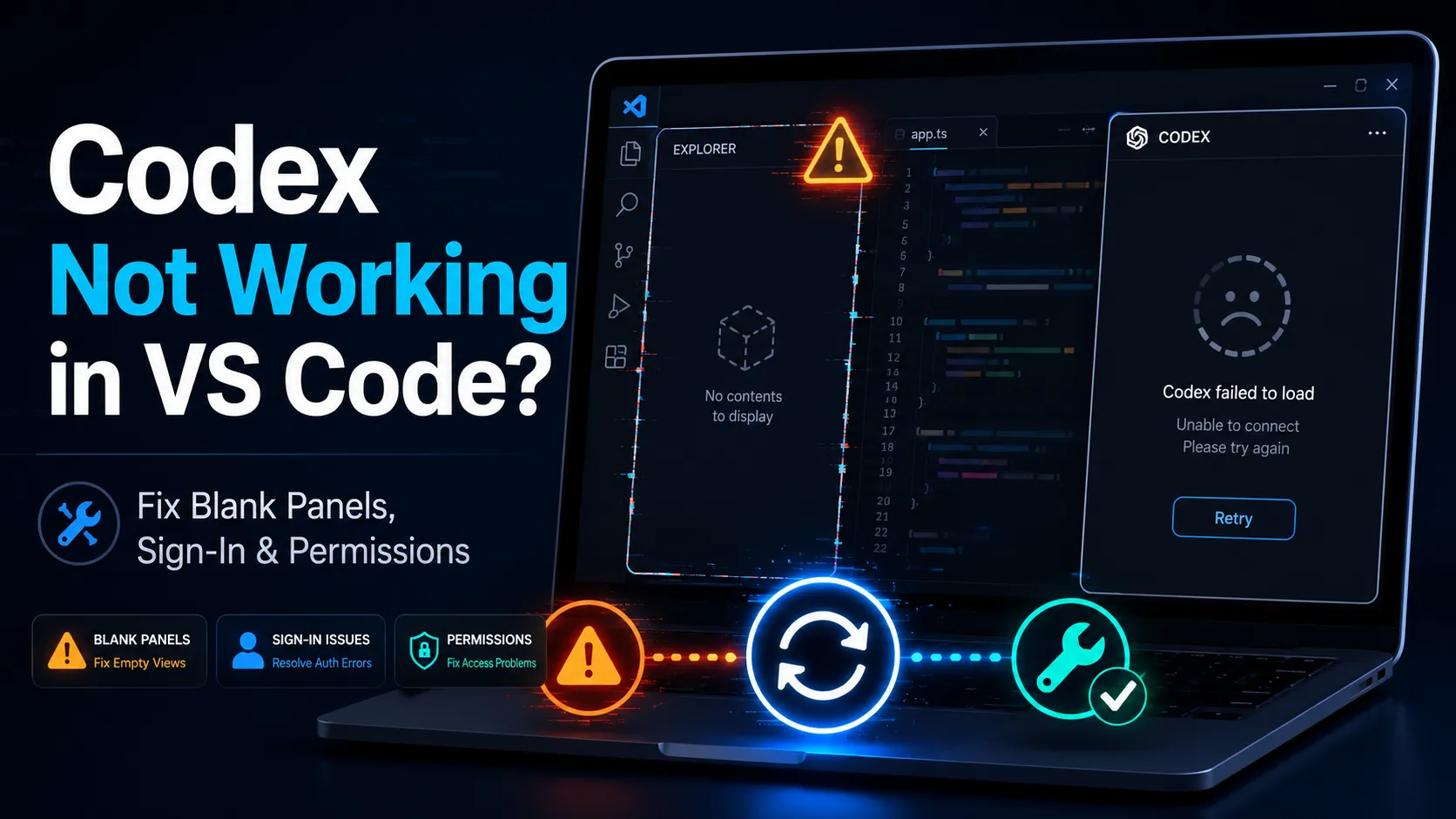
Codex not working in VS Code is normally caused by one of five failure classes: incorrect extension install, hidden sidebar panel, sign-in or plan mismatch, extension-host or fork compatibility, or Codex permission and sandbox configuration. The fastest fix is: update VS Code and the Codex extension, reload the window, open the Codex sidebar from the Command Palette, sign in again, then test the same repository with Codex CLI. Updated: July 4, 2026.
What does “Codex not working in VS Code” actually mean?
“Codex not working in VS Code” means one stage of the Codex IDE workflow is broken: installation, activation, authentication, UI rendering, context loading, file editing, command execution, or cloud delegation. Codex is a coding agent designed to read, edit, and run code inside the IDE, so diagnosis should start by identifying which stage fails.
The most useful troubleshooting model is layer-based, not keyword-based. A missing icon points to installation or sidebar visibility; a blank panel points to extension host or WebView rendering; a sign-in loop points to authentication; a “won’t edit files” symptom points to approval, sandbox, or workspace trust. A 2026 empirical study of AI coding-agent bugs found that 36.9% came from API, integration, or configuration errors.
| User symptom | Likely layer | First action | Fast verification |
|---|---|---|---|
| Codex icon is missing | Install / visibility | Reinstall the OpenAI Codex extension and restart VS Code | Search Command Palette for Codex commands |
| Sidebar is blank | Extension host / WebView | Reload Window, update extension, test official VS Code | Open Developer Tools Console |
| Sign-in loops | Auth / plan / workspace policy | Sign out, sign in with ChatGPT, check workspace permissions | Test Codex CLI in same account |
| Codex cannot edit files | Mode / sandbox / approval | Switch to Agent mode and inspect ~/.codex/config.toml | Ask Codex to edit a small tracked file |
| CLI works but VS Code fails | IDE UI layer | Continue in CLI and report extension details | Run codex in the same repo |
Why is the Codex icon missing from the VS Code sidebar?
A missing Codex icon means the extension is not installed, hidden in the activity bar, disabled, blocked by policy, or waiting for a VS Code restart. The Codex extension normally appears in the sidebar after installation, but it can be hidden in a collapsed activity-bar section or require an editor restart.
The correct extension is “Codex – OpenAI’s coding agent” from OpenAI in the Visual Studio Marketplace. The Marketplace listing describes the extension as free and included with ChatGPT Plus, Pro, Business, Edu, and Enterprise plans. Use the publisher and extension identity to avoid installing a similarly named third-party extension.
Use the Command Palette before reinstalling VS Code. Open Cmd+Shift+P on macOS or Ctrl+Shift+P on Windows/Linux, search for “Codex,” and run the sidebar command if it appears. If Codex commands appear in the Command Palette, the extension is installed and activation is at least partially working.
In Cursor and other VS Code-compatible editors, a missing icon can be a layout issue rather than a Codex issue. Cursor’s activity bar can be horizontal by default, and collapsed items can hide Codex. Switching the activity bar orientation to vertical, restarting the editor, and pinning Codex makes the panel visible.
Why does Codex show a blank panel or empty sidebar in VS Code?
A blank Codex sidebar is an extension-host, WebView, session, or editor-fork compatibility problem. VS Code runs extensions through an Extension Host, and the host can be local, web-based, or remote depending on desktop, browser, SSH, container, WSL, Codespaces, or tunnel configuration.
The practical fix is to reload the extension host before changing accounts. Run “Developer: Reload Window,” then update VS Code and the Codex extension, then reopen the Codex sidebar. This sequence restarts the VS Code workbench and extension host without deleting settings, which makes it the lowest-risk first move for a blank Codex panel.
Code-server should be treated as a high-risk environment for Codex blank-panel bugs. A public 2026 issue reported the openai.chatgpt extension failing to load in code-server, showing a blank panel, and throwing a Node.js global navigator-related error under code-server, VS Code-compatible runtime, Node.js, and Ubuntu combinations.
A session-specific blank page means the session data or UI renderer is failing, not necessarily the whole Codex installation. Some users have reported local Codex sessions that cannot reopen in the VS Code extension while the same sessions can still resume successfully in Codex CLI with /resume.
Why can Codex sign-in fail in VS Code?
Codex sign-in fails when the IDE, account, plan, API-key path, or workspace permission does not match the surface being used. The IDE extension can prompt users to sign in with a ChatGPT account or an API key, but the ChatGPT account path is the normal route for most users.
The recommended account path is ChatGPT sign-in, not API key, for normal IDE use. API-key sign-in can be useful for specific workflows, but some IDE features may depend on ChatGPT plan access or workspace-level Codex settings rather than only API credentials.
Business, Enterprise, and Edu workspaces add an administrative layer. Codex Local controls local use across CLI, IDE extension, and app local workflows, while Codex Cloud controls delegated cloud tasks across supported cloud surfaces. If a managed workspace disables Codex Local, the VS Code extension can install yet fail to operate as expected.
For Plus and Pro accounts, a sign-in loop should be separated from privacy settings. ChatGPT data-control settings affect whether conversations may be used to improve models, but that privacy preference is separate from whether the Codex VS Code extension can authenticate and run.
Why does Codex install but refuse to edit files or run commands?
Codex refusing to edit files or run commands is usually an approval-mode, sandbox, workspace, or project-trust configuration issue. The IDE extension can work in Agent mode, where Codex reads files, runs commands, and writes changes in the project directory under configured permissions.
The decisive check is whether Codex is in Chat mode or Agent mode. Chat mode is for discussion and explanation; Agent mode is for reading, editing, and executing within the configured boundary. If Codex answers questions but never changes files, switch to Agent mode and test on a small file already tracked in Git.
Codex uses shared local configuration with the CLI, so VS Code settings are not the only source of truth. Model, approval, and sandbox behavior can be configured in the shared ~/.codex/config.toml file rather than only in editor settings.
The configuration hierarchy matters when settings appear ignored. User defaults can live in ~/.codex/config.toml, project overrides can live in .codex/config.toml, and project .codex/ layers load only when the project is trusted. A project marked untrusted skips project-scoped Codex config, hooks, and rules.
Use workspace-write for normal local development and reserve danger-full-access for disposable or tightly controlled environments. Codex sandbox modes commonly include read-only, workspace-write, and danger-full-access; by default, Codex should ask before using the internet or going beyond the workspace boundary.
Why does Codex behave differently in VS Code, Cursor, Windsurf, VSCodium, WSL, or code-server?
Codex behaves differently across editors because VS Code-compatible products do not always expose the same extension host, marketplace access, sidebar layout, filesystem boundary, or WebView runtime. The extension can work with VS Code forks like Cursor and Windsurf, but “VS Code-compatible” does not mean every fork behaves identically under every runtime.
Windows and WSL need a deliberate runtime choice. If repositories and tooling live in WSL2, Codex should run in the WSL environment rather than against a mismatched Windows filesystem. If the project is native Windows, Codex can run with the Windows sandbox and native paths.
Remote SSH, containers, WSL, and Codespaces introduce a second question: where is the extension running? VS Code remote setups can involve local, web, and remote extension hosts, and extension location depends on available hosts, extension capabilities, install location, and preferred extension kind.
The cleanest isolation test is to open the same repository in official desktop VS Code and run Codex CLI in the integrated terminal. If official VS Code works but a fork fails, the problem is fork/runtime compatibility. If CLI works but the extension fails, the problem is the Codex IDE UI, session rendering, or extension host.
What quick checks fix Codex not working in VS Code?
The highest-yield fix sequence is update, reload, reopen, reauthenticate, and isolate. Update VS Code, update the OpenAI Codex extension, run “Developer: Reload Window,” reopen the Codex sidebar from the Command Palette, sign out and sign in again, then test the same repository in Codex CLI.
A clean test should use a small repository with Git initialized. Git checkpoints matter because Codex can modify the codebase; a small tracked file makes it clear whether Codex can read, propose, write, and produce a diff without risking a large project.
Use this checklist before filing a bug:
- Install: Verify the extension is “Codex – OpenAI’s coding agent” by OpenAI.
- Visibility: Run the Codex sidebar command from the Command Palette.
- Auth: Sign in with ChatGPT first; use API-key mode only when required.
- Runtime: Test official VS Code desktop before blaming Codex.
- Config: Inspect
~/.codex/config.tomlfor sandbox and approval settings. - Fallback: Run
codexorcodex --versionin the same project terminal.
How should teams diagnose Codex failures in enterprise VS Code environments?
Enterprise Codex failures should be diagnosed as policy, extension, network, and workspace-control issues before treating them as user mistakes. Modern VS Code enterprise controls can allow, block, or disable extensions based on publisher, extension identity, version, and platform.
The first enterprise check is whether OpenAI’s extension publisher and the exact Codex extension are allowed. Administrators can restrict extension installation or disable extensions that are already installed, which creates a situation where Codex appears present but cannot operate normally.
The second enterprise check is whether Codex Local and Codex Cloud are enabled for the workspace. Local IDE work and delegated cloud tasks are separate surfaces, so an organization can permit one while restricting the other.
Security review should not be skipped because the extension is popular. A 2024 academic analysis of 52,880 VS Code extensions found about 5.6% had suspicious behavior, which means teams should allowlist known publishers, document extension permissions, and keep extension logs auditable.
How is Codex in VS Code different from Codex CLI, Codex app, and Codex Cloud?
Codex in VS Code is the IDE-embedded surface for chat, context selection, edits, diffs, and cloud delegation from inside the editor. It uses the same agent family as Codex CLI and shares configuration with local Codex tooling.
Codex CLI is the terminal surface and the best diagnostic fallback when the VS Code sidebar is broken. If the CLI works in the same repository, the account, project, and local config are probably valid; the remaining failure area is the IDE extension, WebView, or extension host.
Codex Cloud is the delegated environment for longer tasks that can run outside the local editor. Larger jobs can be offloaded to the cloud while progress is tracked and reviewed from the IDE, depending on workspace permissions and plan access.
| Surface | Best use | Failure signal | Fallback |
|---|---|---|---|
| Codex VS Code extension | Side-by-side coding in the editor | Missing icon, blank panel, sign-in loop | Reload window, test CLI |
| Codex CLI | Local agent work and troubleshooting | Terminal auth or command failure | Reinstall CLI, check config |
| Codex app | Managing parallel local work | App-specific workspace or remote-control issue | Use IDE or CLI |
| Codex Cloud | Delegated longer tasks | Cloud task unavailable or policy blocked | Confirm workspace Codex Cloud permissions |
What known 2026 issues should users recognize?
Known 2026 Codex issues cluster around extension rendering, session state, command execution, account limits, MCP, Windows/WSL boundaries, and configuration. Public issue trackers show that extension-specific problems are often tied to environment details such as editor fork, remote runtime, operating system, and extension version.
The most important pattern is not the existence of one bug; it is the repeated concentration of failures at integration boundaries. A 2026 empirical study of Claude Code, Codex, and Gemini CLI found that 67% of reported bugs were functionality-related and that tool invocation and command execution were the most affected workflow stages.
The broader AI coding-tool literature reaches the same operational conclusion. Research on GitHub Copilot support discussions found that operation and compatibility issues were among the most common problem classes, which reinforces the need to inspect runtime, permissions, and extension environment before blaming the model.
What logs and evidence should users collect before reporting a Codex VS Code bug?
A useful Codex VS Code bug report includes the exact symptom, Codex extension version, VS Code version, operating system, editor fork, remote mode, authentication path, ChatGPT plan type, whether Codex CLI works, and sanitized logs. This structure helps maintainers distinguish extension bugs from account, network, policy, and project-config issues.
The most valuable isolation evidence is a CLI comparison. If codex works in the same repository and the VS Code panel is blank, the problem sits in the IDE extension, session renderer, extension host, or WebView. If both CLI and VS Code fail, the problem sits in authentication, account access, network, repository permissions, or shared Codex configuration.
Use this reporting template:
- Symptom: missing icon, blank panel, sign-in loop, no edits, command failure, or cloud delegation failure.
- Environment: VS Code version, Codex extension version, OS, WSL/SSH/container/code-server status.
- Auth: ChatGPT sign-in or API key, plus workspace plan type.
- Config: sanitized
~/.codex/config.tomlsandbox and approval settings. - Reproduction: minimal repository, exact prompt, expected result, actual result.
- Isolation: whether Codex CLI works in the same folder.
Conclusion
Codex not working in VS Code is best fixed by isolating the failing layer: extension visibility, sidebar rendering, authentication, permissions, runtime compatibility, or shared configuration. The fastest safe path is to update the extension, reload VS Code, reopen the Codex panel, sign in with ChatGPT, confirm Agent mode, inspect ~/.codex/config.toml, and test Codex CLI in the same repository.
The strategic takeaway is that Codex failures are integration failures more often than model failures. Codex shares configuration across CLI and IDE; VS Code extension behavior depends on the extension host; and empirical AI coding-tool research shows bugs concentrate around functionality, configuration, API, terminal, and command-execution boundaries.
Continue Reading
More articles connected to the same themes, protocols, and tools.


Referenced Tools
Browse entries that are adjacent to the topics covered in this article.