On This Page8 sections
Key Takeaways
- OpenCreator is an Apache-2.0 open-source AI creative workspace, formerly called KrillinAI. It combines visual production tools with a Codex-powered Agent, local project management, reusable Skills, and MCP connections.
- Video translation is its most established use case. The application can work with captions or speech transcription, translate and align subtitles, optionally synthesize dubbing, and export subtitles, audio, or video.
- It is broader than a subtitle translator. Available workspaces cover image and video generation, thumbnails, video downloads, voiceovers, articles, social posts, short-video scripts, and stick-figure animation. Auto Clips and Digital Avatar are still marked as in development.
- The software is open source, but AI generation is not automatically free. Codex access and separately configured cloud models may involve account limits, subscriptions, API charges, or OpenCreator service credits.
- As of October 12, 2026, v3.2.6 is the latest verified GitHub release. It adds official account and credit integration, improves YouTube authentication, and adds a Whisper fallback when source captions fail.
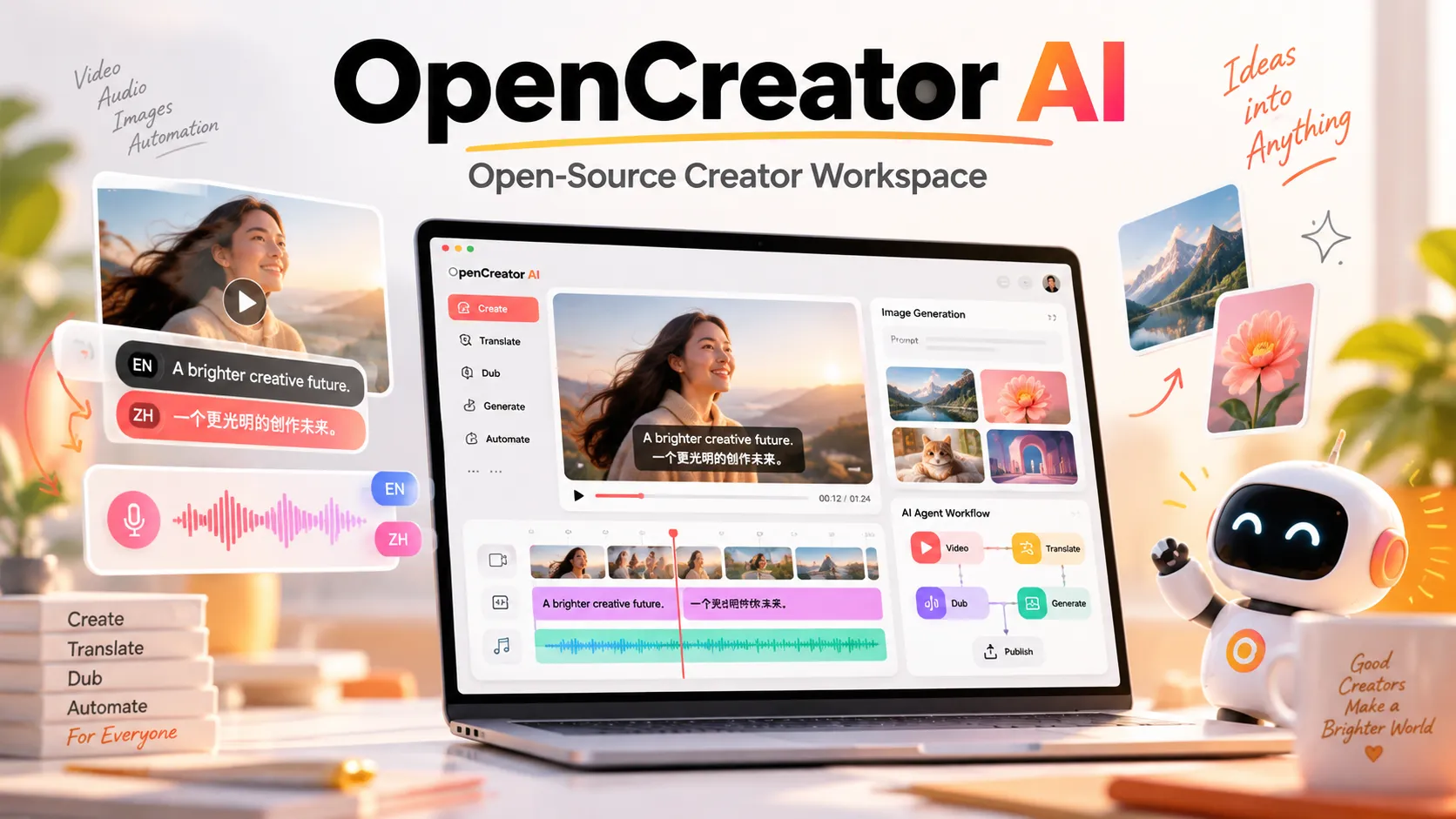
What Is OpenCreator AI? is a local-first AI workspace designed to carry creative work from an initial request to an editable, exportable result. Its open-source repository describes two interconnected modes: a visual dashboard for predefined creative tasks and a natural-language Agent conversation for multi-step work.
The project was previously named KrillinAI, which focused heavily on video translation and dubbing. The newer OpenCreator identity adds a broader production workspace around those media-processing capabilities. The GitHub repository had approximately 12,700 stars when checked on October 12, 2026; that count reflects the project's history under both names and is not a measure of active users or production reliability.
The distinction matters because OpenCreator is not simply another browser-based AI video generator. It coordinates multiple tools and services in a local application. The AI Agent supplies reasoning and tool orchestration; the creator workspace supplies task-specific controls, editable results, and version history.
Name clarification: open-creator.ai and github.com/krillinai/OpenCreator refer to the open-source project discussed here. markets a separate, subscription-based AI video-ad studio. Its listed plans, bundled models, and credit allowances should not be attributed to the open-source application.
How OpenCreator Works: Codex, a Local Runtime, and Media Tools
The technical design explains much of the product's appeal to developers and power users.
| Layer | Technology | Responsibility |
|---|---|---|
| Shared interface | React, TypeScript, Vite | Creator dashboard, chat, task settings, files, and previews |
| Desktop shell | Electron | Native windows, folder selection, tray, and notifications |
| Local runtime | Fastify, Runtime API, SSE | Project state, Agent runs, approvals, scheduling, and progress updates |
| Agent execution | Codex CLI and app-server | Reasoning, tool execution, sessions, Skills, and MCP |
| Media pipeline | yt-dlp, Whisper, FFmpeg, configured AI services | Downloading, transcription, dubbing, rendering, and exports |
| Persistence | SQLite, local filesystem, system credential storage | Projects, run history, artifacts, and credentials |
Unlike an interface that independently implements an Agent loop, OpenCreator delegates Agent execution to Codex. This lets the product concentrate on creative workflows and on exposing their intermediate steps. In the documented design, chat requests and visual controls update a shared workflow state rather than maintaining two disconnected copies of a task.
That decision produces an important practical benefit: a user can start a video translation in the dashboard, ask the Agent to revise terminology, and return to the workspace without reconstructing every setting. The system also preserves separate result versions, which is useful when comparing dubbing choices or subtitle styles.
There is a trade-off. More integrations mean more possible failure points: Codex authentication, transcription models, platform downloads, TTS providers, and render components may all need to function before a complete video is produced.
OpenCreator Features: What Is Available Now?
According to the current feature matrix in the official README, the release includes ten available creator tools, with two additional tools listed as in development.
| Workspace | What it does | Status |
|---|---|---|
| Video Translation | Transcription, contextual translation, bilingual SRT, optional dubbing, landscape/portrait output | Available |
| Video Downloader | Analyzes public media links and available audio/video formats | Available |
| Thumbnail Generator | Generates variants from a topic, reference image, or video link | Available |
| Image Generation | Creates images from prompts and optional references | Available |
| Video Generation | Generates clips through configured video services, including Seedance workflows | Available |
| Smart Dubbing | Creates voiceovers with selectable voice and delivery controls | Available |
| Article Writer | Produces outlines and articles from topics or source material; exports Markdown, HTML, or PDF | Available |
| Xiaohongshu Posts | Creates platform-oriented social posts | Available |
| Short Video Script | Creates scripts organized by segment, audience, length, and platform | Available |
| Stick Figure Animation | Turns text or supported video content into narration, storyboards, subtitles, and animation | Available |
| Auto Clips | Identifies highlights in long-form footage for short clips | In development |
| Digital Avatar | Creates talking-head avatar presentations | In development |
Capability labels are not quality guarantees. Model availability varies by provider and account; the result of a generated video or translated voiceover depends on source quality, language pair, selected model, and manual review.
Why the video translation workflow stands out
OpenCreator documents support for 14 source languages and 101 target languages in its Video Translation interface. Those figures describe the software's language options, not a verified benchmark for every translation and voice combination.
A translation job may involve five distinct operations:
- Source acquisition: import a local video or analyze a compatible public link.
- Speech extraction: reuse available captions when suitable or fall back to speech recognition.
- Subtitle processing: segment and align speech, translate terminology, and prepare target-language or bilingual subtitles.
- Optional localization: synthesize a new voice track, adjust styles, and choose landscape or portrait composition.
- Export and verification: inspect timing, audio, and formatting before downloading SRT, audio, or video.
This modular sequence is significant. Producing an SRT file is less expensive and usually easier to verify than immediately creating a completely dubbed and rendered video. Teams can approve the transcript and translation before spending resources on voice generation and final rendering.
How to Download and Install OpenCreator
Option 1: Install the desktop app
The simplest route is the official GitHub Releases page. Version v3.2.6, published October 11, 2026, includes installers for:
- macOS on Apple Silicon (
arm64). - macOS on Intel (
x64). - Windows 10/11, 64-bit (
x64).
Desktop installers bundle Codex CLI, so Node.js and pnpm are not required for ordinary desktop use. On first launch, the application starts the local runtime, creates an initial project, and checks whether an existing Codex sign-in or API configuration can be reused.
For security, download installers from the release page, check the published SHA-256 checksum where applicable, and avoid unofficial repackaged binaries. The release notes state that macOS installers are signed and notarized; the Windows installer is not currently Authenticode-signed.
Linux distinction: Linux server and CLI binaries exist, but the project does not currently offer a supported Linux desktop installer. The existence of a Linux CLI should not be confused with full desktop availability.
Option 2: Run the web interface from source
Developers need Node.js 22 or later, the repository-pinned pnpm 9.15.0, a working Codex CLI, and valid authentication for actual model tasks. Check the environment first:
node --version
pnpm --version
codex --version
Then run:
git clone https://github.com/krillinai/OpenCreator.git
cd OpenCreator
corepack enable
pnpm install
pnpm web:dev
Open http://127.0.0.1:19861/ in the browser. The development server starts the local daemon as needed and uses a same-origin proxy for its temporary runtime token. For daemon-only development, the documented command is:
pnpm daemon:devThis setup is intended for local development, not a ready-made public multi-user deployment. Keep the runtime bound to trusted interfaces unless the project's authentication, access controls, and deployment assumptions have been reviewed.
Configure Codex and AI Model Providers Correctly
OpenCreator separates the Agent model from the media services that perform transcription, image generation, voice synthesis, and video generation. A successful Codex login does not guarantee that every creative tool has a funded, compatible model behind it.
After installation, visit Settings → AI Services. The official configuration guide explains the four common settings:
- Provider: the company or compatible service running the model.
- Base URL: the service's API root, not an individual completions route.
- API Key: a credential issued by that same provider.
- Model: an identifier that is actually available to the account.
For example, OpenAI's documented API root is https://api.openai.com/v1. Entering a complete route such as https://api.openai.com/v1/chat/completions in a field expecting the API root can cause request failures. Similarly, a key from one provider will not automatically authorize a different provider.
OpenCreator documents examples from GPT, DeepSeek, Qwen, Kimi, GLM, Grok, and MiniMax for language tasks; GPT Image and Gemini-family services for image tasks; Seedance, Kling, and Veo for video tasks; and Whisper, Edge TTS, MiniMax, and other services for voice tasks. These are integration examples, not an assertion that every named model is available to every user or included for free.
A reliable initial setup uses the smallest possible smoke tests: request one short Agent response, generate one simple image if needed, and transcribe a brief local clip before attempting a long multilingual project.
Tutorial: Translate a Video and Produce Bilingual Subtitles
The following workflow follows OpenCreator's documented interface and is designed to minimize rework.
- Prepare a short, legally usable source clip. Start with a local video containing clear speech rather than a long streaming URL with authentication requirements.
- Configure the required services. A text model and transcription backend are needed for the full translation workflow; add a TTS provider only if dubbed audio is required.
- Open Dashboard → Video Translation. Import the file, then choose the source and target languages.
- Review source captions first. Inspect names, technical terms, numbers, and sentence boundaries. Errors at this stage propagate into both translation and dubbing.
- Translate and inspect the target SRT. Look for dropped phrases, overlapping timestamps, lines that are too long, and terminology inconsistent with the subject matter.
- Choose bilingual subtitles if needed. Check which language appears on top and preview the layout at the target aspect ratio, especially for mobile video.
- Add dubbing only after subtitle approval. Listen for rushed delivery, incorrect names, and mismatches between spoken audio and on-screen captions.
- Export the required artifacts. Download SRT for a caption-only job or the completed audio/video when localization is finished.
Practical quality-control rule: Review an early segment, a middle segment, and the final segment rather than only watching the first 30 seconds. Subtitle drift, missed speech, or rendering mistakes may not appear near the beginning.
For scripted Agent pipelines, the bundled KrillinAI Subtitle Skill documents output files such as origin_language_srt.srt, target_language_srt.srt, and bilingual_srt.srt. It also instructs the Agent to read generated paths from krillinai_manifest.json and verify successful completion, rather than assuming a file exists simply because a command started.
Agent Skills and MCP: The Feature That Makes OpenCreator Extensible
Visual tools are useful for common tasks, but a repeatable production workflow often needs additional instructions: brand terminology, subtitle conventions, folder structure, output naming, and quality checks. OpenCreator supports Codex Skills and Model Context Protocol (MCP) for this purpose.
A Skill is a directory containing a SKILL.md file. Its description tells the Agent when to use it; the body gives task steps, tool or command instructions, expected outputs, and failure handling. The project's Skill contribution guide recommends keeping the file concise and moving long reference material into a references/ folder.
An illustrative custom Skill for reviewing bilingual subtitles could begin as follows:
---
name: subtitle-qa
description: Use when checking bilingual SRT subtitles for timing, readability, and terminology consistency.
---
The full file would then specify how to obtain input files, what validation steps to run, how to report timestamps with problems, and what constitutes an acceptable result. The snippet above is a starting template, not a complete executable Skill.
The repository also includes specific workflows for subtitles, TTS, landscape and portrait rendering, cover images, and pipeline planning. Skills that call the KrillinAI CLI still require the corresponding binary and service configuration. Installing a Skill alone does not provision paid model access.
MCP serves a different purpose: it connects the Agent to external tools and services through Codex-native configuration. Because OpenCreator uses the active CODEX_HOME, changing global Skills or MCP settings can affect other Codex-based workflows on the same machine. Review that scope before installing unfamiliar extensions, and grant access only to directories and services necessary for the task.
What's New in OpenCreator v3.2.6?
The October 11, 2026 release introduces several changes that affect day-to-day usage:
- Official account integration: connect an OpenCreator account, inspect service credits, and access subscription or credit-purchase management.
- Improved YouTube access: connect an existing Chrome profile and retain the relevant login session for supported download and translation tasks.
- More resilient transcription: fall back to Whisper when platform-provided captions cannot be used, with the reason visible in task progress.
- Extractor compatibility: bundle a JavaScript runtime for yt-dlp to help with YouTube extraction changes.
- Dependency maintenance: update runtime packages and address reported high-severity audit findings.
Recent preceding releases also prioritized caption-first processing and deferred full-video downloads until composition or preview required them. Why that matters: subtitle-only tasks can avoid transferring large video files unnecessarily, although actual time and bandwidth savings depend on the media source and chosen workflow.
OpenCreator includes component management for yt-dlp. Its documented policy checks for updates periodically but requires user approval before installation and retains the previous working version when verification or installation fails.
Is OpenCreator Free? Pricing and Real-World Costs
The application source is distributed under Apache License 2.0, allowing use and modification subject to the license terms. That is separate from the economics of running cloud AI services.
| Cost component | What to expect |
|---|---|
| Open-source application | No software license fee for using the repository code |
| Local CPU/GPU transcription | Compute, electricity, memory, and storage costs; model compatibility varies |
| Codex Agent | Requires supported authentication; account limits or API billing may apply |
| Cloud transcription and translation | Usage-based provider charges where applicable |
| Dubbing/TTS | Charges may depend on characters, duration, or provider plan |
| AI images and video | Often the largest variable cost, depending on model, duration, and retries |
| Official OpenCreator services | Account-linked credits or subscriptions may apply to those services |
A useful planning equation is total project cost = Agent/model requests + ASR + translation + TTS + video/image generation + additional rendering or infrastructure costs. Some categories may be zero for a given workflow, and certain charges may overlap depending on the provider's bundled pricing.
For budgeting, measure the full workflow across several representative files. A five-minute clip translated into one language with subtitles only is not economically comparable to the same clip dubbed into multiple languages and rendered in several formats. Regeneration and failed requests can also affect spend.
Avoid a common pricing mistake: the published tiers at opencreator.io belong to the separate commercial video platform, not the open-source open-creator.ai application. Check the account and pricing screens for the exact service being used rather than borrowing figures from a similarly named site.
OpenCreator vs CapCut, Descript, and Runway
These tools overlap in creative outcomes but emphasize different stages of production. The comparison below addresses product positioning, not independently benchmarked output quality.
| Tool | Main strength | Better fit when... | Important distinction |
|---|---|---|---|
| OpenCreator | Local-first Agent orchestration, video localization, reusable Skills | A repeatable, configurable production pipeline matters more than conventional editing polish | Open-source app; multiple services may require setup |
| CapCut | Timeline-oriented social video editing | Manual pacing, effects, and frequent social edits are central | Primarily an editor, not a Codex-native local Agent runtime |
| Descript | Transcript-centered audio/video editing | Editing interviews, podcasts, and spoken-word footage is the priority | Different editing workflow and commercial product model |
| Runway | AI-first video generation and creative manipulation | Generating or modifying visual shots is the central task | Specialized hosted creative platform rather than a local orchestration workspace |
OpenCreator is especially relevant for teams that repeatedly process similar media through transcription, translation, dubbing, formatting, and delivery. A dedicated editor may remain preferable for detailed visual finishing, while a specialized generation service may offer a more direct interface for shot creation.
Privacy, Security, and Content Rights
Local-first does not mean fully offline. OpenCreator documents that project files, attachments, and runtime logs stay on the device by default. When a cloud model is used, content required for that request is transmitted to the configured provider. Credentials are handled through the local runtime's system credential storage.
Before using OpenCreator with private or commercial material:
- Confirm where each configured text, speech, image, and video model sends data; check retention and training settings with the provider.
- Limit Agent permissions and inspect approval requests, particularly for file changes, external tools, and MCP servers.
- Treat imported Skills and downloaded binaries as software dependencies that deserve code and provenance review.
- Do not place API keys in prompts, screenshots, repositories, or shared diagnostic logs.
- Keep licensed footage, voice samples, music, and likeness rights in mind. Technical support for downloading or dubbing media does not grant permission to republish it.
- Back up important project outputs. Local persistence is not a substitute for a tested recovery procedure.
For organizations with strict data residency rules, test each service independently. A local Whisper transcription setup may reduce exposure for the speech-recognition stage, but translating the resulting transcript through a remote LLM still transfers text to that provider.
Common OpenCreator Problems and How to Fix Them
| Symptom | Likely cause | First diagnostic step |
|---|---|---|
| 401 or 403 from a model service | Missing, invalid, or unauthorized credentials | Match API key, Base URL, account access, and model ID |
| Model request returns 404 | Incorrect route or unavailable model | Use the provider's documented API root, not a full endpoint path |
| Transcription fails | Misconfigured ASR backend, missing local model, or inaccessible media | Test one short local audio/video file and inspect the transcription-specific error |
| YouTube link fails | Extractor changes, unavailable captions, expired session, or access restrictions | Inspect yt-dlp component status and supported authentication options |
| Dubbed audio sounds unnatural | Transcript errors, translation length, timing, or TTS voice limitations | Correct subtitles first, then regenerate a short sample |
| Video does not render | Media dependency, output-path, storage, or rendering-component issue | Check task diagnostics, free disk space, and on-demand components |
| Agent ignores a custom Skill | Skill is not installed in the active Codex home or description does not match | Confirm Skill discovery and inspect the selected workflow |
The public issue tracker contains older reports involving Windows startup, local transcription configuration, and dubbing alignment. Open issues can indicate troubleshooting themes, but they do not establish that the latest release reproduces every historical bug.
A useful troubleshooting order is: reproduce with a small input → isolate the failing stage → verify its provider or binary → inspect sanitized logs → retry the complete workflow. Re-running a long video without identifying the failing dependency can waste both time and credits.
Who Should Use OpenCreator?
Good candidates include multilingual YouTube publishers, educators localizing lessons, creators repackaging authorized interviews into different aspect ratios, and developers who want reusable Agent-driven media processes.
Less suitable users include people seeking a zero-configuration, entirely offline video-generation suite; teams requiring an established Linux desktop package; editors whose main need is detailed manual timeline work; and anyone expecting every video, voice, or image model to be included at no cost.
The strongest adoption path is to prove a single repeatable workflow first. For example, run ten representative subtitle jobs, record correction time and error types, then decide whether adding dubbing or custom Skills improves throughput. This is more informative than judging the platform from one impressive demo.
Frequently Asked Questions
Is OpenCreator the same as KrillinAI?
Yes. The open-source OpenCreator project was formerly called KrillinAI. References to KrillinAI in CLI binaries, Skills, or existing tutorials may still be valid components of the renamed project.
Is OpenCreator fully open source?
The GitHub application repository uses Apache License 2.0. Third-party models, hosted services, downloadable components, and their individual licenses or commercial terms must be considered separately.
Can OpenCreator run without a ChatGPT subscription?
The application supports Codex authentication and compatible provider configurations. A ChatGPT sign-in is one route, not a guarantee of free or unlimited model execution. The exact options depend on the installed version, supported providers, and credentials.
Can OpenCreator translate YouTube videos into English or other languages?
It can process supported accessible video URLs and local files, with transcription, subtitle translation, and optional dubbing. Supported URL extraction does not guarantee that every video can be downloaded or used; authentication, restrictions, copyright, and platform changes still apply.
Does OpenCreator work on Windows, macOS, and Linux?
Official desktop installers are available for macOS Apple Silicon, macOS Intel, and Windows x64. Linux server and CLI builds are published, but a Linux desktop installer is not currently offered.
Can a local transcription model make it entirely private?
Not necessarily. Local transcription can keep that particular processing step on the device, but subsequent translation, synthesis, image generation, or Agent actions may call remote providers. Audit the whole workflow rather than only the ASR model.
Does OpenCreator support custom Skills and MCP?
Yes. It supports Codex-native SKILL.md workflows and MCP configuration. Check the active CODEX_HOME, install trusted extensions only, and configure any required CLI binaries or external services.
Conclusion
OpenCreator's most distinctive advantage is the combination of established video-localization utilities, a shared visual workspace, and Codex-native Agent orchestration. It can reduce tool-switching for repeated creative jobs while preserving intermediate results and revisions. Its main limitations are configuration complexity, dependence on multiple media and AI providers, and unfinished features such as Auto Clips and Digital Avatar.
For a practical first evaluation, download OpenCreator from its official GitHub releases, connect a supported Agent model, and complete one short caption-only translation before enabling paid dubbing or video generation. Then use the official documentation and Skill guide to turn a successful one-off task into a repeatable production workflow.
Continue Reading
More articles connected to the same themes, protocols, and tools.
Referenced Tools
Browse entries that are adjacent to the topics covered in this article.