On This Page8 sections
Key Takeaways
- How Big Is My Browser? is a free, real-time window-size visualizer at howbigismybrowser.com. It displays the current browser width and height in pixels and updates as the window is resized.
- Browser size is not screen resolution. A 1920 × 1080 display can contain a substantially smaller browser viewport because of window borders, browser controls, system scaling, and the window's position or size.
- CSS pixels are the useful unit for responsive design. Physical display pixels, device pixel ratio (DPR), and browser zoom describe different things.
- For precise development work, distinguish the layout viewport from the visual viewport. This matters particularly on mobile devices during pinch zooming and when the on-screen keyboard appears.
- Use a live size checker to find failing breakpoints, then verify the result in developer tools and on real devices. A single reported width cannot prove that a layout is responsive.
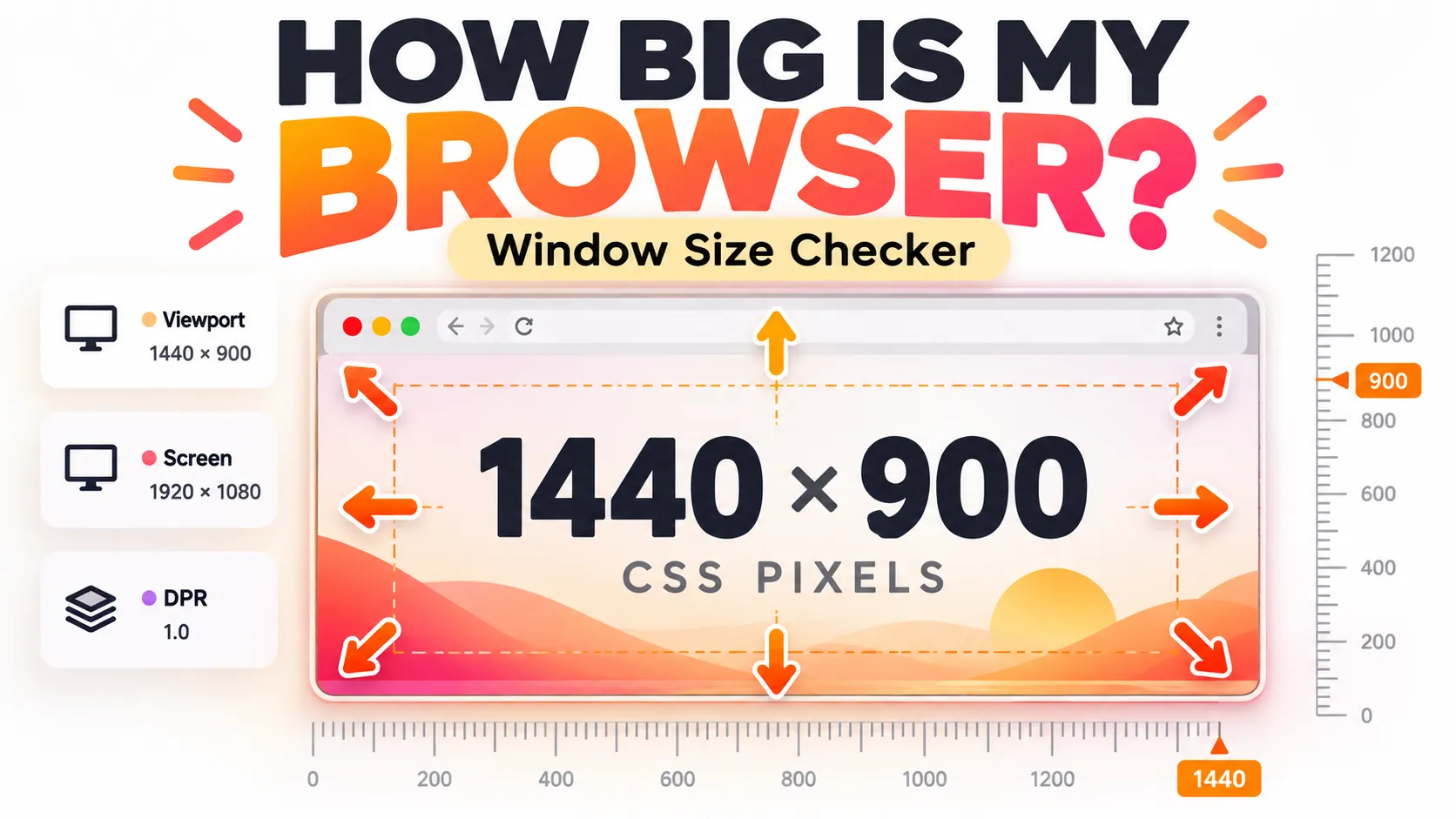
What Is How Big Is My Browser? is a minimalist browser window size checker. Its main screen shows the browser's current width and height, surrounded by pixel ruler markings. As the browser window changes size, the displayed measurements change too.
The tool addresses a deceptively practical question: How much space does a web page actually have to render? That question matters more to responsive layouts than the dimensions printed on a monitor's packaging.
For example, a user may own a 2560 × 1440 monitor but browse with a half-width window. A site designed only for a wide desktop viewport may unexpectedly show its tablet layout in that window. A live width-and-height readout makes the problem easy to reproduce.
The original site advises using 100% browser zoom for its intended reference measurement. This is sensible when comparing measurements across screenshots or reproducing a layout issue, although modern browsers can still report valid CSS viewport dimensions at other zoom levels. The zoom setting changes what those CSS measurements mean relative to the physical display.
Best uses: checking the current browser width, locating a responsive breakpoint, reproducing a visual bug, comparing window sizes, and explaining available page space to someone without developer tools.
What it is not: a physical monitor measuring tool, an authoritative hardware-resolution detector, or a complete cross-device testing environment.
How to Check Your Browser Window Size in Seconds
- Open How Big Is My Browser? in the browser and tab that need checking.
- For a comparable baseline, reset page zoom to 100% using the browser's zoom menu. Common shortcuts are
Ctrl + 0on Windows/Linux andCommand + 0on macOS. - Read the displayed width × height in pixels. The width is generally the most important value when debugging responsive breakpoints.
- Slowly drag an edge of the browser window. Watch the numbers change and identify the width where the page layout becomes cramped, overflows, or switches modes.
- Repeat the measurement with side panels opened or closed, a different window size, or a different display if those conditions are part of the reported problem.
A result such as 1280 × 720 should be read as a measurement of the current browser viewing context, not as proof that the physical screen is 1280 × 720.
For a bug report, record the browser name, operating system, zoom setting, reported viewport dimensions, and the precise behavior observed. A report such as Navigation overlaps the search field at a 1024 CSS-pixel viewport in Chrome at 100% zoom is much more actionable than The page looks broken on my laptop.
Browser Window Size vs. Viewport Size vs. Screen Resolution
These terms are often used interchangeably, but they refer to different measurements.
| Measurement | What it describes | JavaScript reference | Best use |
|---|---|---|---|
| Layout viewport | Space used by page layout, in CSS pixels; includes conventional scrollbars in the innerWidth measurement | window.innerWidth and window.innerHeight | Responsive layout and viewport diagnostics |
| Document content viewport | Root document's client area, excluding conventional scrollbars | document.documentElement.clientWidth and clientHeight | Available document layout width |
| Visual viewport | The portion currently visible, including effects of pinch zoom and some virtual keyboards | window.visualViewport.width and .height | Mobile overlays and keyboard-aware interfaces |
| Outer browser window | Browser frame, including browser UI and window borders | window.outerWidth and window.outerHeight | Desktop window diagnostics |
| Reported screen size | Screen dimensions exposed by the browser, in CSS pixels | screen.width and screen.height | Basic screen context |
| Device pixel ratio | Approximate mapping of CSS pixels to device pixels | window.devicePixelRatio | High-density canvas and image rendering |
The distinctions follow the MDN viewport reference, the innerWidth documentation, and the Visual Viewport API.
Why a 1920 × 1080 Monitor Does Not Guarantee a 1920-Pixel Browser
The browser may be unmaximized, tiled next to another application, showing a sidebar, or running with browser and operating-system scaling. Browser tabs, the address bar, and toolbar regions also consume part of the outer window, typically affecting usable height. A traditional vertical scrollbar may reduce the root document's client width further.
Therefore, screen resolution is a poor substitute for testing actual viewport width. Measure the page space used by the CSS layout rather than assuming it from monitor specifications.
Why innerWidth and clientWidth Can Disagree
A classic vertical scrollbar can occupy horizontal space inside the layout viewport. According to MDN, innerWidth includes that scrollbar, while the root element's clientWidth excludes it.
A hypothetical measurement might show innerWidth = 1200 and clientWidth = 1185. The 15-pixel difference would be consistent with a traditional scrollbar, not necessarily a measurement bug. Overlay scrollbars, however, may take no persistent layout space, so the values can match.
What Do Browser Pixels Actually Mean?
The pixels shown by a browser window size checker should not automatically be interpreted as individual dots on the display panel. Responsive CSS primarily operates in CSS pixels, which are abstract layout units.
A high-density display may map one CSS pixel to multiple device pixels. The devicePixelRatio API describes that mapping for the current browser environment.
For illustration, a 1200 CSS-pixel-wide region at DPR 2 can correspond to approximately 2400 device pixels of rendering width. This is a scaling example, not a reliable way to infer the monitor's native pixel count or physical diagonal size from a web page.
Two effects complicate the picture:
- Desktop browser page zoom can change both the CSS viewport dimensions and the reported DPR, depending on the browser and environment.
- Mobile pinch zoom normally magnifies the visible page without changing the layout viewport or the DPR in the same way; instead, the visual viewport becomes smaller.
Practical rule: use CSS viewport dimensions for media-query and layout work; use DPR for high-density rendering; use display specifications or operating-system settings when native physical resolution matters.
How to Check Browser Size Without a Website
Modern browsers expose viewport dimensions directly through JavaScript. Open Developer Tools, select the Console, and run:
console.table({
  layoutWidth: window.innerWidth,
  layoutHeight: window.innerHeight,
  contentWidth: document.documentElement.clientWidth,
  contentHeight: document.documentElement.clientHeight,
  outerWidth: window.outerWidth,
  outerHeight: window.outerHeight,
  screenWidth: window.screen.width,
  screenHeight: window.screen.height,
  devicePixelRatio: window.devicePixelRatio,
  visualWidth: window.visualViewport?.width ?? null,
  visualHeight: window.visualViewport?.height ?? null,
  visualScale: window.visualViewport?.scale ?? null
});
This gives a broader technical snapshot than a simple width-and-height display. The visualViewport values can be null if the current document does not expose an active visual viewport.
Build a Lightweight Live Browser Size Checker
The following example can power a real-time width and height display. It measures both the layout and visual viewports and avoids scheduling duplicate renders during rapid resizing.
<!doctype html>
<html lang='en'>
<head>
  <meta charset='utf-8'>
  <meta name='viewport' content='width=device-width, initial-scale=1'>
  <title>Live Browser Size Checker</title>
</head>
<body>
  <output id='browser-size' aria-live='off'>Measuring...</output>
  <script>
    const output = document.getElementById('browser-size');
    let queued = false;

    function renderSize() {
      const visual = window.visualViewport;
      const layout = `${window.innerWidth} × ${window.innerHeight}`;
      const visible = visual
        ? `${Math.round(visual.width)} × ${Math.round(visual.height)}`
        : 'Unavailable';

      output.textContent = `Layout: ${layout} CSS px | Visual: ${visible} CSS px`;
      queued = false;
    }

    function scheduleRender() {
      if (queued) return;
      queued = true;
      requestAnimationFrame(renderSize);
    }

    window.addEventListener('resize', scheduleRender);
    window.visualViewport?.addEventListener('resize', scheduleRender);
    renderSize();
  </script>
</body>
</html>
The requestAnimationFrame step coalesces rapid update events into a rendering pass. A minimal production version should also account for event-listener cleanup when used inside a component framework. The visual dimensions in this example are rounded for readability; use the unrounded API values when fractional CSS pixels matter.
For measuring the width of a particular component rather than the browser, use ResizeObserver. Window size and component size are not always the same thing.
Use Browser Dimensions to Test Responsive Breakpoints
Viewport width tells developers when a media query might activate, but the correct breakpoint should ultimately be driven by when content no longer fits comfortably, not by a favorite device model.
Common viewport test targets include 320, 375, 390, 768, 1024, 1280, and 1440 CSS pixels. These are useful test widths, not a claim that all phones, tablets, or laptops use those exact viewports.
Tailwind CSS provides a convenient reference set of default responsive breakpoints:
| Tailwind prefix | Default minimum width | Typical testing purpose |
|---|---|---|
sm | 640px | Small-layout transition |
md | 768px | Medium layout transition |
lg | 1024px | Wider content and navigation |
xl | 1280px | Large desktop layout |
2xl | 1536px | Very wide desktop layout |
These correspond to Tailwind's default 40rem, 48rem, 64rem, 80rem, and 96rem breakpoints under the usual 16px root-size assumption. They are configurable and should not be mistaken for universal device categories. See the Tailwind responsive design documentation.
A simple CSS breakpoint looks like this:
.page {
  display: grid;
  grid-template-columns: 18rem minmax(0, 1fr);
  gap: 1.5rem;
}

@media (max-width: 767px) {
  .page {
    grid-template-columns: 1fr;
  }
}
To debug a transition, test just below, exactly at, and just above the breakpoint—for example, 767, 768, and 769 CSS pixels. Look for navigation wrapping, clipped dialogs, horizontal scrolling, missing controls, and unexpected content jumps.
Viewport Media Queries Are Not Always the Best Tool
A card in a narrow sidebar may need a compact layout even when the overall browser is 1440 pixels wide. In that case, a CSS container query can respond to the component's actual container instead of the browser viewport.
.widget-region {
  container-type: inline-size;
}

.widget {
  display: grid;
  grid-template-columns: 1fr 1fr;
}

@container (max-width: 36rem) {
  .widget {
    grid-template-columns: 1fr;
  }
}
This makes a useful distinction: browser size tools diagnose viewport conditions; container queries solve component-level conditions. Both are relevant to modern responsive design. The MDN container-query guide explains the underlying behavior.
Mobile Browsers: Layout Viewport vs. Visual Viewport
Mobile browser measurements are more complicated because the area used for layout may not be identical to the portion currently visible to the user.
- The layout viewport is the coordinate space used to lay out the page.
- The visual viewport is the portion of that page currently visible after effects such as pinch zooming.
- The on-screen keyboard may reduce the visible area, but behavior varies by browser and viewport configuration.
- Address bars and other mobile browser controls may expand or retract while scrolling, changing usable space.
For a mobile form whose submit button disappears behind the keyboard, window.innerHeight alone may not explain the issue. Inspect window.visualViewport?.height, test with the keyboard actually open, and verify the behavior on the intended browser.
Responsive pages should also include an appropriate viewport declaration:
<meta name='viewport' content='width=device-width, initial-scale=1'>Without the correct viewport configuration, some mobile browsers may use a wider virtual layout viewport and scale it down, producing confusing measurements and making narrow-screen media queries behave unexpectedly. Refer to MDN's viewport meta documentation.
Why 100vh Can Be Misleading on Phones
A full-height mobile layout built with height: 100vh may not match the currently visible region while browser controls are present. Modern CSS provides more explicit viewport-height choices:
100svh: height of the small viewport, useful when avoiding content being covered by expanded browser controls.100lvh: height of the large viewport, useful when the interface is retracted.100dvh: height of the dynamic viewport, which can change as browser controls expand or retract.
For a flexible app shell, a progressive enhancement pattern is:
.app-shell {
  min-height: 100vh;
  min-height: 100dvh;
}
Dynamic units help with browser chrome, but they do not guarantee identical keyboard behavior across every mobile browser. Test focus states and onscreen keyboards separately. See the MDN CSS length reference.
Why Is My Browser Size Different From What I Expected?
| Symptom | Likely explanation | What to check |
|---|---|---|
| Browser width differs from screen width | Window is resized, tiled, or affected by display scaling | Compare innerWidth, outerWidth, and screen.width |
| Width changes without dragging the window | Browser page zoom or a panel/layout change | Reset zoom, close sidebars, measure again |
innerWidth is slightly larger than clientWidth | Conventional vertical scrollbar | Check overflow and scrollbar behavior |
| Reported values seem small on a Retina or high-DPI display | CSS pixels differ from physical display pixels | Check DPR and OS display scaling |
| Mobile visible height changes while typing | On-screen keyboard alters the available visual space | Inspect visualViewport.height with keyboard open |
| Width changes on phone rotation | Portrait/landscape changes the viewport | Test both orientations |
| A size checker inside an iframe reports a small width | It may be measuring the iframe's viewport | Open the checker as a top-level page |
| An emulated device looks right but a real phone breaks | Emulation does not reproduce all real device behavior | Retest on physical hardware |
Zoom deserves special attention. The original How Big Is My Browser? page specifically recommends 100% zoom. Resetting zoom improves repeatability, but devicePixelRatio alone is not a dependable browser zoom percentage meter: it can also be influenced by monitor density and operating-system scaling.
How Big Is My Browser vs. Browser Developer Tools
A dedicated browser size checker and built-in developer tools serve overlapping but different purposes.
| Capability | How Big Is My Browser? | Browser DevTools |
|---|---|---|
| See current browser dimensions quickly | Strong fit | Available, but requires extra steps |
| Watch numbers change while resizing | Core experience | Possible |
| View detailed layout/visual viewport metrics | Not its documented core purpose | Available through JavaScript Console |
| Simulate preset mobile viewport sizes | Not its core purpose | Supported in device emulation tools |
| Debug CSS and DOM layout | No | Yes |
| Assess actual device behavior | Limited to the browser running the page | Emulation helps; real-device testing is still necessary |
Chrome's Device Mode can simulate viewport sizes and some other mobile conditions, but Google describes it as an approximation rather than a substitute for running the page on actual hardware.
Recommended workflow: find the problematic width with a visual size checker, reproduce it in DevTools, inspect the CSS rule that changes at that width, then verify on relevant real devices.
A More Reliable Responsive Testing Checklist
- Record the measured width and height in CSS pixels, along with the browser and zoom level.
- Test both sides of each important breakpoint, including one pixel below and above the threshold when practical.
- Check horizontal overflow, especially tables, wide images, fixed-width buttons, code blocks, and navigation menus.
- Test normal and enlarged text or page zoom. A layout that fits at 100% may fail under accessibility-relevant scaling.
- Open overlays, dialogs, tooltips, and dropdowns at narrow widths; ordinary page content is only part of the interface.
- On mobile, test portrait, landscape, address-bar changes, pinch zoom, and keyboard visibility where those states matter.
- Differentiate viewport breakpoints from container constraints. A narrow embedded card can fail on an otherwise wide desktop viewport.
- Verify at least one relevant physical device. Emulators and online size checkers cannot capture every platform-specific rendering detail.
The most valuable insight is that the width where a page fails is more actionable than the device name. A bug at 891 CSS pixels can be investigated and fixed directly even if no popular phone or tablet has a nominal 891-pixel viewport.
Privacy and Limitations of Online Browser Size Checkers
A web page can typically read its own browser or viewport dimensions with standard JavaScript. For that basic measurement, no account, extension, camera access, or server-side processing is technically required.
However, this does not prove that every website providing a size checker runs entirely offline or collects no analytics. Privacy practices depend on the site's actual implementation and policy.
Viewport dimensions are also not inherently secret: display and browser characteristics can contribute to browser fingerprinting when combined with other signals. The MDN fingerprinting reference describes this broader privacy issue.
A size checker cannot determine a monitor's physical diagonal in inches from viewport width alone. It also cannot guarantee how another browser, operating system, iframe, or physical device will render a page.
Frequently Asked Questions
How big is my browser right now?
Open howbigismybrowser.com in the relevant tab and read the live width and height. For a developer-level measurement, evaluate window.innerWidth and window.innerHeight in the Console.
Is browser window size the same as screen resolution?
No. Browser window size describes the current browser context; screen resolution describes the display. The browser can use only part of the screen, and browser APIs often report sizes in CSS pixels rather than native hardware pixels.
How can a browser window be smaller than the monitor?
It may be unmaximized, split beside another application, or using less space because of browser UI and window controls. Page zoom and display scaling can also affect reported CSS-pixel values.
How do developers find the browser viewport width?
window.innerWidth reports layout viewport width, while document.documentElement.clientWidth excludes conventional vertical scrollbar space. On mobile, window.visualViewport?.width provides a complementary visible-area measurement.
Does browser zoom change viewport size?
Desktop page zoom can change viewport dimensions expressed in CSS pixels. Mobile pinch zoom often changes the visual viewport without changing the layout viewport. Use a consistent zoom baseline when reproducing issues.
What is a good browser width for responsive testing?
There is no single best width. Test small widths such as 320 and 375 CSS pixels, relevant tablet and desktop widths, and both sides of the application's actual responsive breakpoints.
Can browser size be checked on an iPhone or Android device?
Yes, a browser-based checker can run on mobile. Be aware that the layout viewport, visible viewport, browser controls, and on-screen keyboard may produce different measurements. A narrow number does not necessarily represent native screen resolution.
Can a website identify my monitor's physical size?
Not reliably from ordinary viewport APIs. Reported screen dimensions and DPR are insufficient to determine the exact physical diagonal of a display.
Why does my page still overflow when the viewport looks wide enough?
The culprit is often a fixed-width child, an unbreakable text string, a grid or flex item with an unexpected minimum size, a wide image, or a narrow container. Inspect the overflowing element in DevTools and consider container queries or responsive sizing rather than adding arbitrary device-specific breakpoints.
Conclusion
How Big Is My Browser? turns an otherwise invisible browser measurement into an immediate, understandable number. Its live width-and-height display is especially useful for responsive design reviews, reproducing layout bugs, and explaining the difference between a screen and the space actually available to a web page.
The key is to interpret the number correctly: measure CSS viewport dimensions for responsive behavior, keep screen resolution and DPR separate, and inspect the visual viewport on mobile when zooming or the keyboard is involved.
Open How Big Is My Browser?, check the current dimensions, and resize the window across the breakpoints that matter to the page. Then use DevTools and real-device checks to turn those measurements into reliable layout fixes.
Continue Reading
More articles connected to the same themes, protocols, and tools.



Referenced Tools
Browse entries that are adjacent to the topics covered in this article.