On This Page8 sections
Key Takeaways
- Herdr GUI is now known as Roamgate. Previously distributed as
herdr-guiand branded Herdr Studio, the project has evolved into an open-source browser client for the Herdr coding-agent runtime. - Herdr and Roamgate serve different purposes. Herdr provides persistent terminal sessions and agent lifecycle awareness. Roamgate adds a graphical web interface, file browsing, Git diff reviews, and mobile access.
- Multiple AI coding agents can be managed from one interface. Developers can monitor Claude Code, Codex, OpenCode, Pi, and other Herdr-supported agents without switching between terminal applications.
- Remote access requires deliberate security configuration. Roamgate supports private access through Tailscale and SSH, but its interface has powerful terminal and filesystem permissions.
- The software is open source. Herdr uses Apache License 2.0, while Roamgate uses the MIT license. Coding-agent subscriptions, API usage, and hosting remain separate costs.
- Use the new installation path. Historical
herdr-guireleases do not automatically migrate to Roamgate. Existing installations require an explicit service and configuration migration.
What Is Herdr GUI?
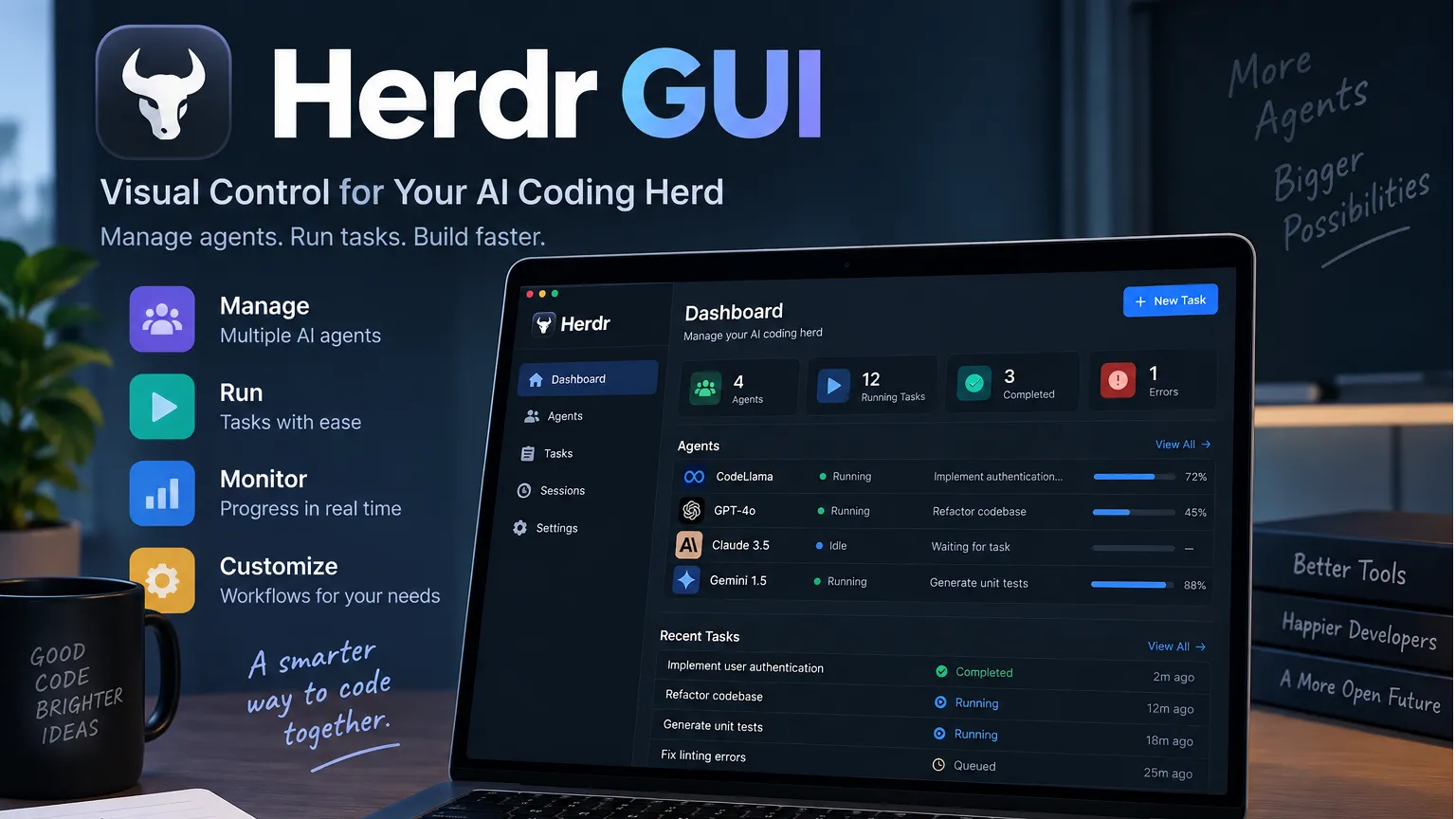
Herdr GUI is a graphical interface for managing persistent AI coding-agent sessions through a web browser. The community project originally called herdr-gui became Herdr Studio and is now maintained as Roamgate.
Its current website is roamgate.dev, and the active source repository is powerfooI/roamgate.
Understanding the relationship between the products is important because Herdr itself already has an interactive terminal interface.
Herdr, available at herdr.dev, is a terminal-native runtime and workspace manager for coding agents. It offers features similar to a terminal multiplexer, including persistent sessions, multiple panes, workspaces, and remote attachment. Unlike conventional terminal multiplexers, it also recognizes supported coding agents and tracks their activity.
Roamgate, the successor to Herdr GUI, connects to the Herdr runtime and exposes its capabilities through a graphical browser interface. Developers can interact with terminals, review changed files, inspect agent conversations, and manage Git worktrees from desktop computers or mobile devices.
The distinction matters: Roamgate does not replace Herdr, host an AI model, or provide an independent coding-agent execution engine. It is a control surface for processes running within Herdr.
Why the name changed
The project's naming history explains why older tutorials and installation commands may appear inconsistent:
| Name | Meaning | Current status |
|---|---|---|
| Herdr GUI | Original project and herdr-gui executable | Legacy name |
| Herdr Studio | Intermediate product branding | Superseded |
| Roamgate | Current browser client and CLI | Actively maintained |
| Herdr | Independent underlying terminal runtime | Required backend |
Roamgate 0.7.0 introduced new release assets, and later releases completed the transition to new service identities and configuration paths. Historical Herdr Studio installations at version 0.6.2 or earlier cannot simply be updated through the old release channel.
As of October 13, 2026, the latest GitHub release identified for Roamgate is v0.8.2, published October 11, 2026. It includes improvements to the experimental Ranger workspace assistant and Windows SSH connectivity. Check the official releases for subsequent updates.
How Herdr GUI Works
Herdr GUI follows a client-bridge-runtime architecture rather than launching AI agents directly inside the browser.
Desktop Browser / Mobile Browser / PWA
                  |
                  v
        Roamgate Web Interface
                  |
           HTTP / WebSocket
                  |
                  v
           Roamgate Bridge
                  |
       Herdr Socket / SSH Connection
                  |
                  v
          Herdr Session Server
                  |
        Workspaces / Tabs / Panes
                  |
          Real Terminal Processes
                  |
       Claude Code / Codex / OpenCode
The architecture separates three responsibilities:
- Herdr owns the running processes. Agent sessions, shells, development servers, and terminal panes belong to the Herdr background server.
- Roamgate translates runtime information into browser interactions. It handles terminal streams, workspace navigation, agent history, file previews, and Git operations.
- The browser provides the user interface. Developers can connect from a desktop browser or mobile device without moving the underlying coding-agent process.
Roamgate uses a React-based frontend and a Bun-powered bridge implementation. Published standalone binaries bundle the required application runtime, so installing Bun and Node.js separately is unnecessary for normal binary deployment. Source builds have additional development dependencies.
Why this architecture matters
Traditional browser-based coding tools may start separate execution environments or reproduce a terminal through an application-specific interface.
Roamgate instead connects to existing Herdr sessions. The same agent remains associated with its actual terminal process and working directory.
Closing a browser tab does not automatically terminate that process. Herdr can continue running it, provided the host and Herdr server remain operational.
However, persistent sessions do not mean that processes survive a powered-off computer. Herdr can restore workspace layouts and resume supported agent conversations after a server restart, but the original operating-system processes are no longer running. This difference is documented in Herdr's session restoration guide.
Herdr GUI Features: What Can Roamgate Actually Do?
1. Manage multiple AI coding agents visually
The most immediate benefit is visibility across concurrent agent sessions.
Roamgate displays recognized agents alongside their associated workspaces and panes. Herdr provides lifecycle states such as:
- Working: The agent is actively processing a task.
- Blocked: The agent is waiting for input, permission, or another interaction.
- Done: The agent has reached a completed or settled state.
- Idle: The agent is available but not actively processing work.
- Unknown: Reliable state information is unavailable.
These states help developers identify sessions that need attention without repeatedly opening every terminal.
For example, one Codex instance might be modifying an API, while a Claude Code session examines frontend changes and an OpenCode session investigates a failing test.
Instead of manually checking three separate terminal windows, the developer can navigate directly to the relevant agent.
Important limitation: Agent state is not a quality assessment. A done status does not establish that code compiles, tests pass, or the resulting implementation is correct.
2. Use real terminal sessions inside a browser
Roamgate supports interactive terminal streaming rather than presenting only summarized agent messages.
Capabilities include:
- Live terminal output and keyboard input.
- Terminal panes, resizing, and workspace navigation.
- Scrollback and multiline paste.
- Clickable terminal links and file paths.
- Terminal input compatible with common international input methods.
- Mobile-oriented input controls.
- File and image uploads that insert accessible file paths into terminal input.
This is especially useful when an AI coding agent exposes interactive confirmation screens or asks the developer to inspect actual command output.
Browser terminals still have limitations. Browsers may intercept keyboard shortcuts, and compatibility with advanced terminal input protocols depends on the installed Herdr version and connection mode.
Developers who depend heavily on specialized terminal keyboard behavior may prefer the native Herdr interface for those operations.
3. Inspect files and Git changes
Roamgate includes a workspace inspector that makes it more useful than a conventional remote-terminal viewer.
Developers can browse project files and inspect:
- Modified, staged, and untracked files.
- Git diffs with line-level changes.
- Commit history and historical file versions.
- Markdown documents and supported media previews.
- Repository-wide file and content searches.
- GitHub pull request or GitLab merge request status when the appropriate host CLI is installed and authenticated.
Review annotations allow feedback to be attached to specific diff lines, source lines, or supported document selections.
This provides a practical code-review workflow: read an agent's explanation, inspect its actual changes, identify questionable lines, and send targeted feedback back to the agent.
The review capabilities do not replace automated tests or independent verification. Files shown in a shared checkout may contain changes produced by several processes, so a Git diff does not inherently prove which agent authored each line.
4. Manage Git worktrees for parallel agents
One of Roamgate's more valuable capabilities is Git worktree management.
A Git worktree provides a separate checkout of a repository. Each worktree can use its own branch and working files while sharing the repository's Git object database.
This makes worktrees useful for parallel AI-assisted development.
Consider three tasks:
| Agent | Task | Recommended workspace |
|---|---|---|
| Claude Code | Implement authentication UI | Dedicated authentication worktree |
| Codex | Refactor API error handling | Dedicated API worktree |
| OpenCode | Improve test coverage | Dedicated testing worktree |
With separate worktrees, agents can edit independently without constantly overwriting one another's working files.
Roamgate can create, open, update, and remove supported linked worktrees through its graphical interface.
A critical distinction: Splitting terminal panes does not isolate the filesystem. Two agents running in different panes of the same checkout can still modify the same files. Separate worktrees are the appropriate mechanism when isolated edits are required.
Worktree setup and teardown hooks may execute repository-defined commands. Treat these hooks as trusted executable code, review their configuration, and disable them when working with untrusted repositories.
5. Review agent conversations and session history
Roamgate offers conversation and session inspection for supported agent formats.
The interface can expose user messages, agent responses, tool activity, conversation timelines, searchable transcripts, and exports where the underlying session data is available.
Documented transcript support includes Claude Code, Codex, Pi, Kimi, Muse Code, Grok Build, and Antigravity CLI, subject to their respective integration and session-record requirements.
This helps with questions such as:
- Which instruction caused the agent to edit a particular component?
- What tool calls occurred before an implementation failed?
- Did the agent actually run the expected verification command?
- What context should another agent receive before continuing the work?
Not every agent exposes the same metadata. Missing conversation history does not necessarily indicate that the terminal session has stopped working.
6. Open Herdr sessions from a phone
Roamgate provides responsive layouts, mobile terminal controls, and Progressive Web App installation.
Developers can use a mobile browser to check agent progress, respond to an approval request, inspect a changed file, or review a diff.
On supported devices, the interface can be installed as a PWA for an app-like window:
- iPhone or iPad: Safari's Add to Home Screen action.
- macOS: Add to Dock in supported Safari versions.
- Chrome or Edge: Install app from the browser interface.
PWA installation is not offline execution. The Roamgate bridge and Herdr server must remain reachable for live terminal control.
7. Use Ranger for experimental workspace management
Recent Roamgate releases also include Ranger, an experimental workspace-management assistant.
Ranger can inspect supported workspace context, assist with management actions, and manage scheduled background checks while the relevant services remain operational.
This extends Roamgate beyond passive terminal viewing, but it also introduces permission and automation considerations.
For sensitive repositories, manual confirmation of proposed actions is preferable to unrestricted automated execution. Ranger should be treated as an optional capability rather than a requirement for ordinary Herdr GUI usage.
How to Install Herdr GUI on macOS and Linux
The recommended approach for new installations is to install the current Roamgate release rather than an archived herdr-gui binary.
Step 1: Install Herdr
First, install the underlying Herdr runtime using its official installation script:
curl -fsSL https://herdr.dev/install.sh | shAlternatively, follow the platform-specific package-manager or manual installation instructions in the Herdr installation documentation.
Verify that the executable is available:
herdr --versionOpen a trusted project directory and start Herdr:
cd /path/to/project
herdr
Herdr starts or attaches to its background session and opens the terminal interface.
The default keyboard prefix is Ctrl+B. To detach without stopping the session, press Ctrl+B, release the keys, and then press Q.
Step 2: Install Roamgate
Install the current standalone binary:
curl -fsSL https://github.com/powerfooI/roamgate/releases/latest/download/install-roamgate.sh | shThe installer verifies the downloaded release and normally places the executable in ~/.local/bin.
If the executable is not recognized immediately, ensure this directory is on the shell's PATH or restart the terminal.
Check the installed version:
roamgate --versionFor reproducible production environments, review the installer and release checksums before running downloaded code. Pin a tested release instead of automatically upgrading every deployment.
Step 3: Start the web interface
Run Roamgate:
roamgateBy default, the standalone application listens on 127.0.0.1:8787.
Open the local interface:
http://127.0.0.1:8787
Normal runtime requires authentication even on the local machine. Use the generated access token or configured password. Follow the startup output to locate the protected token file or login URL.
Once authenticated, select a Herdr workspace and open an existing pane.
A simple smoke test is to execute:
pwdIf the output shows the expected project directory, browser terminal input is successfully reaching the Herdr-managed environment.
Alternative: Let Roamgate set up Herdr
Recent Roamgate versions offer a managed setup path for a default local Herdr installation.
After installing Roamgate, use:
roamgate herdr setup
roamgate herdr status
This is useful when Herdr is not yet installed or its default local server is unavailable.
The managed setup has narrower configuration support than manual deployment. Developers using named Herdr sessions, SSH profiles, or customized socket paths should consult the Roamgate deployment documentation before selecting this option.
Installing Herdr GUI on Windows
Both Herdr and current Roamgate releases provide Windows support, although some terminal and remote-connection behaviors have platform-specific requirements.
Install Herdr using the documented PowerShell installer:
powershell -ExecutionPolicy Bypass -c "irm https://herdr.dev/install.ps1 | iex"Then download the matching Windows x64 or ARM64 Roamgate archive from the official GitHub releases.
Verify the accompanying SHA-256 checksum, extract the archive, and launch roamgate.exe.
Windows-specific Git features may require Git for Windows with Git available on PATH.
For developers already operating Herdr through Windows Terminal or another compatible terminal application, Roamgate adds a browser control surface without requiring a replacement terminal emulator.
Using Herdr GUI with Claude Code, Codex, and OpenCode
Herdr supports many AI coding agents, but each agent still needs to be installed and authenticated independently.
Starting an agent
In a Herdr terminal pane, launch the agent already installed on the host:
claudeFor Codex:
codexFor OpenCode:
opencodeThese commands are examples, not installation instructions for the agents themselves.
When Herdr recognizes the running agent, its state becomes available through the Herdr sidebar and compatible Roamgate views.
Install Herdr integrations when appropriate
Herdr integrations can improve native session restoration and, for certain agents, lifecycle reporting.
For example:
herdr integration install claude
herdr integration install codex
Integrations are distinct from installing the corresponding AI coding applications. Their availability and behavior depend on the installed Herdr version.
Some agents report their own lifecycle state. Others rely on Herdr's screen detection. Consult the supported agent reference and integration documentation for current coverage.
A practical multi-agent workflow
A reliable approach to parallel coding uses explicit task ownership and separate Git worktrees:
- Create a separate worktree for each task that modifies code independently.
- Open a corresponding Herdr workspace and start the appropriate agent.
- Give each agent a narrowly scoped task with a defined completion condition.
- Monitor
workingandblockedstates in Roamgate rather than repeatedly polling terminals. - When an agent finishes, inspect the changed files and review the actual diff.
- Run project-specific tests and verification commands before merging or deploying.
For a JavaScript or TypeScript repository that already defines the relevant scripts, the verification stage might include:
git status --short
git diff --check
npm run lint
npm test
These commands should only be used when the repository's tooling supports them. git diff --check detects whitespace errors but is not a replacement for tests, type checking, or a security review.
The architectural advantage is separation of execution and supervision. Agents execute within Herdr, while Roamgate provides a centralized place to inspect their state and results.
Access Herdr GUI Remotely with Tailscale
Running a browser-based terminal interface remotely is useful, but publishing a powerful developer control surface directly to the internet creates unnecessary risk.
Roamgate's documentation recommends private connectivity such as Tailscale or SSH.
Private access through Tailscale Serve
Install Tailscale on the Herdr host and the device that will access it. Join both devices to an appropriately restricted tailnet.
Start Roamgate on the host's loopback interface:
roamgate --host 127.0.0.1 --port 8787In another terminal on that host, after confirming the HTTPS Serve port is unused and the tailnet access policy is restricted, configure Tailscale Serve:
tailscale serve --bg --https=443 http://127.0.0.1:8787
tailscale serve status
Open the HTTPS hostname provided by Tailscale on an authorized device and authenticate using the Roamgate credential.
This approach provides a private, encrypted access path without exposing the Roamgate listener to arbitrary internet visitors.
Tailscale Serve and Tailscale Funnel are not interchangeable. Serve is designed for tailnet access; Funnel can expose services publicly and is not the recommended option for this workflow.
Roamgate authentication remains necessary even when the connection is protected by a VPN.
SSH forwarding for desktop access
For occasional access from another computer, SSH local port forwarding is another option.
After configuring an SSH host alias such as workbox, run this on the visiting computer:
ssh -N -o ExitOnForwardFailure=yes -L 127.0.0.1:18787:127.0.0.1:8787 workboxOpen http://127.0.0.1:18787 on that same visiting computer.
The browser connects to the local forwarded port, while SSH transports requests to Roamgate on the remote host.
For phone access, a private HTTPS route through Tailscale Serve is usually more convenient than local SSH forwarding.
The official Roamgate remote-access tutorial documents both approaches, including access controls and troubleshooting.
Migrating from the Original Herdr GUI
Developers who installed the historical herdr-gui application should not assume that downloading the latest Roamgate binary performs an automatic migration.
The transition affects executable names, service definitions, configuration paths, and plugin identities.
The recommended migration sequence is:
- Back up the existing installation. Preserve the legacy executable, configuration, authentication data, and service definitions. Unix legacy data commonly resides under
~/.config/herdr-gui/. - Stop the old process or service. Do not leave the historical Herdr GUI service and the replacement service running simultaneously.
- Uninstall the legacy generated service. For supported historical installations, use the old CLI's
service uninstallaction before replacing its executable. - Install a current Roamgate release. Use the active repository and current release assets rather than the archived Herdr Studio installer.
- Create the new service explicitly if needed. The current CLI supports
roamgate service install, subject to legacy-service conflict checks. - Verify access and stored connections. Check the authenticated web interface, workspace availability, and remote profiles before considering the migration complete.
Current configuration generally lives under ~/.config/roamgate on Unix systems or %APPDATA%\ oamgate on Windows.
Migration is not bidirectional synchronization. Original data may be retained for rollback, while changes made in the new configuration do not automatically propagate backward.
Plugin users also need to handle the historical herdr.studio plugin identity separately.
Follow the official migration instructions for the installed version before removing any legacy service or plugin registration.
Herdr GUI vs Herdr TUI vs Other Web Interfaces
Herdr's ecosystem now includes multiple ways to interact with coding agents. Their names can be confusing, but their intended roles differ.
| Capability | Herdr native TUI | Roamgate (formerly Herdr GUI) | Herdr Web UI plugin |
|---|---|---|---|
| Primary interface | Terminal | Browser / PWA | Browser / mobile |
| Persistent agents | Through Herdr server | Through Herdr server | Through Herdr server |
| Interactive terminal | Native | Yes | Yes |
| Agent status awareness | Yes | Yes | Yes |
| Graphical file and diff review | Terminal tools required | Built-in supported views | Different feature focus |
| Mobile-friendly interface | Limited by terminal client | Dedicated mobile layouts | Mobile-focused |
| Git worktree management | CLI/runtime capabilities | Graphical workflow | Plugin-specific workflow |
| Additional component | None beyond Herdr | Standalone bridge or plugin | Herdr plugin |
| Ideal audience | Terminal-first developers | Developers wanting graphical reviews | Developers seeking a phone-oriented client |
The separate Herdr Web UI project provides another browser-based approach, with emphasis on accessing agent conversations and terminals from multiple screens. It should not be confused with Roamgate.
Herdr GUI vs tmux
Herdr is also frequently compared with tmux because both systems support persistent terminal sessions and pane management.
The key difference is agent awareness.
tmux provides mature terminal multiplexing primitives, while Herdr adds recognition and lifecycle monitoring for AI coding agents. Roamgate builds a browser interface on top of Herdr's additional capabilities.
For developers running traditional shell commands, tmux may already provide sufficient functionality. For developers supervising multiple coding agents that can become blocked or request approval, Herdr's state model offers a more specialized workflow.
No standardized performance benchmark establishes that one approach is universally faster. The meaningful comparison concerns workflow, terminal compatibility, remote access, and the need for graphical inspection.
Is Herdr GUI Free? Pricing and Licensing
Herdr and Roamgate are open-source projects with permissive licenses.
| Component | License | Application licensing cost |
|---|---|---|
| Herdr | Apache License 2.0 | No license fee for the open-source runtime |
| Roamgate | MIT | No license fee for the open-source browser client |
| AI coding agents | Depends on provider | Separate subscription or API charges may apply |
| Remote infrastructure | Depends on deployment | Hosting and networking costs may apply |
Roamgate does not include unlimited AI inference or replace a subscription to a supported coding agent.
Running several agents simultaneously can increase consumption of model usage allowances or API credits. Costs depend on the model provider, execution patterns, context sizes, and task volume rather than simply on the number of panes visible in Roamgate.
Security and Privacy: What Developers Need to Know
A browser interface that controls real terminal sessions requires stronger precautions than an ordinary read-only dashboard.
According to the project's security policy, authenticated Roamgate access grants substantial authority over the underlying user environment.
That authority can include terminal execution, repository operations, workspace files, uploads, deletion, and access to session information.
Recommended security practices
- Keep the listener private. Prefer the default
127.0.0.1binding for standalone deployment. Use a private VPN or SSH tunnel for remote access. - Use strong authentication. Keep generated tokens private or configure a unique password. Short optional PIN authentication is weaker and should only be considered on trusted private networks.
- Encrypt remote transport. A password does not itself provide HTTPS. Use TLS or a trusted encrypted tunnel.
- Do not expose a development listener. Roamgate's local development configuration may bypass normal authentication, making forwarding or proxying that listener unsafe.
- Review executable hooks. Git worktree hooks can run real commands with the permissions of the connected user.
- Protect session information. Terminal scrollback and agent transcripts may contain API credentials, source code, or confidential operational details.
- Avoid treating Roamgate as a multi-user access-control system. Authentication does not establish separate per-user repository permissions or sandboxed execution.
An additional deployment detail is easy to overlook: the default binding of a standalone invocation and the default binding of an installed user or plugin service can differ. Review the effective host and port rather than assuming every service listens only on loopback.
Self-hosting provides greater control over where the interface runs, but does not automatically eliminate risks arising from remote access, third-party agent integrations, or model-provider data policies.
Common Herdr GUI Problems and Solutions
Roamgate opens but cannot find Herdr
Check whether the Herdr background server is running and whether the selected session and socket configuration match the intended installation.
For the default local installation, inspect:
herdr session list
herdr agent list
If using managed local setup, also inspect:
roamgate herdr statusA healthy Roamgate web server alone does not establish that the bridge can access the correct Herdr runtime.
Port 8787 is already in use
An existing Roamgate process, plugin service, or another application may already own the port.
Check for an existing service before launching duplicate processes. To use a different local port deliberately:
roamgate --host 127.0.0.1 --port 8788Open the corresponding browser URL and update any port-forwarding configuration accordingly.
Agent status appears incorrect
First verify that the agent is supported and detected by Herdr.
herdr agent listHerdr also provides diagnostic commands for agent detection, while integration status can reveal missing or outdated integrations.
herdr integration statusState reporting can differ between screen-detected agents and agents that report their own lifecycle events.
Conversation history is missing
Confirm that the relevant agent stores accessible session records and that the corresponding Herdr integration is installed when required.
Not every supported agent exposes a readable transcript format. Terminal operation and transcript inspection are separate capabilities.
The phone cannot connect to localhost
The address 127.0.0.1 refers to the device currently opening the URL.
A phone therefore cannot use its own localhost address to reach Roamgate running on a laptop.
Use the private HTTPS hostname provided by Tailscale Serve or another properly secured remote-access route.
Browser shortcuts conflict with agent controls
Browser keyboard shortcuts can intercept combinations intended for the terminal.
Use Roamgate's menus, configurable controls, or the native Herdr client for actions requiring precise terminal keyboard behavior.
Agents stop after the computer sleeps or restarts
Herdr's background server keeps processes running when terminal clients detach, but it cannot execute commands while the host is suspended or powered off.
For long-running tasks, use a machine that remains awake and operational. After a full server restart, distinguish restored layouts from resumed agent conversations and terminated processes.
Frequently Asked Questions
Is Herdr GUI the same as Roamgate?
Yes, in the context of the community web client. The original herdr-gui project was branded Herdr Studio and subsequently renamed Roamgate. Current installations should use the Roamgate repository and release assets.
Does Herdr have its own GUI?
Herdr has a mouse-friendly terminal user interface with workspaces, tabs, panes, and agent status indicators. It is not itself a conventional desktop GUI or browser application. Roamgate provides the graphical web interface.
Can Herdr GUI control Claude Code and Codex?
Yes, when those agents are installed and running within supported Herdr sessions. Roamgate can show their associated terminal panes and compatible lifecycle information. Session-history features depend on available records and integration support.
Can Herdr GUI run on Windows?
Current Roamgate releases support Windows, including published x64 and ARM64 builds. Platform-specific terminal, Git, and SSH requirements should be reviewed before deployment.
Does Herdr GUI work without Herdr?
The Roamgate client requires an accessible Herdr runtime. It can assist with managed setup for certain local configurations, but its browser interface does not independently provide the underlying terminal runtime.
Is Roamgate an alternative to Cursor or VS Code?
Not as a full replacement. Roamgate focuses on terminal-based agent supervision, browser access, repository inspection, and workflow management. Cursor and VS Code provide broader source-editing and IDE capabilities. These tools can complement rather than necessarily replace one another.
Can Herdr GUI keep agents running 24/7?
Herdr can host persistent sessions on an always-on computer or server. The machine, Herdr server, and required processes must remain operational. Restarted sessions may restore layouts and supported agent conversations, but not arbitrary terminated processes.
Is Herdr GUI suitable for teams?
It can be useful in developer workflows, but Roamgate's documented security model is not a full multi-user authorization system. Shared access requires careful infrastructure-level controls. Teams needing separate permissions, auditable identities, or strict execution isolation should evaluate those requirements independently.
Who Should Use Herdr GUI?
Roamgate is particularly well suited to developers who already prefer command-line coding agents but want better visibility and remote interaction.
It is most useful when several tasks are active simultaneously, when code changes need graphical review, or when developers want to respond to agent requests without reopening a full desktop development environment.
The native Herdr terminal interface remains a strong choice for keyboard-focused workflows that do not require browser-based file inspection.
A full IDE remains preferable when integrated debugging, language-server navigation, visual design tooling, or extensive manual code editing is the primary activity.
The combination of Herdr and Roamgate is best understood as a specialized execution and supervision layer for terminal-based AI development, not a universal replacement for existing coding tools.
Conclusion
Herdr GUI has evolved into Roamgate, an open-source graphical client that makes Herdr's persistent coding-agent sessions accessible through a desktop or mobile browser.
Its strongest capabilities are centralized agent monitoring, real terminal interaction, graphical Git review, worktree management, session inspection, and private remote access.
The most important practical distinction is architectural: Herdr keeps the coding agents running, while Roamgate helps developers supervise and interact with them. This separation allows teams and independent developers to retain their existing terminal-based agents without adopting an entirely different execution environment.
For a new installation, begin with Herdr, install the latest Roamgate release, and validate a local agent session before enabling remote connectivity. Developers using the historical herdr-gui executable should follow the official migration guide instead of treating Roamgate as an automatic in-place upgrade.
Start with one coding agent and one repository. Confirm that terminal control, session persistence, and diff review work correctly, then expand to parallel agents and private mobile access when the workflow justifies the additional complexity.
Continue Reading
More articles connected to the same themes, protocols, and tools.

WigglyPaint Explained: Official Tool, Line Boil Mechanics, and the Unofficial Clone Problem in 2026

OpenCreator AI Review (2026): The Complete Guide to the Open-Source Codex Creative Workspace

Cloudflare Artifacts Explained: Pricing, Architecture, and the Future of Git for AI Agents
Referenced Tools
Browse entries that are adjacent to the topics covered in this article.