On This Page8 sections
Key Takeaways
- ChatGPT failing to load conversation history does not necessarily mean your chats have been deleted. In many cases, the browser simply cannot retrieve conversation data from OpenAI's servers.
- HTTP 429 (Too Many Requests) is an important diagnostic clue. It indicates that a request has been rate-limited or restricted by a traffic-control mechanism, although it does not reveal the exact reason for the restriction.
- VPN connections, shared IP addresses, browser extensions, and repeated requests may contribute to loading problems. However, these factors should be investigated rather than automatically assumed to be the cause.
- QuotaExceededError and Content Security Policy (CSP) violations are separate browser errors. They may appear alongside an HTTP 429 response without being directly responsible for it.
- Chrome DevTools provides the most reliable starting point for technical troubleshooting. Examining failed requests, HTTP status codes, response headers, and browser storage can help identify the source of the problem.
- Clearing browser data may resolve local session issues, but it cannot override server-side rate limits or restore permanently deleted conversations.
ChatGPT users occasionally encounter frustrating error messages such as Unable to Load History, Unable to Load Conversation, or Unable to Load This ChatGPT Conversation.
These issues can appear unexpectedly, even when ChatGPT can still generate responses in a new conversation. Sometimes refreshing the page restores access temporarily. In other cases, an older conversation remains inaccessible while other chats continue to work normally.
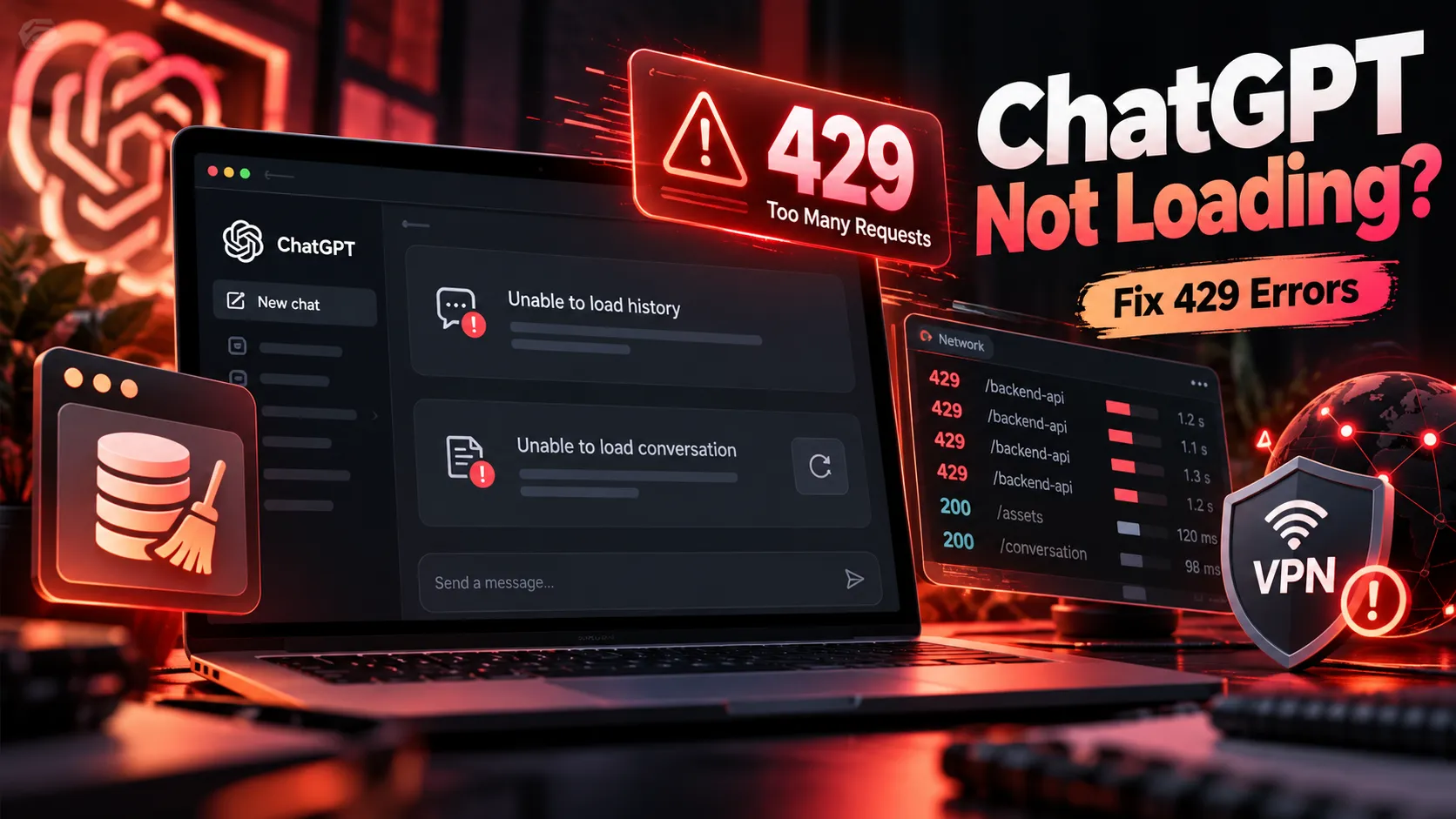
A real Chrome Console troubleshooting log from October 2026 provides a useful example. During a conversation-loading failure, ChatGPT's internal conversation endpoint returned 429 Too Many Requests. The same browser session also reported a local storage quota error and a Content Security Policy violation.
These findings demonstrate why repeatedly refreshing ChatGPT is not always an effective solution. Different technical problems can produce similar error messages, and understanding their differences is essential for choosing the right fix.
This guide explains what these errors mean, how to identify their causes, and how to troubleshoot ChatGPT conversation-loading problems using browser diagnostics and the recommendations in OpenAI's official troubleshooting documentation.
1. Why Does ChatGPT Say Unable to Load History?
ChatGPT's web interface retrieves conversation information through requests to backend services.
These requests are responsible for loading the conversation list, fetching individual conversations, and updating information displayed in the interface.
When a request fails, times out, or receives an unsuccessful server response, the browser may display a loading error.
There are several common variations.
| Error Message | Where It Appears | Possible Explanation |
|---|---|---|
| Unable to Load History | ChatGPT sidebar | The conversation list could not be retrieved |
| Unable to Load Conversation | Individual conversation page | A request to retrieve a specific chat failed |
| Unable to Load This ChatGPT Conversation | Conversation content area | Chat data could not be loaded successfully |
| Retry button is disabled | Error interface | The page is temporarily unable to retry the operation |
Although these errors look similar, they do not necessarily originate from the same request.
For example, a user may successfully retrieve the sidebar history while receiving an error when opening a specific conversation.
Alternatively, the entire conversation list may fail while a newly created chat continues to work.
This distinction matters because sending messages, retrieving conversation lists, and loading existing chats can involve different backend operations.
A successful message-generation request does not guarantee that conversation-history requests will also succeed.
Most importantly, an unsuccessful request is not proof that the underlying conversation data has been deleted.
2. Real-World Example: ChatGPT Returns HTTP 429
An actual Chrome Console log captured during a ChatGPT conversation-loading failure contained the following message:
GET https://chatgpt.com/backend-api/conversations/...
429 (Too Many Requests)
The original request also contained query parameters similar to:
?num_turns=10&include_has_versions=trueThe conversation identifier has been removed for privacy.
This request was associated with retrieving an existing ChatGPT conversation.
Instead of returning a successful response, the server returned HTTP status code 429.
What does HTTP 429 mean?
HTTP 429 is a standard response status indicating that a client has sent too many requests under a particular rate-limiting or traffic-control policy.
In this case, the result establishes three facts:
- The browser attempted to retrieve an existing conversation.
- The request received a response from the ChatGPT backend.
- The backend returned HTTP 429 instead of the expected successful result.
This is strong evidence that the conversation-loading failure was associated with a rejected or rate-limited request.
However, the status code alone cannot establish whether the restriction was applied to the user account, IP address, browser session, request pattern, or another server-side criterion.
Other errors appeared in the same console log
The browser also reported a Statsig cache error:
[Statsig] Caught error in _writeToCache
QuotaExceededError
Failed to execute 'setItem' on 'Storage'
Another message indicated that an inline script had been blocked by a Content Security Policy rule:
Executing inline script violates the following
Content Security Policy directive
The action has been blocked
These three errors should not be treated as interchangeable.
| Error | Confirmed Meaning | Diagnostic Priority |
|---|---|---|
| HTTP 429 | The conversation request was restricted | High: directly relevant to conversation loading |
| QuotaExceededError | A browser storage write operation failed | Medium: investigate local storage and caching |
| CSP Violation | A script was blocked by the browser's security policy | Context-dependent: identify the script and its origin |
The central lesson is that multiple console errors may coexist without sharing the same root cause.
3. What Causes ChatGPT HTTP 429 Too Many Requests?
Rate limiting is commonly used to protect backend services against excessive request volume, abusive traffic, and unexpected load.
However, receiving a 429 response does not automatically mean that a user has deliberately exceeded a usage limit.
Several conditions may contribute to the problem.
Repeated requests and frequent refreshing
Refreshing ChatGPT repeatedly may trigger additional requests to retrieve conversation metadata and message history.
If a request fails and the browser or user immediately retries, the resulting traffic may contribute to further restrictions.
A particularly unhelpful troubleshooting pattern is repeatedly clicking Retry or refreshing the page every few seconds after receiving a 429 response.
If the server is enforcing a temporary rate limit, excessive retries may prevent the client from recovering efficiently.
Multiple ChatGPT tabs
Users who keep several ChatGPT conversations open simultaneously may generate concurrent background requests.
Browser tabs can independently load conversation content, update application state, or reconnect to backend services.
This does not mean multiple tabs inherently cause rate limiting. It means they are a reasonable variable to eliminate when troubleshooting unusually frequent requests.
VPNs and shared proxy IP addresses
VPN services often route traffic from multiple customers through shared public IP addresses.
Depending on the service's security and traffic-control policies, a shared exit IP may affect how requests are evaluated.
A proxy may also introduce connection instability, request timeouts, DNS issues, or unexpected reconnections.
VPN usage alone does not prove that the IP address caused an HTTP 429 response.
A proper diagnosis requires comparing results across network environments while keeping other variables consistent.
Browser extensions and automation
Certain browser extensions can modify ChatGPT's behavior or produce additional network requests.
Examples include:
- Automatic page-refresh extensions.
- ChatGPT interface customization tools.
- Conversation-export and synchronization extensions.
- Privacy tools that intercept or modify requests.
- Scripts that repeatedly access ChatGPT pages.
If a browser extension generates additional requests or interferes with session management, it may contribute to intermittent loading problems.
Server-side restrictions or temporary failures
OpenAI's backend may apply traffic-control mechanisms based on request patterns, security signals, or internal service conditions.
Such mechanisms are not fully documented for ChatGPT's internal web endpoints.
Therefore, a 429 response should be treated as evidence of a restricted request, not as proof of a specific enforcement rule.
Is ChatGPT HTTP 429 the same as an API rate-limit error?
Not necessarily.
The OpenAI API and the ChatGPT consumer interface are separate products with different access mechanisms and usage controls.
API rate-limit errors may relate to requests per minute, tokens per minute, or other API-specific limits.
A 429 response from ChatGPT's internal conversation endpoint does not, by itself, demonstrate that an API quota has been exceeded, that an API balance is insufficient, or that a ChatGPT model's message allowance has been exhausted.
These situations require separate investigation.
4. How to Fix ChatGPT Unable to Load History
The following troubleshooting sequence prioritizes actions that are easy to reverse and unlikely to cause data loss.
Only change one variable at a time so that the result of each test remains meaningful.
Method 1: Check OpenAI's service status
Start with the official OpenAI Status page.
Look for incidents involving ChatGPT availability, conversation history, authentication, or degraded performance.
If OpenAI has acknowledged an ongoing incident, waiting for the service to recover may be more effective than making repeated changes to the browser.
A status page showing normal operation does not guarantee that every account, region, or backend endpoint is functioning perfectly.
Method 2: Stop retrying temporarily
If Chrome DevTools confirms that the failing request returns 429, stop repeatedly refreshing the page.
Close unnecessary ChatGPT tabs, pause automated tools, and allow some time before attempting another request.
If the response includes a Retry-After header, follow the delay specified by the server.
Without a Retry-After header or an explicit error message, there is no reliable universal waiting period for ChatGPT's internal rate limits.
Method 3: Perform a hard refresh
A hard refresh forces the browser to reload page resources and may help resolve certain frontend caching issues.
On macOS with Chrome:
Command + Shift + ROn Windows or Linux:
Ctrl + Shift + RA hard refresh can help when the application has stale resources or a temporary frontend problem.
However, it does not remove server-side request restrictions. Avoid repeating it continuously when requests are returning 429.
Method 4: Test ChatGPT in Incognito Mode
Open a new Chrome Incognito window and sign in to the same ChatGPT account.
Attempt to load the conversation that previously failed.
Incognito Mode generally starts with a separate temporary browser session and usually does not enable ordinary extensions by default.
This helps distinguish problems involving browser extensions, site data, or persistent browser state.
If the conversation loads successfully in Incognito Mode but fails consistently in the regular window, investigate installed extensions and locally stored website data.
If both environments fail, the underlying issue may involve the network, account session, or server.
Method 5: Compare VPN and network connections
If ChatGPT is being accessed through a VPN or proxy, compare its behavior with another stable, authorized network connection.
Useful tests include:
| Test Result | What to Investigate |
|---|---|
| Works on another network but not the original connection | Proxy routing, shared IP, DNS, or filtering |
| Works in Safari but not Chrome | Chrome extensions, local storage, or browser configuration |
| Works in Incognito but not a regular window | Extensions, cookies, or persistent website data |
| Fails across multiple browsers and networks | Account session, server-side failure, or conversation-specific issue |
These comparisons narrow the investigation, but none independently proves the root cause.
Users should also avoid rotating through large numbers of VPN exit IP addresses in an attempt to evade restrictions. Frequent network changes may introduce additional security checks and connection problems.
For more information, consult OpenAI's network recommendations for ChatGPT.
Method 6: Clear ChatGPT website data
If the problem appears isolated to a specific browser installation, clearing relevant site data may resolve corrupted session information or storage problems.
In Chrome:
- Open Chrome Settings.
- Navigate to Privacy and security and locate the site-data management settings.
- Search for
chatgpt.com. - Remove the relevant website data.
- Restart the browser tab and sign in again.
Depending on the authentication issue, it may also be useful to inspect related openai.com site data.
Important: Clearing website data can sign the user out and remove locally saved drafts or temporary state.
Save important unsent content before proceeding.
Removing local website data generally does not delete conversations already stored in the ChatGPT account, but it cannot restore conversations that were previously permanently deleted.
5. Diagnose ChatGPT Loading Errors with Chrome DevTools
For recurring problems, the Chrome Network panel provides much more useful evidence than the visible error message alone.
Step 1: Open Developer Tools
On macOS:
Command + Option + IOn Windows or Linux:
Ctrl + Shift + IAlternatively, open the Chrome menu and select More Tools or Developer Tools, depending on the browser version.
Step 2: Capture the failing request
- Select the
Networktab. - Enable
Preserve logto keep requests visible during navigation. - Select the
Fetch/XHRfilter. - Clear previous entries to make new failures easier to identify.
- Open the ChatGPT conversation that triggers the error.
- Look for requests with red indicators or unsuccessful HTTP status codes.
In the real troubleshooting example, the relevant request used an internal endpoint resembling:
/backend-api/conversations/{conversation-id}This path is useful for identifying the failed request in browser diagnostics.
It is not a documented public API intended for third-party integrations, and its structure may change.
Step 3: Inspect HTTP status codes
Different status codes suggest different troubleshooting paths.
| Status Code | Meaning | Recommended Investigation |
|---|---|---|
| 200 | Request succeeded | Inspect returned data and frontend rendering |
| 401 | Authentication failed | Login session, cookies, or authorization |
| 403 | Request forbidden | Permissions, security controls, or access restrictions |
| 404 | Resource not found or unavailable | Conversation identifier, account, or resource state |
| 429 | Request rate-limited or restricted | Retry timing, request volume, and network conditions |
| 500 | Internal server error | Backend or service-side issue |
| 502 | Bad gateway | Upstream service or gateway failure |
| 503 | Service unavailable | Temporary service overload or maintenance |
| 504 | Gateway timeout | Upstream response delay or service issue |
Browser-level network errors can also provide useful clues.
| Browser Error | Possible Explanation |
|---|---|
| ERR_TIMED_OUT | Request or connection timed out |
| ERR_CONNECTION_RESET | Connection was interrupted or reset |
| ERR_NETWORK_CHANGED | Network configuration changed during a request |
| ERR_NAME_NOT_RESOLVED | DNS resolution failed |
These messages describe symptoms rather than independently confirming the exact responsible component.
Step 4: Examine response headers
Select the failed request and open the Headers panel.
For HTTP 429, check whether the response contains:
Retry-AfterThis header may specify how long the client should wait before retrying.
Its absence does not mean retries are safe immediately, and not every service exposes its rate-limiting policy through public response headers.
Step 5: Inspect the response body
The Response tab may contain structured error information.
Possible details include an error description, error category, or other diagnostic information.
However, some failed requests return empty responses or generic messages.
Do not assume that the absence of a detailed JSON error means the browser or network is functioning correctly.
Step 6: Compare results after changing one variable
Repeat the same test in another browser session or network environment.
Keep track of whether the request changes from 429 to 200, or whether a different failure appears.
A consistent difference across otherwise comparable test environments provides stronger evidence than a single successful refresh.
6. What Does QuotaExceededError Mean in ChatGPT?
Another error found in the real Chrome Console log was:
QuotaExceededError
Failed to execute 'setItem' on 'Storage'
The message appeared during an operation associated with Statsig cache storage.
Statsig is a service used for feature configuration, experimentation, and related application behavior.
The error indicates that an attempt to write data to browser storage failed because of a storage quota or related limitation.
Does this mean the computer is running out of disk space?
Not necessarily.
Browser storage limits are different from total operating-system disk capacity.
For example, localStorage has implementation-specific capacity limits and can reject additional writes even when the computer has plenty of free disk space.
Browser privacy settings, storage restrictions, and unusual site-data states can also affect storage operations.
How to inspect local storage
In Chrome DevTools:
- Open the
Applicationpanel. - Expand the Storage section.
- Select
Local Storage. - Inspect storage entries associated with
chatgpt.com. - Check for storage-related warnings in the Console.
If the site data appears corrupted or storage failures persist, clearing ChatGPT's site data through Chrome settings may be appropriate.
Avoid executing unknown JavaScript snippets that aggressively remove browser storage or modify application internals.
Is QuotaExceededError responsible for HTTP 429?
The two errors describe different failures.
QuotaExceededError is a client-side storage issue, while HTTP 429 is an HTTP response from a server.
A storage failure might contribute to abnormal frontend behavior in some situations, but the presence of both errors does not establish a causal relationship.
If the actual conversation request returns 429, server-side request restrictions must be investigated independently of browser storage.
7. Content Security Policy Errors: Are They Dangerous?
The console log also contained an error indicating that an inline script was blocked by the page's Content Security Policy.
Content Security Policy, or CSP, is a browser security mechanism that controls which scripts and resources may execute within a website.
For example, a site may restrict execution to scripts loaded from approved origins or scripts authorized through specific hashes or nonces.
When a script does not satisfy those rules, the browser can block it.
What can trigger a CSP violation?
Potential causes include:
- Browser extensions injecting scripts into a page.
- Website code that does not match the current security policy.
- Cached resources that are inconsistent with the currently delivered page.
- Browser security tools or network intermediaries modifying page content.
The exact cause depends on the blocked script and the page configuration.
Does a CSP error mean ChatGPT has been compromised?
No. A CSP violation indicates that the browser's security policy rejected a particular operation.
It is not proof that malicious activity occurred.
In some cases, the browser is simply enforcing the intended security protection.
How to investigate a CSP error
Test the page in a clean browser environment with extensions disabled.
If the CSP violation disappears, inspect extensions that inject scripts or modify webpage behavior.
If the error continues, examine the script source and whether the error correlates with a specific application failure.
Avoid using extensions that disable CSP protections globally. Disabling these restrictions weakens browser security and does not resolve a server returning HTTP 429.
8. Why Does ChatGPT Work in New Chats but Fail in Old Conversations?
Some users report that newly created chats work normally while older conversations fail to load.
There are several possible explanations.
Different backend operations
Creating a new conversation and retrieving an existing one may rely on different backend requests.
A failure in conversation retrieval does not necessarily prevent new message generation.
Conversation-specific problems
A particular conversation may be inaccessible because of a resource issue, account mismatch, permission state, or other backend condition.
A 404 or 403 response would lead to a different investigation than a 429 response.
Large conversation histories
Long conversations may contain extensive message histories, attachments, and other structured content.
Larger conversation data can increase retrieval or rendering complexity, but conversation length alone is not sufficient evidence that it caused the failure.
Browser state problems
Stale application state or caching issues can sometimes cause a particular page to behave differently from a fresh session.
Opening the same conversation in a separate browser environment can help identify these cases.
The correct approach is to inspect the specific failed request, not assume that an old conversation has become too large or has been deleted.
9. Are Missing ChatGPT Conversations Permanently Lost?
Not necessarily. There is an important difference between a conversation that cannot be loaded and one that no longer exists.
Scenario 1: Every conversation fails to load
Prioritize authentication, network conditions, browser environment, and service availability.
Scenario 2: Only one conversation fails
Verify that the user is signed into the correct account and workspace.
Then inspect the HTTP status returned when accessing that conversation.
Scenario 3: Conversations disappear from the sidebar
Check whether the conversations have been archived, whether the account or workspace has changed, and whether the conversations were originally created as temporary chats.
Archived conversations and deleted conversations are different states.
Scenario 4: A conversation was permanently deleted
Deleting a conversation is not equivalent to a temporary loading failure.
According to OpenAI's data-management documentation, deleted conversations cannot be recovered through ordinary chat-history restoration procedures.
How to export ChatGPT conversation history
For eligible accounts, OpenAI offers a data-export feature.
The usual navigation path is:
Settings → Data Controls → Export DataThe export may include conversation history and other account information.
OpenAI states in its data export documentation that processing can take up to seven days, and download links may expire.
Export availability can vary by account type, organization, and workspace policy. Individual account options may not be available in the same form to managed Business or Enterprise workspaces.
Exporting available data is useful for backup and continuity, but it does not automatically repair the ChatGPT interface or restore permanently deleted conversations.
10. How to Prevent ChatGPT Conversation-Loading Problems
Not every loading error can be prevented, particularly when it originates from a server-side outage or temporary service restriction.
However, several practices can reduce avoidable browser and network issues.
Avoid excessive automated requests
Do not continuously refresh ChatGPT conversations or use scripts that repeatedly access undocumented internal endpoints.
If developing a supported integration, use the official OpenAI API rather than reverse-engineering ChatGPT's internal web endpoints.
Keep browser extensions under control
Extensions that modify ChatGPT or intercept web requests should be reviewed when unexplained loading problems begin.
Remove outdated or unnecessary extensions and test suspicious extensions individually.
Use a stable network connection
A reliable connection is generally preferable to frequently switching between proxy nodes, VPN endpoints, and network interfaces.
Where possible, minimize unnecessary network changes during long ChatGPT sessions.
Maintain important backups
For research, programming, or business workflows, avoid using a single long ChatGPT conversation as the only copy of essential information.
Save critical outputs in a separate document or repository, and periodically export eligible conversation history when appropriate.
Keep the browser updated
Modern websites depend on browser features for authentication, caching, security, and network communications.
Keeping Chrome, Safari, or another supported browser updated reduces the risk of problems caused by outdated implementations.
11. Frequently Asked Questions
Does HTTP 429 mean my ChatGPT account is banned?
No. HTTP 429 indicates a restricted request, usually associated with rate limiting or traffic-control policies.
It does not independently establish that an account has been suspended, banned, or penalized.
Additional information from the response, account status, or official notifications would be needed.
Can ChatGPT Plus or Pro users encounter HTTP 429?
Yes. A paid ChatGPT subscription does not mean that all internal web requests are exempt from rate limiting, security controls, or temporary backend failures.
A conversation-loading 429 should not automatically be interpreted as exhaustion of a model's message allowance.
Will switching VPN servers fix the error?
It might help if the problem is related to the current network route, proxy service, or exit IP.
However, changing VPN servers cannot be expected to resolve account-level restrictions, browser session problems, or general service failures.
Why does ChatGPT work after refreshing but fail again later?
Intermittent failures may be associated with network instability, temporary restrictions, changing session state, or backend issues.
The recovery after a refresh is not enough to establish which explanation is correct.
Capturing the actual failed request provides stronger evidence.
Can too many ChatGPT tabs cause problems?
Multiple tabs can generate concurrent requests, but their presence alone does not prove that a rate limit will be triggered.
Closing unnecessary tabs is a simple diagnostic step when repeated or concurrent requests are suspected.
Can browser cache cause ChatGPT conversation-loading errors?
Yes, browser site-data or session problems may interfere with normal application behavior.
However, a cache problem and a server-side 429 response are distinct issues. Clearing local data does not guarantee that a server restriction will disappear.
Does clearing Chrome data delete ChatGPT chats?
Clearing local website data generally does not delete conversation records stored in the ChatGPT account.
It can remove cookies, sign-in state, local drafts, and temporary browser data, so important unsent content should be saved first.
How long should users wait after receiving HTTP 429?
There is no universal waiting period that applies to all ChatGPT web requests.
If the server supplies a Retry-After header, follow its instructions. Otherwise, retry at reasonable intervals rather than continuously refreshing the page.
Why is the Retry button disabled?
A disabled Retry button indicates that the interface is not currently allowing another attempt through that control.
It does not establish whether the problem involves rate limiting, missing data, session state, or an unrecoverable error.
What should users do if only one conversation remains inaccessible?
Confirm the account and workspace, test another browser session, and inspect the response associated with the affected conversation.
If the issue persists, collect diagnostic information and contact OpenAI Support.
12. When to Contact OpenAI Support
If conversation-loading errors persist across different browsers and network connections, the problem may require investigation by OpenAI's support team.
Before submitting a report, collect the following information:
- The date and time of the incident, including the time zone.
- Browser and operating-system versions.
- Whether a VPN, proxy, or organizational network was used.
- The exact error message displayed in ChatGPT.
- The HTTP status code of the failed request.
- Relevant response headers, including
Retry-Afterif present. - The affected conversation URL or identifier.
- A sanitized HAR file or Network log if requested by support.
OpenAI provides guidance on contacting support through its official Help Center.
Important privacy considerations
Browser diagnostic logs can contain sensitive information, including authentication tokens, cookies, conversation identifiers, and private response data.
Do not publicly share complete Network logs or HAR files without reviewing and removing sensitive information.
When exporting diagnostics, use available sanitization options and inspect the resulting file before sharing it.
Conclusion
ChatGPT's Unable to Load History and Unable to Load Conversation errors can result from several different technical problems, including server-side restrictions, network instability, browser session failures, and frontend storage issues.
A real October 2026 troubleshooting log demonstrated a particularly useful finding: ChatGPT's conversation-retrieval endpoint returned 429 Too Many Requests while the browser also reported Statsig storage and Content Security Policy errors.
The HTTP 429 response directly explains why the affected request failed, but it does not establish the exact reason that the server applied the restriction. The accompanying browser errors require separate investigation.
For users experiencing repeated failures, the most effective troubleshooting process is to check OpenAI's service status, avoid excessive retries, compare browser and network environments, and inspect failed requests in Chrome DevTools.
If problems continue, gather sanitized diagnostic logs and contact OpenAI Support rather than relying on repeated refreshes or unsafe browser modifications.
The next time ChatGPT cannot load a conversation, start by checking the HTTP status code in Chrome DevTools. Identifying the failed request is often the fastest way to move from guesswork to a meaningful diagnosis.
Continue Reading
More articles connected to the same themes, protocols, and tools.



Referenced Tools
Browse entries that are adjacent to the topics covered in this article.