On This Page8 sections
Key Takeaways
- Migos AI video generator usually refers to the viral Hotel Lobby AI format rather than an official product from Migos.
- The format turns two portrait photos into a two-person rap performance inspired by the orange-studio visual style associated with Quavo and Takeoff's
HOTEL LOBBY (Unc & Phew)performance. - Two main approaches exist: template-based character replacement and fully generative duet creation.
- For the most reliable result, use two separate, front-facing portraits, explicitly assign left and right performers, test a short clip first, and only generate HD after identity consistency looks good.
- Tools associated with this workflow include MigosAI, AIReel, Starrd, Summrs, and CapCut templates.
- Music rights, likeness rights, consent, and AI disclosure still matter even when the generation itself is automated.
What Is a Migos AI Video Generator?
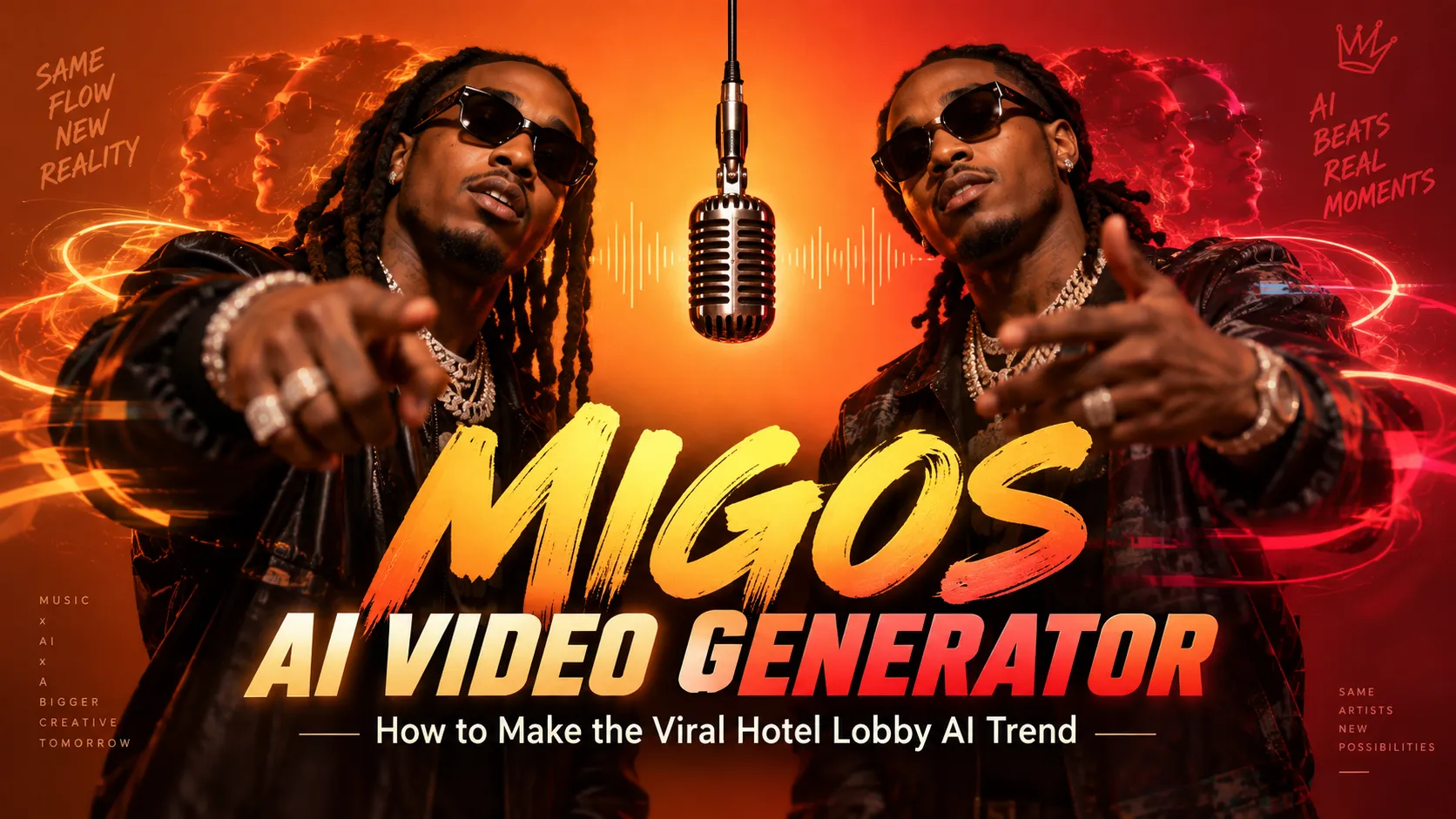
A Migos AI video generator is a photo-to-video tool designed to create the viral two-person rap format commonly called Migos AI, Hotel Lobby AI, Quavo and Takeoff AI, or the AI rap duo trend.
The name can be misleading. It does not normally refer to software officially developed or endorsed by Migos. Instead, the keyword describes independent AI tools and templates inspired by the highly recognizable visual setup of Quavo and Takeoff's HOTEL LOBBY (Unc & Phew) performance.
The format is particularly suitable for AI video because the scene has relatively few moving parts:
- Two performers
- A mostly fixed camera
- A simple orange background
- One hanging microphone
- Limited environmental movement
- Clear left and right performer positions
- Short rhythmic gestures
These constraints reduce the number of elements a generative model must keep stable at once.
Why the Migos AI Trend Works So Well With Generative Video
Open-ended text-to-video generation requires a model to invent the scene, camera, lighting, blocking, interactions, body motion, facial behavior, and timing at the same time.
A Hotel Lobby-style template removes much of that uncertainty.
The system can keep the following elements largely fixed:
- Camera position
- Background
- Microphone placement
- Performer positions
- Shot length
- General motion pattern
That leaves more model capacity for difficult tasks such as identity preservation, facial animation, pose transfer, lip synchronization, and hand consistency.
This explains why specialized trend generators can sometimes outperform generic AI video prompts even when the underlying video model is not fundamentally different.
The format also has a strong social-media mechanic: the casting itself becomes the joke or hook. Friends, couples, family members, pets, athletes, fictional characters, or unexpected pairings can be inserted into an immediately recognizable performance format.
Two Types of Migos AI Video Generators
1. Template-Based or Performance-Replacement Generators
These tools use a highly constrained performance template and replace or reinterpret the performers using uploaded images.
Typical characteristics include:
- Recognizable Hotel Lobby-style choreography
- Fast generation workflow
- Little or no prompt writing
- Fixed scene composition
- Consistent camera angle
- Strong resemblance to the viral meme format
This approach is ideal when the goal is to make viewers recognize the trend immediately.
The main weakness is that poor input images can produce obvious identity drift, face-swap artifacts, or unnatural transitions during head turns and hand movements.
2. Fully Generative Orange-Studio Duet Videos
The second approach uses the trend as inspiration but generates a new performance rather than reproducing a fixed sequence.
Depending on the platform, the system may create:
- New body movements
- New rap lyrics
- New audio
- New timing
- New facial animation
- Customized birthday, friendship, wedding, roast, or meme content
This approach is better when personalization matters more than reproducing the original performance precisely.
Best Migos AI Video Generators
The market changes quickly, so pricing, models, and feature availability should always be checked before purchasing credits.
| Tool | Best for | Inputs | Workflow | Main limitation |
|---|---|---|---|---|
| MigosAI | Personalized two-person rap duets | Two portraits | Generates an orange-studio duet with AI-created performance elements | Focused primarily on this style of video |
| AIReel | Fast Hotel Lobby-style creation | Two photos | Dedicated two-person AI effect | Credit-based generation |
| Starrd | Creators who want multiple viral AI templates | Usually one or two photos | Hotel Lobby-style scenes within a larger AI content platform | May be more complex than necessary for one trend |
| Summrs | Quick viral-template generation | Photo or video | Standard and extended trend templates | Results depend heavily on template quality |
| CapCut | Editing, captions, remixing, and community templates | Varies | Community templates plus manual editing | Not a dedicated standardized Migos AI generator |
There is no single best option for every user.
Choose based on intent:
- Closest trend recreation: use a dedicated Hotel Lobby template.
- Original lyrics and personalized output: use a fully generative duet tool.
- Fast meme editing: use CapCut.
- Access to many viral AI formats: use a broader template platform.
- Better identity control: choose a tool with separate left and right photo slots.
How to Make a Migos AI Video
Step 1: Choose Two Clean Source Photos
Use one image per performer whenever possible.
The ideal source photo has:
- One clearly visible person
- A front-facing or slightly angled face
- Even lighting
- Sharp eyes and facial features
- Minimal motion blur
- No sunglasses blocking the eyes
- No hand covering the mouth or jaw
- Enough upper-body information to infer posture
Avoid tiny faces inside large group photos. A generator may technically accept them, but identity consistency often decreases because the model receives fewer useful facial pixels.
Step 2: Use Photos With Similar Quality
Extreme differences between the two source images can hurt consistency.
Avoid combinations such as:
- Professional studio headshot + dark screenshot
- Straight-on portrait + extreme side profile
- Close-up selfie + distant full-body image
- Sharp phone photo + heavily blurred old photo
The two images do not need identical lighting, but they should provide approximately comparable facial detail.
Step 3: Assign Left and Right Roles Intentionally
Role assignment can affect more than positioning.
Some generators give the primary performer stronger lip synchronization and more active gestures while the secondary performer receives supporting motion.
If one person is the main focus of the video, place that subject in the lead position.
Step 4: Generate a Short Test First
Longer AI video is harder to keep consistent.
Every additional second introduces more opportunities for:
- Face drift
- Hairstyle changes
- Clothing mutation
- Hand deformation
- Performer swapping
- Lip-sync errors
- Background instability
A 5- to 8-second test is usually a better first step than immediately spending credits on the longest HD generation.
Step 5: Choose the Right Aspect Ratio
Use:
- 9:16 for TikTok, Instagram Reels, and YouTube Shorts
- 1:1 for square social posts
- 16:9 for YouTube and desktop embeds
Avoid assuming that a landscape video can always be cropped cleanly into vertical format. Cropping may remove hand gestures, shoulders, or the central microphone.
Step 6: Check the Preview
If the generator provides a still preview, inspect it before generating the final clip.
Check:
- Are both faces recognizable?
- Is the correct person on each side?
- Are hairstyles reasonably preserved?
- Is the microphone centered?
- Are the performers too close to the edge?
- Is one person significantly larger than the other?
A poor still composition usually produces a poor video composition.
Step 7: Inspect the Entire Video
Do not judge only the opening frame.
Identity consistency often breaks during more difficult movements.
Watch closely when:
- A hand crosses the face
- The performer turns sideways
- Two bodies overlap
- The mouth opens widely
- The head moves quickly
- A subject passes behind the microphone
These are common failure points in reference-based AI video generation.
Best Photo Settings for Face Consistency
Input quality matters more than prompt length.
Use this checklist:
- Resolution: use the original image rather than a thumbnail.
- Face size: the face should occupy a meaningful portion of the image.
- Expression: neutral or lightly expressive faces are easier to animate.
- Lighting: soft frontal lighting is safer than strong backlighting.
- Angle: frontal or three-quarter portraits are usually more stable.
- Occlusion: avoid masks, hands over the face, deep hat shadows, and oversized glasses.
- Compression: avoid heavily compressed social-media downloads.
- One person per file: separate portraits reduce identity blending.
Using Old Photos
Old photos can work, but aggressive restoration can create new problems.
AI enhancement tools may unintentionally modify:
- Eye shape
- Teeth
- Skin texture
- Jaw shape
- Nose geometry
- Hairline
Moderate denoising and sharpening are generally safer than fully reconstructing the face before sending it into another AI model.
Recommended Settings for TikTok, Reels, and Shorts
A practical starting configuration is:
- Aspect ratio: 9:16
- Duration: 5–10 seconds
- Test resolution: 720p
- Final resolution: 1080p after identity is verified
- Subjects: one portrait per person
- Framing: chest-up or waist-up
- Lead role: assign the person whose lip sync matters most
- Audio: use original, licensed, or authorized audio
Testing at 720p first is usually more cost-efficient.
Resolution does not fix structural generation errors. A 1080p video with a drifting face is simply a sharper bad result.
Prompt for Generic AI Video Models
Dedicated Migos AI generators normally require little or no prompting. For a generic multi-reference image-to-video model, use a structured prompt describing the camera, scene, performers, movement, and identity constraints.
Two performers stand shoulder to shoulder in a minimalist burnt-orange music studio.
A single vintage microphone hangs from the ceiling between them.
Locked front-facing camera, medium waist-up framing, soft diffused studio lighting.
The lead performer delivers an energetic rap verse with natural head nods and controlled hand gestures.
The second performer reacts with subtle ad-libs, rhythmic shoulder movement, and occasional gestures toward the lead.
Keep both identities stable, preserve facial features and hairstyles, maintain left/right positions, and avoid camera cuts.
Natural mouth motion, realistic hands, consistent clothing, no extra people, no text, no logos.
For two reference photos, add explicit role instructions:
Reference image 1 is always the left performer and lead vocalist.
Reference image 2 is always the right performer and supporting vocalist.
Do not swap identities or merge facial features.
This is more reliable than a vague prompt such as make it like the Migos trend because it defines composition, roles, camera behavior, motion, and identity constraints.
How Migos AI Generators Work Technically
Most platforms do not disclose their full production pipelines, but several common components explain how these tools work.
Identity Conditioning
Uploaded portraits are converted into identity references.
The model attempts to preserve characteristics including:
- Face shape
- Eye spacing
- Nose structure
- Hairline
- Skin tone
- Facial hair
- Hairstyle
Modern systems may use reference-image conditioning instead of performing a traditional 2D face swap.
Pose and Motion Guidance
A template can supply information about:
- Body position
- Gesture timing
- Head movement
- Performer interaction
- Rhythm
Possible techniques include:
- Video-to-video generation
- Motion transfer
- Pose guidance
- Reference-video conditioning
- Character replacement
- Predefined motion sequences
This is one reason template-based generators can remain more consistent than fully open-ended text-to-video generation.
Scene Conditioning
The orange background, fixed camera, lighting, and hanging microphone reduce environmental variation.
The model therefore has fewer scene elements to regenerate on every frame.
Lip Synchronization
When the video includes generated speech or rap, a separate lip-sync stage may align facial movement to the audio.
This often works better when one performer is designated as the primary speaker instead of requiring two equally complex synchronized performances.
Post-Processing
Platforms may additionally use:
- Face restoration
- Frame interpolation
- Upscaling
- Audio mixing
- Video encoding
- Watermark handling
- Aspect-ratio conversion
Common Problems and How to Fix Them
The Face Changes Halfway Through
Possible causes:
- Weak identity reference
- Extreme head rotation
- Face occlusion
- Excessive video duration
Fixes:
- Upload a sharper front-facing portrait.
- Generate a shorter clip.
- Avoid sunglasses or hands covering the face.
- Use an image clearly showing the forehead, jawline, and hairstyle.
- Upload separate portraits instead of a group image.
The Two People Swap Sides
Cause: weak or ambiguous identity-role conditioning.
Fixes:
- Use a tool with dedicated left and right upload slots.
- Avoid nearly identical source images.
- Define roles explicitly in the prompt.
- Avoid one group photo unless the generator provides a reliable crop selector.
The Person Looks Similar but Not Quite Right
Generative video reconstructs moving facial information from limited 2D references.
Improve consistency by:
- Using a photo captured close to eye level.
- Avoiding beauty filters that change facial geometry.
- Providing more than one reference if supported.
- Reducing motion intensity if the tool provides motion controls.
Hands Look Distorted
Fast finger and hand motion remains difficult for many video models.
Try:
- Shorter clips
- Less aggressive motion
- Chest-up framing
- Regenerating instead of manually repairing many frames
Lip Sync Looks Wrong
Possible causes include:
- Audio timing mismatch
- Incorrect lead-performer assignment
- Lyrics that are too fast
- Extreme head movement
Try:
- Assigning the main speaker as the lead performer.
- Using shorter phrases.
- Avoiding extremely fast lyrics.
- Applying a dedicated lip-sync stage when available.
The Video Is Sharp but Still Looks Fake
Resolution and realism are different problems.
The most visible realism failures often come from:
- Inconsistent facial lighting
- Identity drift
- Plastic skin texture
- Unnatural eye direction
- Incorrect hand-to-face contact
- Motion that does not match the beat
Fix identity and motion before spending credits on upscaling.
Is Migos AI Free?
Usually, not completely.
A tool advertised as a free Migos AI generator may actually provide only:
- Free signup credits
- Free still previews
- Free low-resolution tests
- Free community templates
- A free setup step followed by paid generation
Always check the final generation cost before committing to a tool.
Migos AI Pricing: How to Compare Tools
Most trend generators use credits, subscriptions, or per-video pricing.
Instead of comparing headline prices alone, evaluate:
- Cost per 5- or 10-second generation
- Resolution
- Watermark policy
- Failed-generation refunds
- Average number of retries required
- Aspect-ratio options
- Commercial-use terms
- Identity consistency
- Whether audio generation is included
- Whether the output is original or template-derived
A cheap generator requiring four retries can cost more than a premium tool that produces an acceptable result on the first attempt.
Privacy, Consent, Copyright, and AI Disclosure
The Migos AI trend intersects with likeness rights, music rights, platform policies, and AI disclosure requirements.
Get Permission From Real People
A responsible workflow is:
- Obtain permission from the people appearing in the video.
- Explain that their photos will be processed by AI.
- Explain where the generated content may be posted.
- Avoid falsely implying that they actually said or performed something.
This matters even more when the resulting lip synchronization and facial animation are highly realistic.
Be Careful With Celebrity Likenesses
Celebrity and public-figure versions are common in viral AI trends, but popularity does not automatically make every use appropriate or legally risk-free.
Higher-risk cases include:
- Fake endorsements
- Paid advertisements
- Political messages
- Misleading news-style clips
- Commercial merchandise
- Content intentionally designed to deceive viewers
Music Rights Are Separate
Generating the visuals does not automatically provide rights to a commercial recording.
Safer options include:
- Music available through a platform's authorized library
- Original audio
- Royalty-cleared music
- AI-generated music licensed for the intended use
Do not assume that owning an AI-generated video file grants rights to every soundtrack added to it.
Migos AI vs. CapCut
Use a dedicated Migos AI generator when:
- You have two portraits and want AI to create the performance.
- You want stronger automatic identity integration.
- You want fixed left and right performer roles.
- You want generated movement or audio.
- You do not want to manually edit many clips.
Use CapCut when:
- You already have the AI-generated footage.
- You need captions, cuts, overlays, or music timing.
- You want to use a community template.
- You need a final 9:16 export.
- You want more manual control over the final social post.
A practical workflow is:
AI generator → CapCut → final social export
Use the generator for the difficult identity-and-motion stage, then use CapCut for:
- Cropping
- Captions
- Soundtrack timing
- Reaction text
- Speed changes
- Intro and outro frames
- Final export
Frequently Asked Questions
What is a Migos AI video generator?
It is a general term for AI tools that turn photos into a two-person Hotel Lobby-style rap video. It is not one official Migos product.
What is the Migos AI trend called?
Common names include:
- Migos AI
- Hotel Lobby AI
- Quavo and Takeoff AI
- Hotel Lobby AI video
- AI rap duo
Which song inspired the format?
The visual trend is associated with Quavo and Takeoff's HOTEL LOBBY (Unc & Phew) performance.
Why is it called Migos AI?
Quavo and Takeoff were members of Migos, so users commonly shorten the broader trend name to Migos AI.
Do I need two photos?
For the strongest two-person result, yes. Separate portrait references normally offer better identity control than one group image.
Can the same person appear on both sides?
Some generators support this by uploading two different images of the same person into the separate performer slots.
Can I use a pet?
Some AI trend generators can animate pets, although reliability varies.
For better results, use:
- A clear front-facing animal portrait
- Strong lighting
- Visible eyes
- A close crop
- Minimal obstruction from fur or accessories
Is Migos AI just a face swap?
Not always.
Some generators perform something close to character replacement on an existing motion sequence. Others synthesize a new video using uploaded portraits as identity references.
What aspect ratio is best?
Use:
- 9:16 for TikTok, Reels, and Shorts
- 16:9 for YouTube and desktop
- 1:1 for square posts
Why does the result change every time?
Generative video is probabilistic. Identical photos and settings can produce different gestures, facial details, clothing behavior, and timing on each generation.
How long should a Migos AI video be?
For social media, 5–10 seconds is a practical starting point. Shorter clips reduce identity drift and are easier to loop.
Is there an official Migos AI generator?
Tools currently associated with the keyword are independent AI products and community templates rather than an official Migos generator.
Conclusion
The Migos AI video generator trend demonstrates where short-form generative video is heading: recognizable templates, strong identity references, minimal prompt engineering, and fast social-media output.
For the best results:
- Upload two separate, high-quality portraits.
- Keep both faces front-facing and unobstructed.
- Assign left and right performers deliberately.
- Generate a short test first.
- Use 9:16 for vertical social platforms.
- Upgrade to HD only after identity and motion look stable.
- Use music and likenesses only when the appropriate rights or permission are available.
- Clearly treat realistic synthetic footage as AI-generated rather than authentic video.
Creators who want the most recognizable meme should use a dedicated Hotel Lobby-style template. Those who want more personalized content should prioritize tools capable of generating new motion, lyrics, or audio.
The largest quality improvement usually does not come from writing a longer prompt. It comes from choosing the right photos, performer roles, duration, template, and output format before generation starts.
Continue Reading
More articles connected to the same themes, protocols, and tools.

Referenced Tools
Browse entries that are adjacent to the topics covered in this article.