

Zapier Interfaces
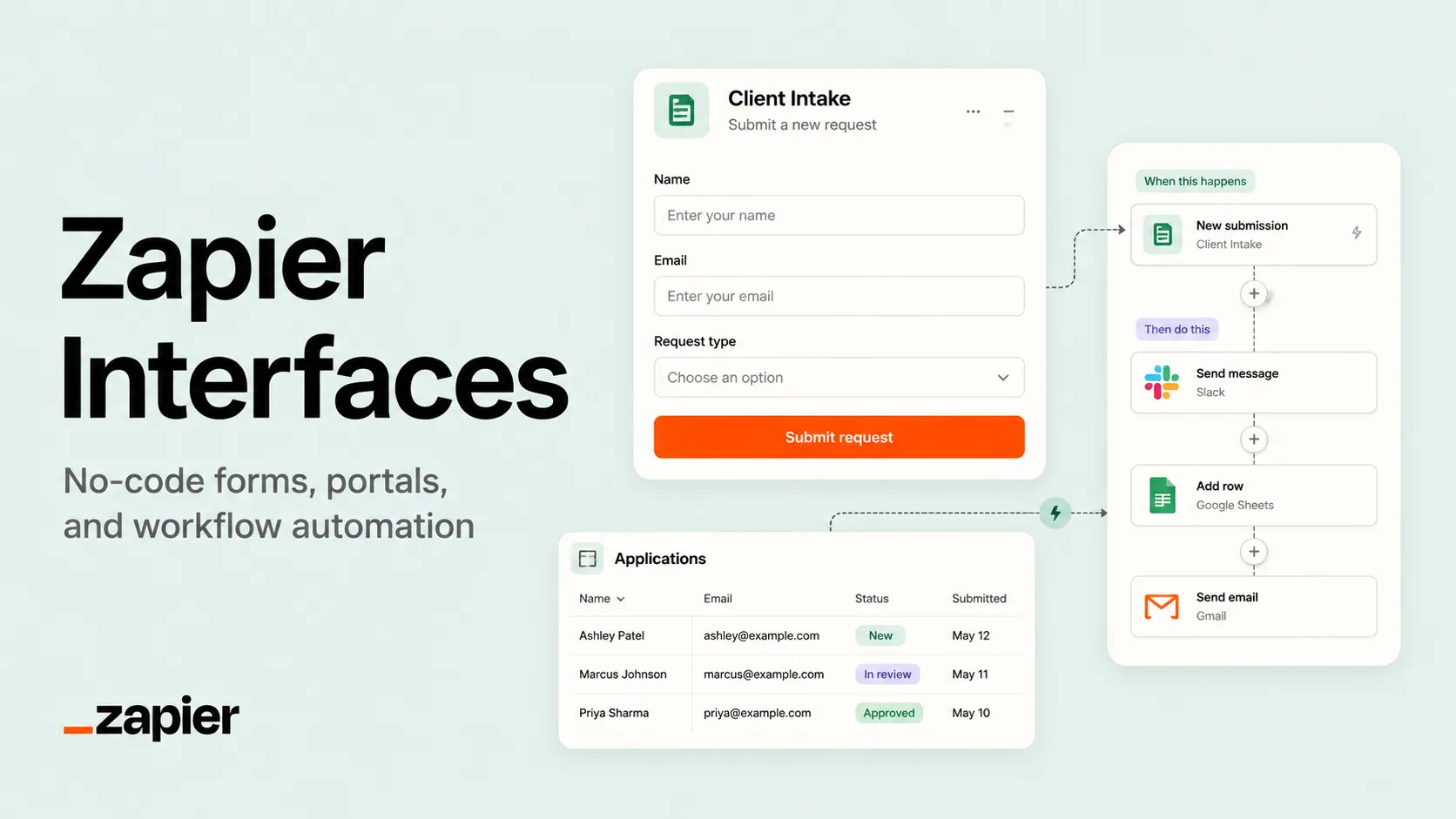
Zapier Interfaces, now surfaced as Zapier Forms in current documentation, is a no-code interface layer for collecting data, building lightweight pages, and triggering automated workflows. It is best for teams that want simple portals, forms, intake flows, and AI-powered automation connected to Zapier’s 9,000+ app ecosystem.
Choose Zapier Interfaces when the main goal is a simple form, portal, or intake page that immediately triggers cross-app automation; choose Glide, Softr, Retool, or a code-based app builder when the interface itself needs to become a more complex product.
Pricing Plans
Free
Includes Zap workflows, Tables, and Forms with 100 tasks/month, one user, limited table records, and limited form project pages.
Professional
Starting plan for multi-step Zap workflows, premium apps, webhooks, AI fields, conditional form logic, and broader Forms/Tables usage.
Team
Starting team plan with 25 users, shared Zap workflows and folders, shared app connections, SAML SSO, and priority support.
Enterprise
For organization-wide automation governance with unlimited users, advanced admin controls, observability, annual task limits, advanced deployment options, and technical account management.
Pay-per-task Billing
When enabled, Zapier can continue running workflows after the included task limit is reached at a higher pay-per-task rate.
Professional Trial
New accounts receive a 14-day trial of premium Professional features without a credit card.
Core Features
1Interface and Form Building
- No-code project pages and forms
- Public links and embeddable pages
- Conditional logic on paid plans
- Custom branding, subdomains, login pages, and navigation options
2Automation Layer
- Trigger Zap workflows from submissions
- Connect to 9,000+ Zapier app integrations
- Use Tables as a lightweight data store
- Route submissions into Chatbots, Agents, MCP actions, and workflows
3AI Workflow Support
- Zapier Copilot for form and workflow creation
- AI fields in Tables on paid plans
- AI by Zapier actions inside workflows
- Enterprise Bring Your Own Model support
4Team and Governance
- Shared folders and app connections on Team
- SAML SSO and priority support on Team
- Advanced admin permissions and app controls on Enterprise
- Audit, observability, custom data retention, and deployment controls on Enterprise
Pros
- Very strong fit for intake forms, approval flows, lead capture, internal portals, and lightweight business systems.
- Bundled with Zapier’s current Free, Professional, and Team plans instead of being a separate add-on.
- Directly connected to Zap workflows, Tables, Chatbots, Agents, MCP, and 9,000+ app integrations.
- Copilot can help non-technical users draft form fields, conditional logic, and automations.
- Enterprise options include SSO, admin controls, observability, custom data retention, and BYOM.
Cons
- Zapier Interfaces has effectively been renamed/reframed as Zapier Forms, which can confuse searches and product comparisons.
- Not a full AI IDE, code editor, or general-purpose app development platform.
- Best for lightweight pages and workflow frontends, not complex custom UI or backend-heavy SaaS apps.
- Costs depend heavily on Zapier task usage, polling, connected workflows, users, and overage settings.
- Public links, embedded forms, connected apps, and AI actions require careful permission and data review.
Why Choose Zapier Interfaces?
Zapier Interfaces is best understood as the front door to a workflow, not as a full app development platform. Its strongest use case is turning a form, page, intake flow, or lightweight portal into an automated business system that immediately connects to Zapier workflows, Tables, Chatbots, Agents, and thousands of third-party apps.
The product naming has shifted: current Zapier documentation says Zapier Interfaces is now Zapier Forms, while older assets and existing projects may still use the Interfaces name. For directory and SEO purposes, it is worth preserving both names because many users still search for “Zapier Interfaces,” but the current product surface is increasingly described as Forms.
The main reason to choose it is automation proximity. A standalone form builder can collect data. Zapier Interfaces can collect data and immediately route it into CRM updates, Slack alerts, email sequences, AI processing, ticket creation, spreadsheet updates, database rows, or multi-step operational workflows.
Core Workflow
A practical workflow starts with the business process rather than the page design. Define what information needs to be collected, who should submit it, which fields are required, and what should happen after submission. The page or form is only the visible layer; the real value is the workflow behind it.
After the interface is created, the next step is connecting it to Zap workflows and Tables. Tables can hold structured submissions, while Zaps move data into the rest of the business stack. This makes the tool useful for intake queues, lead routing, approval flows, customer requests, internal operations, and AI-enriched data processing.
Copilot can speed up the first draft by suggesting form fields, conditional logic, and related automations. But the final setup should still be reviewed manually, especially when the workflow changes customer records, sends messages, routes leads, or triggers AI actions.
Use Cases
Zapier Interfaces works well for lead capture forms, onboarding questionnaires, customer support intake, employee feedback, vendor requests, recruiting pipelines, quote requests, incident reports, approval submissions, internal dashboards, and simple portals that trigger downstream automations.
It is also useful when a team wants to expose a controlled interaction without giving users direct access to the underlying tools. For example, a sales rep can submit a request through a form instead of editing a CRM directly, while Zapier handles routing, validation, enrichment, notifications, and task creation.
AI becomes useful when it is applied to bounded steps: classify a request, summarize a submission, extract fields from text, enrich a lead, draft a response, score an inquiry, or route a ticket. The safest pattern is to let AI prepare or transform data, then use workflow logic and human review for sensitive decisions.
Comparison to Alternatives
Compared with Glide, Zapier Interfaces is less of a full operational app builder and more of a workflow entry point. Glide is better when users need rich app screens, role-based dashboards, and mobile-friendly business apps. Zapier is better when the important part is what happens after a form or page submission.
Compared with Softr, Zapier Interfaces is more automation-native but less portal-native. Softr can be stronger for client portals, directories, and authenticated frontend experiences. Zapier is stronger when the interface should trigger many cross-app actions with minimal integration work.
Compared with Retool, Zapier Interfaces requires less developer involvement but offers less control. Retool is better for engineering-led internal tools connected to databases and APIs. Zapier is better for business teams that need quick forms and workflows across SaaS apps.
Compared with Typeform, Jotform, or Fillout, Zapier’s advantage is the native automation platform around the form. Dedicated form builders may offer deeper form-specific design or survey functionality, but Zapier reduces the gap between collecting data and acting on it.
Best Configuration
The best setup starts with a clean separation between collection, storage, and action. Use Forms or Interfaces to collect input, Tables to store structured operational data when appropriate, and Zap workflows to route work to the rest of the organization.
For sensitive workflows, review visibility and sharing settings carefully. Public links and embedded pages are convenient, but they should not expose internal data or allow untrusted users to trigger high-impact automations without validation. Add CAPTCHA, permissions, approval steps, or manual review where the risk is meaningful.
For cost control, design Zaps so that one submission does not accidentally trigger many unnecessary paid actions. Formatter, filters, paths, and Tables can reduce complexity, but the team should still monitor task usage, pay-per-task settings, and high-volume forms.
Migration Notes
Migrating from old Zapier Interfaces projects to the current Forms naming should be treated as a naming and documentation update first. Existing projects may continue to work, but teams should update internal instructions so users know where to find and manage them.
Migrating from Typeform, Google Forms, Jotform, or Fillout is easiest when the current form is mostly an intake layer. Recreate the form, connect it to Tables or Zaps, then test every downstream action with sample submissions before going live.
Migrating from Glide, Softr, Airtable Interfaces, or Retool requires more caution. Those tools may contain app-like state, dashboards, permissions, user views, and data editing flows that do not map one-to-one to Zapier Interfaces. In those cases, move the intake and automation pieces first, then decide whether the richer app UI should remain in a separate tool.
For developer teams, Zapier Interfaces is often best as a complement rather than a replacement. Keep complex product logic in code, but use Zapier for operational front doors, business intake flows, admin-triggered workflows, and AI-assisted glue between internal systems.
Best For
- Lead capture forms and follow-up workflows
- Internal request portals and intake systems
- Approval workflows connected to Slack, Gmail, CRM, or project tools
- Lightweight customer-facing forms embedded on websites
- Data collection flows backed by Zapier Tables
- Teams that want AI-assisted automation without building a custom app
Not Ideal For
- Developers looking for an AI-native code editor like Cursor or Windsurf
- Teams that need full source-code export and custom frontend control
- Complex SaaS products with custom backend logic, authentication, and database rules
- Native mobile apps or highly branded consumer products
- Organizations that cannot tolerate task-based automation billing variability
Privacy Notes
Zapier Interfaces / Forms runs on Zapier’s hosted platform and may process form submissions, table records, connected app data, workflow payloads, AI fields, Chatbots, Agents, and MCP actions depending on configuration. Zapier’s security documentation references SOC 2 Type II and SOC 3 materials through its Trust Center, and Enterprise plans add controls such as SSO, admin permissions, custom data retention, observability, and BYOM. Teams should review public sharing, embed settings, connected app permissions, AI usage, table access, and workflow logs before using it for sensitive data.
Alternatives
Sources
- Zapier Interfaces
- Zapier Pricing
- Zapier Forms quick start guide
- Create forms in Zapier Forms
- Types of components in Zapier Forms
- Share and embed Zapier Forms pages
- Zapier plan updates: Tables, Interfaces, and MCP now included
- What's included in Zapier's Free plan
- Set up admin tools for your Enterprise account
- Security and Compliance
- Zapier Trust Center
Update History
- Jun 23, 2026: Created directory entry and verified current Zapier Interfaces/Form naming, bundled pricing model, Free/Professional/Team/Enterprise plan structure, Forms capabilities, Tables/Interfaces/MCP inclusion, and security positioning from official Zapier sources.
Related Tools
More listings in a similar part of the directory.






Zapier Interfaces Articles
Guides, comparisons, and launch notes connected to this listing.