On This Page8 sections
Key Takeaways
- Trae Inline Chat is built for focused code edits inside the editor, including refactoring, debugging, explaining code, generating small functions, and improving selected code.
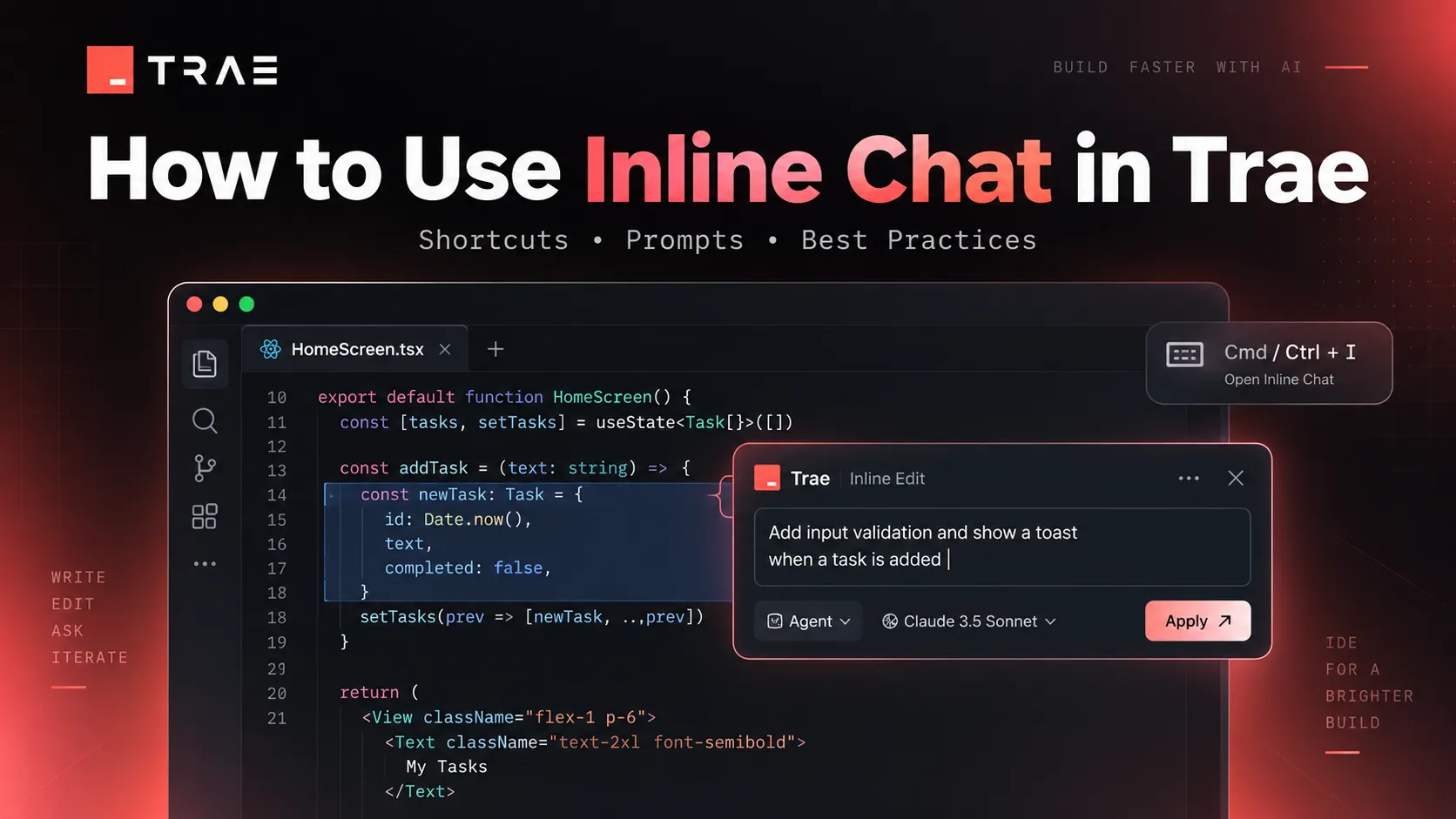
- Open Inline Chat with
Command + Ion macOS orCtrl + Ion Windows. - Select code before opening Inline Chat when you want Trae to modify a specific function, component, query, or block.
- Use the cursor without a selection when you want Trae to generate new code at a particular position.
- For the best results, give Trae a specific task plus constraints such as preserve the API, do not add dependencies, or change only the selected function.
- Use Side Chat or a more agentic Trae workflow when a task requires repository-wide reasoning, multiple files, terminal commands, or a longer implementation process.
What Is Inline Chat in Trae?
Inline Chat is Trae's AI coding interface embedded directly into the code editor. Instead of moving to a separate chat window, developers can invoke AI assistance around the file and code they are already working on.
The main advantage is context and scope.
Inline Chat can use the current editor position and selected code as the immediate context for a request. This makes it particularly useful when the desired change is local and clearly defined.
Common uses include:
- Refactoring one function.
- Fixing a localized bug.
- Adding TypeScript types.
- Explaining unfamiliar code.
- Simplifying conditional logic.
- Adding validation.
- Generating unit tests.
- Adding comments or documentation.
- Converting code between APIs or patterns.
- Creating a helper function at the current cursor position.
Inline Chat is generally most effective when the requested change can be represented as a relatively small code diff.
How to Open Inline Chat in Trae
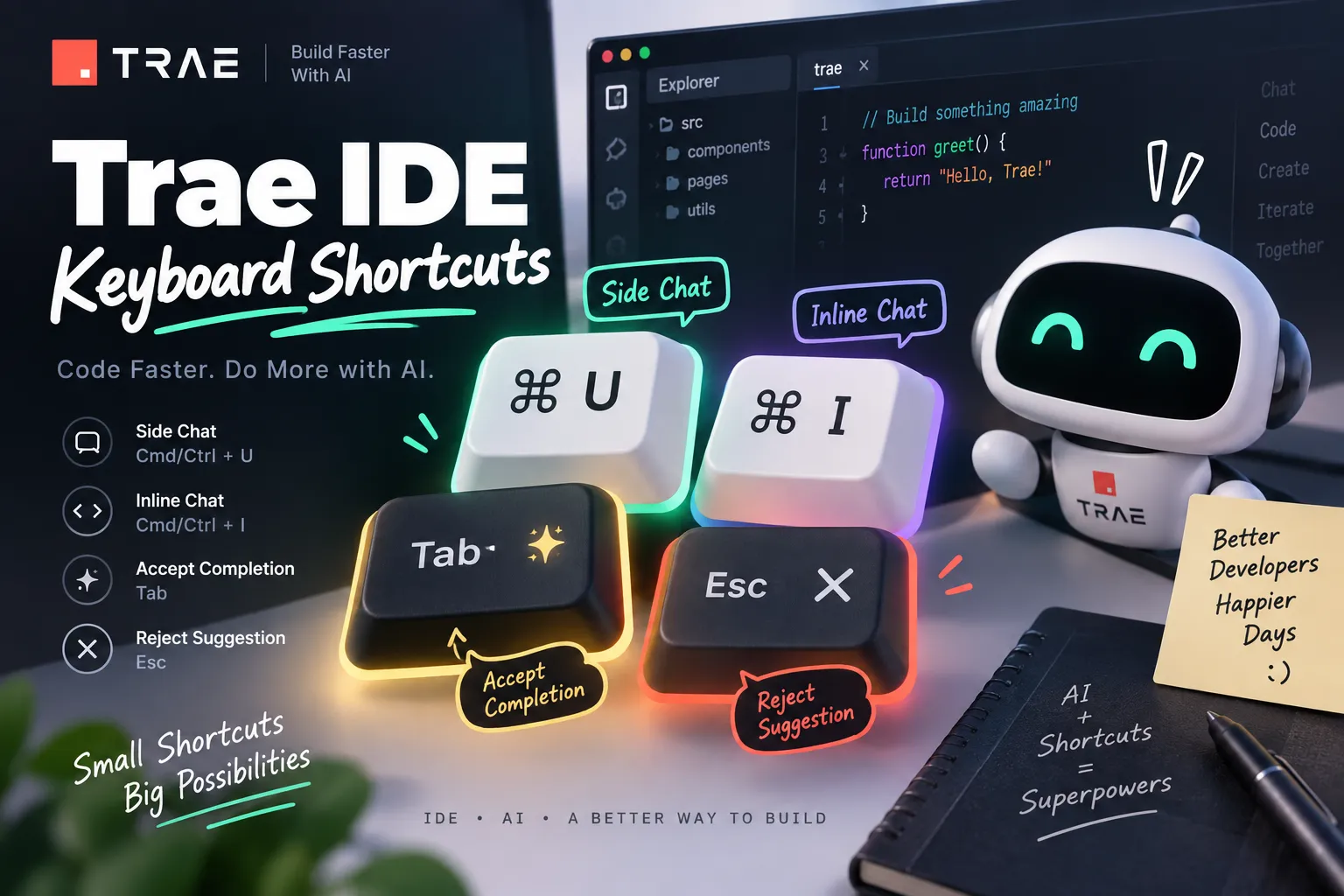
The default shortcut is:
- macOS:
Command + I - Windows:
Ctrl + I
There are two main ways to use it.
Use Inline Chat at the Cursor
Place the cursor where new code should be inserted and press the Inline Chat shortcut.
This works well for generation tasks such as:
Add a helper function below this method that retries the request up to three times using exponential backoff. Preserve the existing error format.The cursor position helps Trae understand where the generated code belongs.
Select Code Before Opening Inline Chat
Highlight a block of code first, then press Command + I or Ctrl + I.
This is usually the better option when modifying existing code because it gives the AI an explicit edit scope.
For example:
Refactor only the selected function to remove nested conditionals. Preserve its public behavior, return type, and error messages.Selecting only the relevant code reduces ambiguity and makes the resulting patch easier to review.
How to Use Inline Chat in Trae Step by Step
1. Select the Smallest Useful Context
Do not select an entire file when the change only affects one function.
A useful rule is:
Select the smallest complete unit that contains enough context to perform the edit correctly.
Good selections include:
- One function.
- One React component.
- One SQL query.
- One configuration block.
- One class method.
- One function plus the type definition it depends on.
Smaller context usually produces more predictable changes.
2. Open Inline Chat
Use:
Command + Ion macOS.Ctrl + Ion Windows.
The Inline Chat input should appear inside or near the editor context.
3. Describe the Exact Outcome
Avoid vague prompts such as:
Improve this code.A stronger prompt is:
Refactor this function to remove nested conditionals using early returns. Preserve the function signature, returned values, existing error messages, and runtime behavior. Do not add dependencies.This tells Trae both what to change and what must remain unchanged.
4. Review the Proposed Change
AI-generated code should be treated as a proposed patch rather than automatically correct code.
Check:
- Function signatures.
- Types.
- Imports.
- Error handling.
- Removed branches.
- API behavior.
- Security-sensitive logic.
- State mutations.
- Dependency changes.
For larger edits, inspect the Git diff before committing.
5. Verify the Result
Run the smallest relevant verification after accepting an edit.
For example:
npm run typecheckOr:
npm testFor a targeted Python test:
pytest tests/test_user_service.pyImmediate verification makes it easier to identify whether a regression came from the AI-generated change.
Cursor Position vs Selected Code
Choosing the correct Inline Chat workflow improves both speed and accuracy.
Use the Cursor for New Code
Cursor-only invocation is useful when generating something that does not exist yet.
Examples include:
- Creating a utility function.
- Adding a test case.
- Generating a TypeScript interface.
- Adding an error handler.
- Creating a parser.
- Adding a new React hook.
Example:
Create a TypeScript type guard for User below this interface. Validate id, email, and roles without adding external dependencies.Select Code for Existing-Code Changes
Selection-based Inline Chat is usually better for:
- Refactoring.
- Bug fixes.
- Optimization.
- Type improvements.
- API migrations.
- Simplifying logic.
Example:
Rewrite only the selected function so it does not mutate the input array. Preserve the function name, parameters, output ordering, and return type.Explicit edit boundaries help prevent unrelated modifications.
Best Prompt Formula for Trae Inline Chat
A reliable prompt structure is:
Task + scope + constraints + expected behavior
A reusable template is:
[Task]. Change only [scope]. Preserve [constraints]. Make sure [expected behavior].For example:
Fix the race condition in this hook. Change only the selected hook. Preserve the existing API and loading-state behavior. Make sure stale requests cannot overwrite newer responses.This format gives the model a clear optimization target while defining boundaries around the edit.
Useful Trae Inline Chat Prompt Examples
Refactoring
Refactor this function for readability using early returns instead of nested conditionals. Preserve behavior, the function signature, error handling, and output shape.Bug Fixing
Fix the off-by-one bug in the selected pagination code. Keep external page numbers 1-based and do not change the API response structure.TypeScript
Remove the any types from this function. Add the minimum necessary TypeScript types and generics without changing runtime behavior.React
Refactor this component to remove unnecessary derived state and prevent avoidable re-renders. Keep its props and rendered UI unchanged.Security
Harden this input-processing function against path traversal. Preserve existing validation and do not add third-party dependencies.Unit Tests
Add unit tests covering the normal case, empty input, invalid input, and the maximum-value boundary condition. Keep the existing test style.Performance
Optimize the selected loop to avoid repeated array scans. Preserve output ordering and behavior for duplicate values.Inline Chat vs Side Chat in Trae
Inline Chat and Side Chat solve different types of problems.
Use Inline Chat When
The task is local and specific:
- One function.
- One component.
- One query.
- One configuration block.
- One localized bug.
- One targeted refactor.
Inline Chat reduces interaction overhead because the developer stays inside the active editor context.
Use Side Chat When
The task requires broader reasoning, such as:
- Understanding how authentication works across several files.
- Finding where an API response is transformed.
- Planning a feature before implementation.
- Investigating a bug with an unknown root cause.
- Comparing multiple possible implementation strategies.
A repository-wide question might look like:
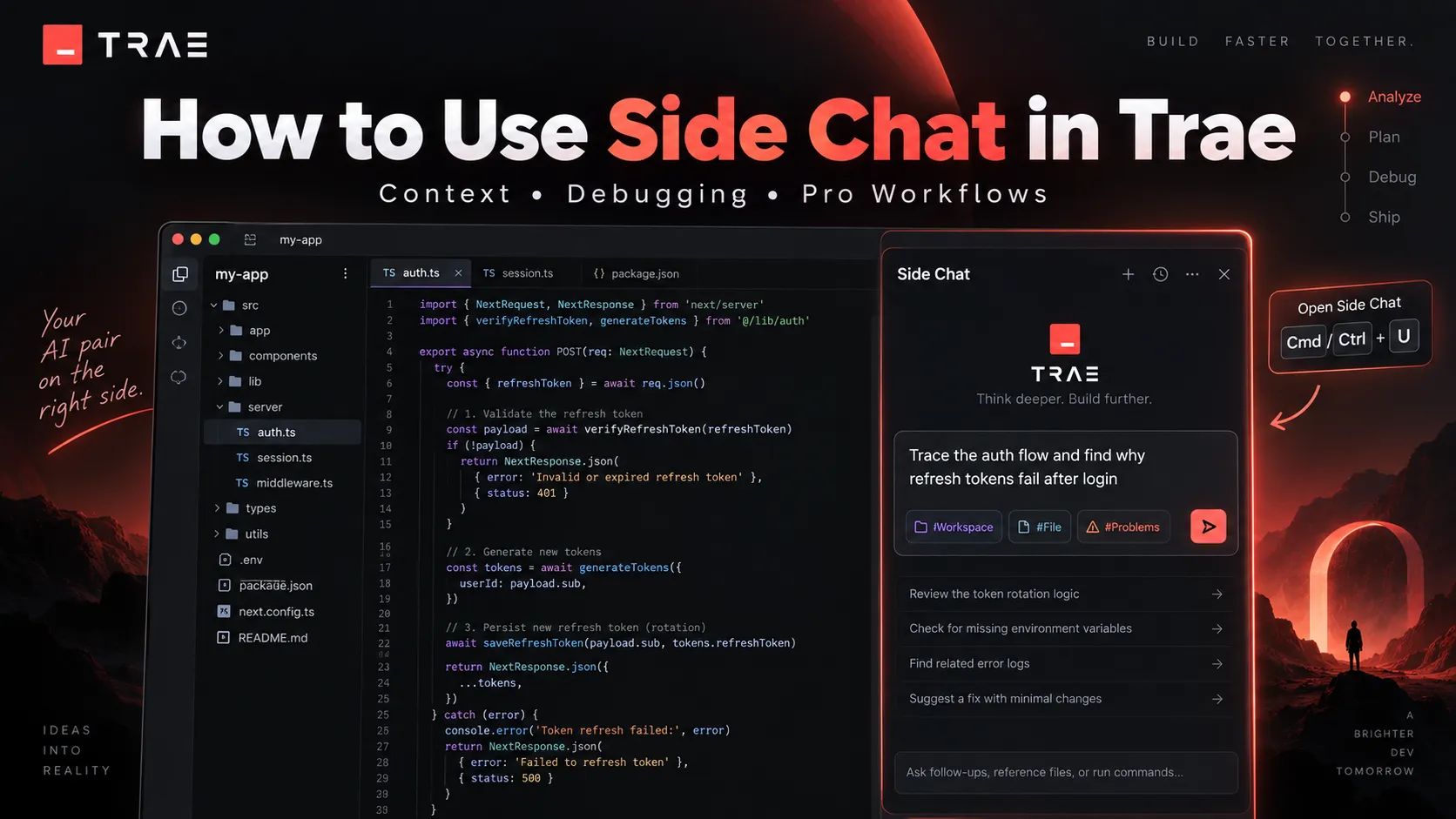
Trace the authentication flow from the API route through middleware to token validation and identify where refresh tokens are invalidated.That type of task requires more context than a single Inline Chat selection can conveniently provide.
When to Use Agentic Trae Workflows Instead
A more autonomous workflow is generally more appropriate when the task requires several coordinated steps.
Examples include:
- Editing multiple files.
- Creating new files.
- Running terminal commands.
- Installing dependencies.
- Running tests and reacting to failures.
- Implementing both frontend and backend changes.
- Completing a feature from specification to verification.
A simple distinction is:
Inline Chat edits locally. Side Chat reasons broadly. Agentic workflows handle longer implementation sequences.
How to Prevent Trae From Changing Too Much Code
AI coding tools can over-edit when the requested boundaries are unclear.
Useful constraints include:
- Change only the selected function.
- Keep the public API unchanged.
- Do not rename exported symbols.
- Do not add dependencies.
- Preserve existing error messages.
- Do not modify the database schema.
- Keep the API response shape unchanged.
- Preserve accessibility attributes.
- Do not change unrelated formatting.
These instructions are especially useful in established projects where small interface changes can affect many callers.
How to Use Inline Chat for Debugging
Inline Chat works especially well when the suspicious code has already been identified.
Include three pieces of information:
- Expected behavior.
- Actual behavior.
- A concrete failing example.
For example:
This parser should return 59 seconds for 00:59, but it returns 3540. Find the logic error and fix only the selected function. Keep the accepted input format unchanged.This is significantly more actionable than:
Why is this broken?If the source of the bug is unknown, a broader chat or agent workflow is usually more effective because it can investigate multiple files and execution paths.
A Better Workflow for Complex Changes
One common mistake is trying to perform a large feature rewrite in a single Inline Chat prompt.
Suppose a React form needs:
- Validation.
- API submission.
- Loading states.
- Error handling.
- Tests.
Instead of asking:
Make this entire form production ready.Break the job into focused edits:
- Select the validation logic and improve validation.
- Select the submit handler and improve request handling.
- Select the state logic and remove unnecessary state.
- Select the relevant test file and add edge-case coverage.
This approach creates smaller diffs and makes incorrect changes easier to identify.
Practical Example: Refactoring TypeScript With Inline Chat
Consider this function:
function getDiscount(user: User, total: number) {
  if (user) {
    if (user.isPremium) {
      if (total > 100) {
        return total * 0.2;
      }
    }
  }
  return 0;
}
Select the function and open Inline Chat.
Use:
Refactor the selected function using early returns. Preserve the function signature, premium-user requirement, discount calculation, threshold behavior, and return values. Do not add dependencies.A suitable result would resemble:
function getDiscount(user: User, total: number) {
  if (!user || !user.isPremium || total <= 100) {
    return 0;
  }

  return total * 0.2;
}
The important part is not simply that the code becomes shorter. The prompt explicitly defines which business rules must remain unchanged.
Common Inline Chat Mistakes
Using Vague Prompts
Avoid:
Make this better.Instead specify the desired improvement:
Reduce the nesting in this function using early returns while preserving its signature and runtime behavior.Selecting Too Much Code
Large selections introduce unnecessary context and increase the chance of unrelated changes.
Select only what Trae needs to complete the task.
Not Specifying Invariants
If the prompt does not say which behaviors must remain unchanged, a model may reasonably assume that signatures, names, dependencies, or implementation patterns can also change.
Skipping Verification
Generated code may look correct while still introducing subtle behavioral regressions.
Run relevant tests, linting, or type checking after meaningful edits.
Using Inline Chat for Repository-Wide Questions
A task involving many files, unknown dependencies, or architectural decisions is usually better suited to Side Chat or an agentic workflow.
Troubleshooting Trae Inline Chat
The Inline Chat Shortcut Does Not Work
Check whether:
- The code editor currently has focus.
Command + IorCtrl + Ihas been remapped.- Another keyboard shortcut conflicts with it.
- An extension or operating-system shortcut is intercepting the key combination.
Review Trae's keyboard shortcut settings if necessary.
Inline Chat Produces an Unhelpful Answer
Try reducing ambiguity:
- Select less code.
- Describe the expected output.
- State what must remain unchanged.
- Mention the language or framework when necessary.
- Split a large task into several smaller edits.
Trae Modifies Unrelated Code
Strengthen the scope instruction:
Change only the selected function. Do not modify surrounding code, imports, exported names, or unrelated formatting.The Task Requires More Context
If the requested change depends heavily on other files, types, APIs, or runtime behavior, move the investigation to Side Chat or a broader Trae workflow instead of continuously expanding the Inline Chat selection.
Advanced Tips for Better Inline Chat Results
Include Behavioral Examples
Concrete examples reduce interpretation errors.
Instead of:
Fix date validation.Use:
Fix the selected date validation. 2026-02-28 must be accepted, 2026-02-30 must be rejected, and empty input should continue returning null.Ask for Minimal Changes
For production code, minimal patches are easier to review.
Use wording such as:
Implement the smallest change necessary to fix this issue. Avoid unrelated refactoring.Separate Refactoring From Behavior Changes
Do not combine an architectural refactor and a feature modification unless necessary.
First clean the structure while preserving behavior, verify it, and then implement the new behavior in a second pass.
This makes failures much easier to diagnose.
Preserve Existing Project Conventions
Tell Trae to follow patterns already visible in the selected code or nearby implementation.
For example:
Add error handling using the same Result pattern used by the surrounding service methods. Do not introduce a new error abstraction.Ask for Edge Cases Explicitly
AI-generated implementations frequently cover the obvious path first. Mentioning edge cases improves coverage.
Useful cases include:
- Empty values.
- Null values.
- Maximum limits.
- Duplicate inputs.
- Network failures.
- Race conditions.
- Unicode input.
- Unexpected API responses.
FAQ
What is the shortcut for Inline Chat in Trae?
Use Command + I on macOS or Ctrl + I on Windows.
Do you need to select code before using Inline Chat?
No. Inline Chat can be opened at the cursor for code generation. Selecting code first is usually better when modifying, debugging, explaining, or refactoring existing code.
Is Inline Chat suitable for entire feature implementations?
It can handle individual parts of a feature, but multi-file implementations are generally better handled by Side Chat or Trae's more agentic coding workflows.
Why does selecting less code often produce better results?
A smaller context gives the model a clearer edit boundary and reduces irrelevant information. This usually produces smaller and more predictable patches.
Should AI-generated Inline Chat changes be accepted immediately?
No. Review the diff and run relevant tests, type checks, or linting before committing meaningful changes.
Can Inline Chat be used for debugging?
Yes. It is especially effective when the likely source of the bug is already localized. Include expected behavior, actual behavior, and a reproducible failing case in the prompt.
Conclusion
Trae Inline Chat is most useful as a focused code-editing interface rather than a replacement for every AI coding workflow.
Use Command + I on macOS or Ctrl + I on Windows, select the smallest relevant block, clearly describe the desired change, and explicitly state the behavior that must remain unchanged.
For local refactoring, debugging, type improvements, and small code generation tasks, this workflow keeps changes fast and reviewable. When a task expands across multiple files or requires deeper repository reasoning, switch to Side Chat or a more agentic Trae workflow instead.
A practical way to start is to select one function in an active Trae project and request a narrowly scoped refactor with explicit constraints. Smaller prompts, smaller diffs, and immediate verification make Inline Chat substantially more reliable for everyday development.
Continue Reading
More articles connected to the same themes, protocols, and tools.

Referenced Tools
Browse entries that are adjacent to the topics covered in this article.