On This Page8 sections
Key Takeaways
- Meshy 6 Retexture changes an existing 3D model's surface appearance using a text description or reference image. It is a texturing workflow, not a substitute for remodeling inaccurate geometry.
- Pin
ai_modeltomeshy-6when Meshy 6 behavior matters. As of October 2026, Meshy's Retexture API defaults tolatest(Meshy 7), not Meshy 6. Meshy 6 became an explicit Retexture API option on February 28, 2026. - Meshy 6 supports 2K, 4K, and 8K base-color textures. It can produce base color, metallic, roughness, and normal maps; with PBR enabled, an emission map is available at 2K/4K but not 8K.
- API retexturing costs 10 credits at 2K or 4K, and 15 credits at 8K. The higher resolution is not automatically the better choice for a real-time asset.
- UV layout and lighting are critical. Reuse good UVs, regenerate poor ones, and enable lighting removal for cleaner base-color maps when using Meshy 6 at 2K or 4K.
What Is Meshy 6 Retexture?
Meshy 6 Retexture is the application of Meshy's meshy-6 AI model to an existing 3D mesh to generate a new surface treatment. A creator can start with an untextured character, prop, scanned object, or previously textured asset and request a different material or visual style without rebuilding the object from a fresh text-to-3D prompt.
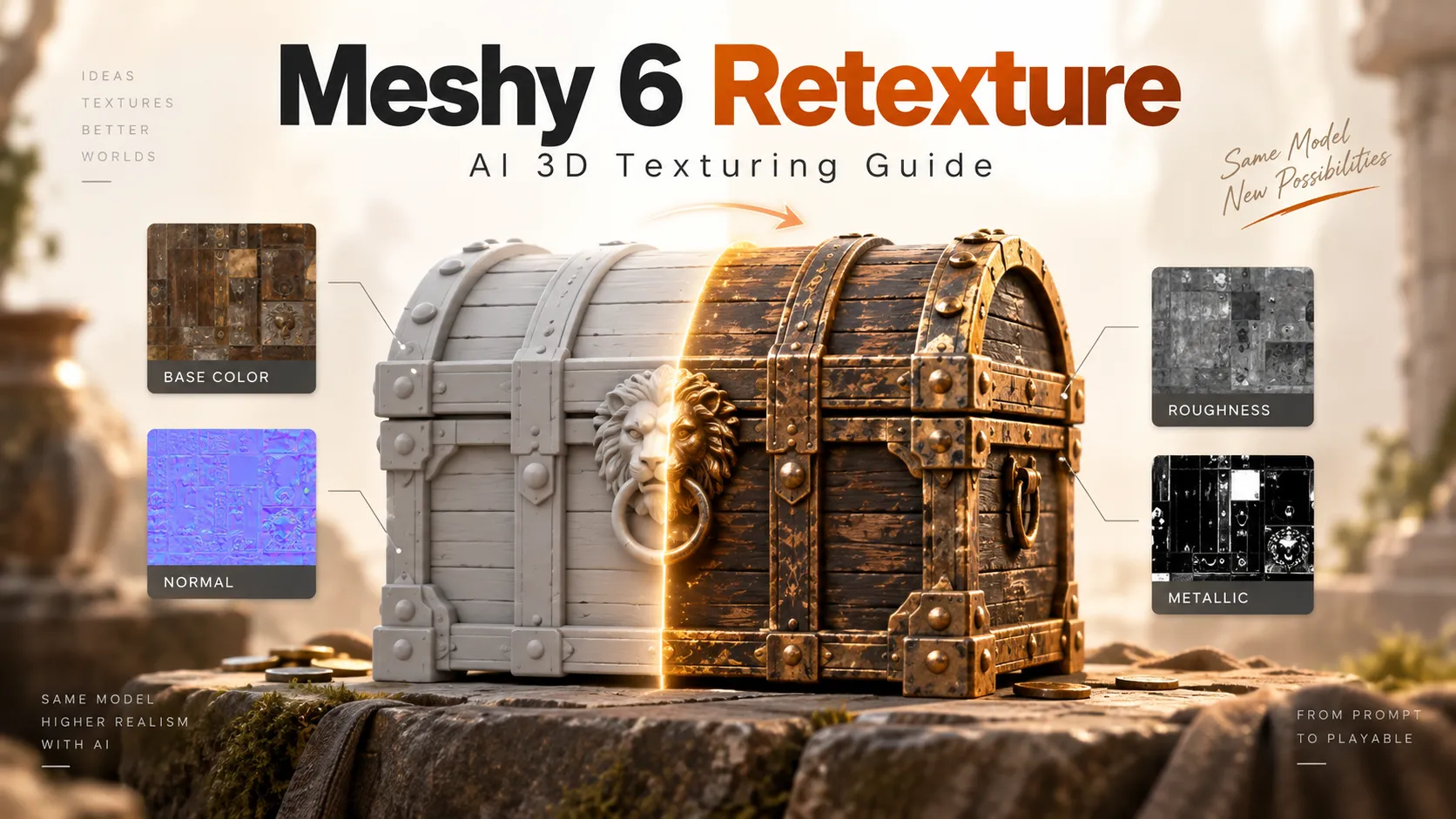
Consider a game-ready treasure chest. Retexturing can transform its appearance from fresh oak and brass into rotten timber and tarnished iron. The chest's basic shape still comes from the supplied mesh: changing a prompt to mention extra hinges does not guarantee that new hinges will appear as actual geometry.
The distinction matters because geometry, UV mapping, and material appearance solve different problems:
- Geometry determines the silhouette, depth, and physical form of an asset.
- UV coordinates map locations on a 2D texture onto the mesh surface.
- Base-color textures supply visible color and pattern.
- PBR maps define how the surface should interact with light in a renderer.
Meshy launched Meshy 6 on January 18, 2026, emphasizing better geometry and workflows. On February 28, its API changelog added meshy-6 support to the Retexture and Text-to-3D Refine endpoints. That is the relevant distinction behind the phrase Meshy 6 Retexture: it is a model-specific retexturing capability, not a separate downloadable painting application.
Meshy 6 vs. Meshy 6 Lite vs. Meshy 7 Retexture
These options are not interchangeable, especially when a pipeline relies on particular maps or API parameters.
| Capability | Meshy 6 Lite | Meshy 6 | Meshy 7 / latest |
|---|---|---|---|
| Explicit API model ID | meshy-6-lite | meshy-6 | meshy-7 / latest |
| Base-color resolution | 2K | 2K, 4K, 8K | 2K, 4K, 8K |
Metallic, roughness, normal with enable_pbr | Yes | Yes | Yes |
| Emission map | No | Yes at 2K/4K | No |
remove_lighting request option | Do not send; returns HTTP 400 | Applied at 2K/4K | Accepted but ignored |
| Multi-view style references | No | No | Yes, with explicit meshy-7 |
The current Retexture API specification lists Meshy 7 as the default behind latest. Consequently, developers should not rely on the default when reproducing Meshy 6 results or using its emission-map behavior. Model pinning is a reproducibility control, not evidence that an older model universally outperforms a newer one.
There is also a subtle 8K trade-off: Meshy 6 accepts 8K retexturing, but its emission output is unavailable and remove_lighting has no effect at that resolution. For assets that depend on one of those functions, 4K can be a more useful configuration than 8K.
How to Use Meshy 6 Retexture in the Web App
Meshy's workspace presents a full-model Texture or Retexture workflow, alongside a separate Texture Edit tool for localized corrections. The official Texture guide documents retexturing both textured and untextured models.
- Open the Meshy workspace. Select a generated model from the asset history or upload an existing mesh. The web upload flow supports GLB, glTF, OBJ, FBX, and STL, with a documented 100 MB upload limit.
- Inspect the model before applying materials. Rotate it to check the silhouette, thin surfaces, backside geometry, UV seams, and whether unwanted background objects were fused into the mesh.
- Choose Texture or Retexture. Use a text prompt to describe the desired material, or upload a reference image to guide its appearance. Available model selectors may depend on the workspace UI and account; the API is the reliable way to request
meshy-6explicitly. - Set the texture options. Start at 2K for a draft, enable PBR when exporting to a physically based renderer, and preserve usable UVs where the interface offers that choice.
- Generate and examine all sides. Inspect the back, undersides, cavities, and surfaces partially hidden in the reference image, not just the default thumbnail.
- Refine locally instead of rerunning everything. For an incorrect logo, trim, or isolated material, use Texture Edit to select the affected region, apply a focused prompt, and keep the satisfactory parts intact.
- Export and verify. Prefer a GLB for a portable first-pass review; then check the material setup in Blender, Unity, Unreal Engine, or the intended runtime.
Important: Full-model retexturing can replace satisfactory details elsewhere on the asset. Do broad material changes first and save localized cleanup for the final stages. The Texture Edit walkthrough documents regional selection, multiple previews, healing, stamping, and saving a new model rather than overwriting the original.
Text Prompts That Produce More Controllable Materials
A useful retexture prompt specifies material, color, finish, wear, pattern scale, and overall art direction. It should also distinguish physically meaningful properties from arbitrary decorations. For example, the phrase metallic gold implies a different PBR response from gold-colored painted plastic.
These starting prompts are designed for single assets; they are examples, not guaranteed outputs.
Realistic medieval prop
A medieval treasure chest made from dark weathered oak, visible longitudinal wood grain, blackened wrought-iron bands, subtle edge wear, small rust patches, restrained earthy palette, realistic game-asset material, no painted-on highlights or cast shadows.
Stylized mobile-game asset
Hand-painted fantasy treasure chest, warm orange wood planks, oversized teal metal corners, broad readable color blocks, subtle brushstroke texture, low-frequency detail, clean stylized finish, consistent material boundaries.
Science-fiction hard surface
Industrial science-fiction helmet, satin white ceramic composite shell, brushed titanium trim, charcoal rubber seals, fine surface scuffs, controlled roughness variation, neutral studio material appearance, no environment reflections baked into the color.
Aged bronze statue
Cast bronze surface with irregular green verdigris in recessed areas, exposed warm bronze on protruding edges, fine casting imperfections, realistic patina transitions, physically plausible metal appearance, no extra objects or decals.
Fabric character outfit
Deep burgundy woven linen tunic, coarse thread texture, slightly faded stitched seams, muted leather belt, subtle dirt near hem, believable non-metallic roughness, consistent textile direction, diffuse neutral color.
Treat a retexture prompt as a material specification, not a scene-generation prompt. Instructions such as sunset lighting, dramatic volumetric beams, cinematic bloom often introduce color and shading artifacts that should instead be produced by the final renderer.
Text Reference or Image Reference: Which Should You Choose?
Use a text prompt when experimenting with new finishes, creating stylized variants, or controlling a material family with words. It is easy to adjust and automate, but exact branding, small lettering, or complex repeat patterns remain difficult to constrain.
Use an image reference when a specific palette, textile, or visual style matters. Meshy's API accepts JPEG, PNG, and WebP style images up to 20 MB. Results can degrade if the image depicts substantially different geometry from the submitted model; a photograph of a round bottle is not a reliable design reference for a sharply rectangular container.
For stronger image guidance:
- Crop to the intended subject and remove distracting backgrounds.
- Prefer diffuse, neutral light and avoid photographic glare.
- Match the input object's approximate silhouette and camera perspective.
- Supply a high-resolution, legible pattern without treating it as a guaranteed exact UV projection.
- Use a separate mesh-editing or manual-painting step for precise logos, typography, and legal markings.
Multi-view references are a Meshy 7 feature, not Meshy 6 Retexture. The API accepts one to four views of the same object only with an explicit ai_model: "meshy-7"; it does not accept that array with meshy-6. For exact backside reference alignment in a Meshy 6 workflow, manual verification and correction remain important.
UV Maps, PBR Channels, and Resolution Explained
Retexturing can make a convincing thumbnail while still producing problematic production materials. The critical checks happen below the surface.
UV handling. Set enable_original_uv: true when the incoming asset already has a sound UV layout that must remain consistent with other textures or an existing game pipeline. For an unwrapped or badly stretched imported mesh, set it to false so Meshy can create UVs. The API defaults to false, so passing true deliberately is important for established assets. Even if the source shape is retained, do not assume texture coordinates or exported scale are identical without inspection.
PBR channels. Set enable_pbr: true when you need more than base color. The API can then return metallic, roughness, and normal maps, plus the conditional Meshy 6 emission map. Metallic governs metal-versus-dielectric behavior; roughness controls highlight spread; normals simulate small-scale surface orientation. Emission represents self-lit areas rather than ordinary diffuse color. Test the maps under multiple lighting setups because image-based inference cannot guarantee physically correct values.
Lighting removal. Set remove_lighting: true for Meshy 6 at 2K/4K to reduce shadows and bright spots baked into base color. This is especially valuable for game environments with dynamic lighting: a shadow painted into albedo can appear twice when real-time lights also cast a shadow. The switch is ignored at 8K and by Meshy 7; passing it to Meshy 6 Lite causes an error.
Choosing resolution.
| Resolution | Base-color dimensions | Typical decision |
|---|---|---|
| 2K | 2048 × 2048 | Rapid iterations, small props, many distant assets |
| 4K | 4096 × 4096 | Hero props, closer camera framing, Meshy 6 emission/lighting-removal workflow |
| 8K | 8192 × 8192 | Exceptional close-ups or offline rendering, with higher cost and asset-size overhead |
A raw four-channel 4K image occupies about 64 MiB before compression, versus about 16 MiB at 2K and 256 MiB at 8K. This is an illustration of pixel-memory scaling, not a claim about Meshy's compressed export sizes. Texture compression, mipmaps, multiple maps, and platform settings change the actual memory footprint. Quadrupling texels does not fix blurry source detail or poor UV allocation.
Meshy 6 Retexture API: Working Request Example
The Retexture API exposes POST /openapi/v1/retexture. It takes either a successful Meshy task ID or a publicly retrievable model URL, together with a text or image style reference. The following example pins Meshy 6, preserves existing UVs, generates PBR maps, requests 4K output, and returns only GLB.
export MESHY_API_KEY="YOUR_MESHY_API_KEY"

curl -sS -X POST "https://api.meshy.ai/openapi/v1/retexture" \\
  -H "Authorization: Bearer ${MESHY_API_KEY}" \\
  -H "Content-Type: application/json" \\
  -d '{
    "model_url": "https://your-cdn.example/assets/chest.glb",
    "text_style_prompt": "Dark aged oak, black wrought-iron hardware, restrained wear, physically plausible materials, neutral unlit base color.",
    "ai_model": "meshy-6",
    "enable_original_uv": true,
    "enable_pbr": true,
    "texture_resolution": "4k",
    "remove_lighting": true,
    "target_formats": ["glb"]
  }'
Replace the example model URL with a reachable file and supply a valid paid-plan API key. The response contains a task identifier under result, not the final 3D model. Retrieve task status using the returned ID:
export TASK_ID="PASTE_RESULT_ID"

curl -sS "https://api.meshy.ai/openapi/v1/retexture/${TASK_ID}" \\
  -H "Authorization: Bearer ${MESHY_API_KEY}"
Wait for status: SUCCEEDED, then read model_urls.glb and texture_urls from the task object. The returned texture entries may include base_color, metallic, roughness, normal, and—when eligible—emission. If the job fails, inspect task_error rather than assuming a missing URL means the model was successfully generated. For progress updates, the API also provides GET /openapi/v1/retexture/:id/stream using server-sent events.
Production integration notes:
- Use
input_task_idinstead ofmodel_urlwhen the source is a completed supported Meshy generation or remesh task. This avoids unnecessary uploads. - Supply one style input:
text_style_promptorimage_style_url. If both are sent, the image takes precedence. Do not mix either withmultiview_image_urls. - Pin
ai_model: "meshy-6"explicitly; otherwise the request follows the newer default. - Request only needed
target_formatsto avoid generating unnecessary files. The API supports GLB, OBJ, FBX, STL, USDZ, and opt-in 3MF for this endpoint. - Keep API keys on the server, store job IDs for retries, and copy finished outputs into your own durable storage before signed download links or task results expire.
- Handle HTTP 400 (bad parameters), 401 (authentication), 402 (insufficient credits), and 429 (rate limits) separately rather than blindly retrying all failures.
API model URLs support GLB, glTF, OBJ, FBX, and STL; the documented limit is 400 MB for HTTP(S) inputs or 100 MB for base64 data URIs. The workspace's 100 MB upload guidance is a different interface limit, so do not assume its number governs every API request.
Meshy 6 Retexture Pricing and Real Workflow Costs
The official API pricing table lists 10 credits per 2K/4K Retexture request and 15 credits per 8K request. Generating the mesh first is a separate operation and adds its own credit cost.
| Example | Retexture calls | Retexture-only credits |
|---|---|---|
| One prop, three 4K material variations | 3 | 30 |
| 50 props, one 4K version each | 50 | 500 |
| 100 props, two 4K candidates each | 200 | 2,000 |
| 100 props, two 8K candidates each | 200 | 3,000 |
The final comparison illustrates a practical point: moving from 4K to 8K raises retexture-credit consumption by 50% in this pricing scheme, while increasing base-color texel count fourfold. For a large real-time asset library, 2K or 4K drafts followed by selective 8K exports are usually a more disciplined use of credits.
Meshy's September 27, 2026 developer cookbook example recorded a retexture stage of roughly 42–45 seconds for its example prop. That is a documented sample run, not a guaranteed service-level latency or a universal performance benchmark.
Free accounts may allow experimentation in the workspace, but Meshy's plan comparison distinguishes free preview access from paid-plan model downloads and user-managed API keys. Check the live credit display and plan conditions before committing a production pipeline.
Common Failure Modes and How to Fix Them
The result looks good from the front but wrong behind. The reference under-specifies hidden surfaces. Rotate the mesh, provide clearer material semantics, or fix the back manually. Meshy 6 does not accept the Meshy 7 multi-view style-input parameter.
Material details appear painted on rather than dimensional. Normal maps can simulate fine relief but cannot change silhouette. Model large seams, straps, screws, or protrusions as geometry first.
The texture stretches across an edge. Inspect UV distortion and material islands. Try generating a fresh unwrap when input UVs are damaged; preserve original UVs only when they are already usable.
A game-engine render looks too shiny or too dark. Verify metallic and roughness maps are bound to the correct channels, inspect color-space settings, and test in neutral illumination. A plausible web preview is not proof of portable PBR correctness.
A style image produces inconsistent materials. Choose a reference with similar geometry and neutral lighting. More pixels in an unrelated image rarely solve structural mismatch.
The API request returns HTTP 400. Check that a source and style reference are supplied, the AI model is supported, the file URL is accessible, the file limits are respected, and Meshy 6 Lite is not receiving remove_lighting. Multi-view references require explicit Meshy 7.
An 8K result lacks emission or ignores lighting removal. This is a documented parameter limitation, not necessarily a failed task. Use Meshy 6 at 4K if those behaviors are required.
The OBJ export loses its material appearance. Preserve companion MTL and image files, or prefer GLB for a packaged material review. STL should not be treated as a PBR-texture interchange format.
Production Checklist: Before You Ship a Retextured Asset
- Geometry: Are silhouette, openings, thickness, normals, scale, and pivots correct?
- UVs: Are seams, texel density, padding, and islands appropriate for the target platform?
- Materials: Are base color, roughness, metallic, normal, and optional emission maps assigned correctly?
- Lighting: Does the asset look sensible under neutral, warm, cool, and low-light conditions?
- Performance: Is the texture size proportionate to screen-space usage, and have mipmaps/compression been configured?
- Consistency: Do variants follow the same material vocabulary and UV conventions?
- Delivery: Do exported files reopen correctly in the destination engine, and have the originals and generated versions been archived?
- Rights: Are input meshes, logos, reference photographs, and final asset licensing cleared?
For commercial use, Meshy's ownership guidance distinguishes rights associated with free and paid accounts and requires lawful source materials. Retexturing someone else's protected design does not automatically grant redistribution rights.
Frequently Asked Questions
Can Meshy 6 Retexture change the shape of a 3D model?
Its purpose is to regenerate surface appearance on an existing model. It should not be treated as a reliable geometry editor; use mesh editing or remeshing when shape and topology need correction.
Does Meshy 6 Retexture generate PBR textures?
Yes, when enable_pbr is set to true. Metallic, roughness, and normal maps are returned alongside base color. Meshy 6 can also return emission at 2K or 4K, but not at 8K.
Is Meshy 6 still the default retexturing model?
No. As documented in October 2026, the API defaults to latest, which points to Meshy 7. Pass ai_model: "meshy-6" to select Meshy 6 specifically.
Can an existing Blender or Unity asset be retextured?
Yes, provided the asset is exported in a supported input format such as GLB, glTF, OBJ, FBX, or STL. Import the result into the target application and validate UVs, material connections, scale, and licensing.
Should a game asset use 4K or 8K?
Choose by projected on-screen size, platform memory budget, and UV efficiency, not maximum available resolution. At present, 4K also retains Meshy 6's specific emission and lighting-removal capabilities that 8K lacks.
Is Texture Edit the same as Retexture?
No. Retexture is a full-asset material pass. Texture Edit is for selected regions and is generally better for correcting a small imperfection without replacing satisfactory materials elsewhere.
Conclusion
Meshy 6 Retexture is most valuable when the geometry is already usable but the materials are not. Its strongest workflow combines precise prompts, deliberate UV decisions, PBR exports, and a final validation pass in the actual renderer. The key model-specific advantage is not simply a higher-resolution texture: it is the ability to select Meshy 6 explicitly and use features such as 2K/4K lighting removal and conditional emission output.
For a practical first test, take one familiar GLB prop, generate a 4K Meshy 6 PBR retexture, examine it under several lighting conditions, and compare the exported material maps with the original asset before scaling the process to a full library.
Continue Reading
More articles connected to the same themes, protocols, and tools.



Referenced Tools
Browse entries that are adjacent to the topics covered in this article.