ArticleJuly 10, 202617
How to Implement AI in Sublime Text: Copilot, Claude, Codex, and Local Models
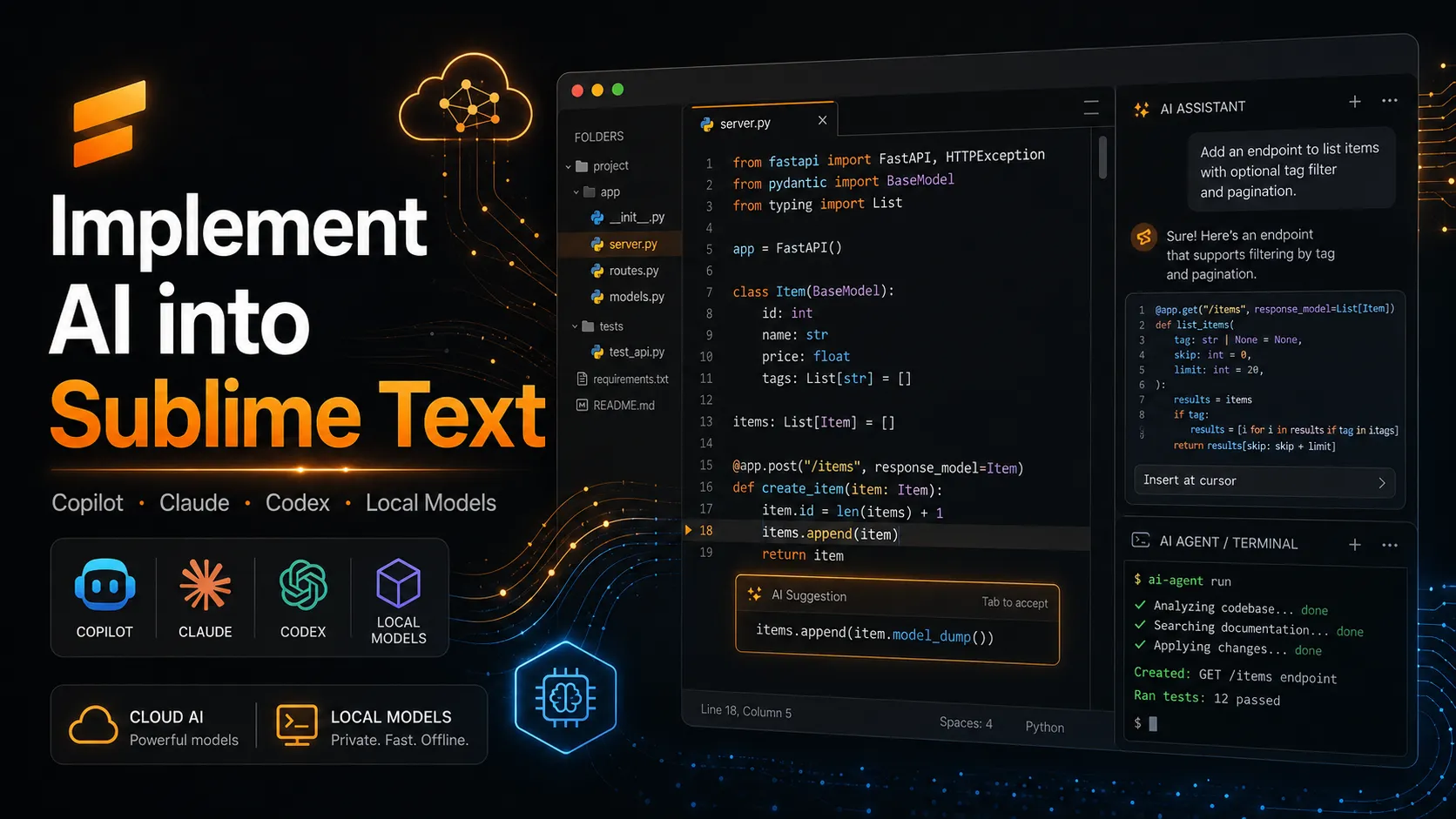
Sublime Text can become an effective AI-assisted editor, but the AI layer is added through community packages or external coding agents rather than a first-party assistant. For fast inline suggestions, use LSP-copilot. For multi-provider chat and selected-file context, use OpenAI completion. For repository-wide edits and terminal actions, connect Claude Code or Codex through TermMate or a dedicated Codex package. Local models through Ollama, llama.cpp, or LM Studio provide the strongest privacy control.
Updated: July 10, 2026.
Sublime Text 4 does not include a first-party AI chat, coding agent, or Copilot-style completion service in its current stable release. AI functionality is supplied by packages that use the editor’s Python plugin API, completion system, command palette, panels, phantoms, and build integration.
This plugin-first model allows users to keep Sublime Text lightweight or install only the AI capabilities they need. AI features remain optional components rather than mandatory parts of the editor’s core interface.
Implementing AI into Sublime Text means adding one or more of four distinct capabilities: inline completion, prompt-based code transformation, project-aware chat, and agentic execution. These are different workloads, so one package rarely provides the best experience across all four.
The practical distinction is control. Completion tools react continuously and must be fast; chat tools should let the developer choose context; agent tools need explicit permissions, working-directory boundaries, approval rules, and a visible record of edits or commands.
The best integration depends on whether the priority is typing speed, provider choice, local inference, or autonomous repository work. The following comparison reflects the packages’ documented capabilities as of July 2026.
| Integration | Primary use | Provider model | Project context | Can run commands? | Best fit |
|---|---|---|---|---|---|
| LSP-copilot | Inline completion and chat | GitHub Copilot subscription | Limited by Copilot and LSP workflow | No direct agent shell | Developers who already use Copilot |
| OpenAI completion | Chat, inline phantoms, explain and refactor | OpenAI, Anthropic, Gemini, Ollama, llama.cpp, compatible APIs | Selected files, diagnostics, and build output | No full autonomous shell loop | Multi-model AI inside Sublime Text |
| CodeContinue | Lightweight inline completion | OpenAI-compatible endpoints | Surrounding lines and configurable context | No | Local or hosted autocomplete |
| TermMate | Agentic coding interface | Claude Code, Codex, and compatible agents | Repository files and explicit references | Yes, subject to approval settings | Multi-file changes and command execution |
| Codex package | Sublime interface for Codex CLI | Codex-supported models and providers | Selected text and sandboxed repository access | Yes | Codex users who want approvals and transcripts |
A useful architecture is to combine one low-latency completion tool with one deliberate agent tool. Running several completion packages simultaneously creates duplicate suggestions, keybinding conflicts, additional network requests, and unclear data flows without adding meaningful capability.
AI packages are normally installed through Package Control, Sublime Text’s community package manager. Open the Command Palette with Cmd+Shift+P on macOS or Ctrl+Shift+P on Windows and Linux, run Install Package Control if needed, then choose Package Control: Install Package and search for the package name.
Use this baseline sequence:
Package names matter. The working community package for GitHub Copilot integration is named LSP-copilot, rather than an official package simply called GitHub Copilot.
LSP-copilot is the most direct route to GitHub Copilot completion in Sublime Text. It provides inline popup suggestions, inline phantoms, panel completion, and chat through GitHub’s Copilot language server, but it requires the Sublime LSP package, a network connection, and an active GitHub Copilot subscription.
Installation steps:
Package Control: Install Package.Copilot: Sign In from the Command Palette.Preferences: LSP-copilot Settings to adjust automatic completion, telemetry, proxy, or debugging behavior.LSP-copilot is the right choice when predictable inline completion matters more than provider flexibility. It is not the strongest choice for local models, custom API gateways, repository-wide tool execution, or teams that cannot send source context through a hosted Copilot service.
OpenAI completion is one of the broadest single-package options for multi-provider AI inside Sublime Text. Despite its name, the package supports OpenAI, Anthropic Claude, Google Gemini, Ollama, llama.cpp, and OpenAI-compatible services.
Install OpenAI completion through Package Control, then open its settings and create an assistant configuration for the chosen provider. The important fields are the endpoint, API type, model, and authentication token.
The package can send selected text, manually chosen files, build output, or LSP diagnostics as context. Responses can appear in a chat panel, a normal tab, or an inline phantom with actions to copy, append, or replace code. This explicit context model is safer and more predictable than silently indexing an entire repository.
A local model is implemented by running an inference server on the same machine or private network and pointing a Sublime Text package at its API endpoint. OpenAI completion supports local services, while CodeContinue accepts OpenAI-compatible endpoints and provides configurable context controls.
A practical local setup is:
text Sublime Text 4 → CodeContinue or OpenAI completion → http://localhost:<port>/v1/chat/completions → Ollama, llama.cpp, or LM Studio → a code-focused local model
CodeContinue is especially suitable when the goal is lightweight local autocomplete. Its configuration includes an endpoint, model name, optional API key, surrounding-line context, request timeout, and language allowlist. Its keybindings may need to be enabled manually to avoid conflicts with existing Sublime Text shortcuts.
Local inference reduces third-party data exposure but does not automatically guarantee privacy. Prompts can still be logged by a local gateway, reverse proxy, desktop model manager, or company observability system. Developers should inspect network traffic, model-server logs, crash reporting, and package behavior before treating the workflow as confidential.
Agentic coding is added by connecting Sublime Text to an external coding-agent CLI rather than relying only on a text-completion API. TermMate supports agent-oriented workflows, provides a native chat view, lets users reference files or line ranges, and exposes planning and approval controls for tool use.
The recommended TermMate workflow is:
TermMate: Start Chat.A dedicated Codex package is a more focused alternative. It can launch the Codex app server, expose sandbox and approval controls in Sublime Text, support assistant-to-shell interaction, and record conversations in a Markdown panel or tab.
A custom AI plugin is appropriate when a team needs fixed prompts, an internal gateway, proprietary authentication, strict context selection, or workflow-specific output handling. Sublime Text plugins are Python scripts built from command and event-listener classes, and the API can create panels, insert text, show phantoms, read selections, and run work asynchronously.
The following minimal plugin sends only the selected text to an OpenAI-compatible endpoint and opens the result in a new buffer:
`python import json import os import urllib.request import urllib.error
import sublime import sublime_plugin
class AiExplainCommand(sublime_plugin.TextCommand): def run(self, edit): selected = "\n".join( self.view.substr(region) for region in self.view.sel() if not region.empty() ).strip()
    if not selected:
        sublime.status_message("Select code before running AI Explain")
        return

    sublime.set_timeout_async(lambda: self._request(selected), 0)

def _request(self, selected):
    settings = sublime.load_settings("AI.sublime-settings")
    endpoint = settings.get(
        "endpoint",
        "http://127.0.0.1:11434/v1/chat/completions"
    )
    model = settings.get("model", "your-code-model")
    api_key = os.environ.get("SUBLIME_AI_API_KEY", "")

    payload = {
        "model": model,
        "messages": [
            {
                "role": "system",
                "content": "Explain the selected code. Identify defects and risks."
            },
            {"role": "user", "content": selected}
        ],
        "temperature": 0.1
    }

    headers = {"Content-Type": "application/json"}
    if api_key:
        headers["Authorization"] = f"Bearer {api_key}"

    request = urllib.request.Request(
        endpoint,
        data=json.dumps(payload).encode("utf-8"),
        headers=headers,
        method="POST"
    )

    try:
        with urllib.request.urlopen(request, timeout=60) as response:
            data = json.loads(response.read().decode("utf-8"))
            result = data["choices"][0]["message"]["content"]
    except (urllib.error.URLError, KeyError, ValueError) as exc:
        result = f"AI request failed: {exc}"

    sublime.set_timeout(lambda: self._show_result(result), 0)

def _show_result(self, result):
    window = self.view.window()
    if not window:
        return

    output = window.new_file()
    output.set_name("AI Explanation")
    output.set_scratch(True)
    output.run_command("append", {"characters": result})
`
Save the file under Packages/User/ai_explain.py, then add a command-palette entry in Packages/User/Default.sublime-commands:
json [ { "caption": "AI: Explain Selected Code", "command": "ai_explain" } ]
This design keeps the network request off Sublime Text’s UI thread, reads credentials from an environment variable, sends only selected code, uses a low temperature for deterministic review, and treats malformed responses as visible errors. Production versions should add cancellation, streaming, provider-specific response parsing, redaction rules, structured logging, retry limits, and tests.
New plugins should target Sublime Text’s modern Python plugin environment and avoid dependencies that assume the legacy Python runtime.
AI integration should follow a least-context, least-permission model. The safest default is to send only selected code, exclude secrets and generated assets, keep agent write access inside the current repository, require confirmation for shell commands, and store credentials outside version-controlled project files.
Use these controls:
.sublime-project, shared settings, screenshots, or committed dotfiles..env files, credentials, certificates, production configuration, and customer data from AI context.The security boundary is defined by package configuration, provider policy, selected context, and agent permissions—not by Sublime Text alone.
The best configuration is the smallest stack that covers the actual workflow. More packages do not create a more capable editor when they duplicate completions, compete for shortcuts, or send the same context to several providers.
| Workflow | Recommended setup | Reason |
|---|---|---|
| Fast daily coding with an existing Copilot plan | LSP + LSP-copilot | Low-friction Copilot-style completion |
| Chat with several hosted model providers | OpenAI completion | One interface for OpenAI, Claude, Gemini, and compatible APIs |
| Private or low-cost local completion | CodeContinue + local OpenAI-compatible server | Simple endpoint and context controls |
| Multi-file feature work | TermMate + Claude Code or Codex | Agent planning, file access, edits, and command execution |
| Codex-centric workflow | Codex package + Codex CLI | Native transcript, sandbox, approvals, and shell integration |
| Regulated internal environment | Custom plugin + company gateway | Explicit context, authentication, logging, and policy enforcement |
For most developers, the balanced setup is LSP-copilot or CodeContinue for completion, plus TermMate or Codex for deliberate agent tasks. OpenAI completion can replace separate chat and prompt-action packages when multi-provider flexibility is more important than continuous autocomplete.
Most failures come from package naming, outdated dependencies, missing CLI binaries, authentication, endpoint incompatibility, or keybinding conflicts. Troubleshooting should begin with Sublime Text’s console and the package’s documented requirements rather than reinstalling the editor.
Check these items in order:
View > Show Console and inspect the first error rather than only the final cascade.Empty package lists and failed downloads are frequently caused by proxy, certificate, or network configuration problems. Package compatibility can also change after updates to Sublime Text, plugin hosts, model APIs, or external agent CLIs.
Sublime Text is a credible AI-assisted editor for developers who value speed, keyboard-driven workflows, explicit context, and modular tooling. It is not a feature-for-feature replacement for AI-native IDEs when the requirement is seamless repository indexing, integrated checkpoints, visual multi-file diffs, background agents, or centrally managed enterprise controls.
The main advantage is composability: completion, chat, local inference, and agent execution can be selected independently. The main disadvantage is integration cost: community packages may require manual configuration, external CLIs, separate authentication, compatibility checks, and more troubleshooting than a tightly integrated AI IDE.
A strong hybrid workflow keeps Sublime Text as the primary editor while running Claude Code, Codex, or another agent in a controlled repository workspace. This preserves Sublime Text’s responsiveness and editing model while delegating expensive project analysis and multi-file execution to tools designed for agentic work.
AI can be implemented in Sublime Text without turning the editor into a heavyweight AI IDE. Install LSP-copilot for GitHub Copilot completion, OpenAI completion for multi-provider chat and explicit file context, CodeContinue for lightweight local autocomplete, or TermMate and Codex for repository-level agent work.
Start with one completion package, add one agent only when multi-file automation is needed, and keep context and permissions narrow. The most reliable setup is not the package with the longest feature list; it is the setup whose data flow, model endpoint, working directory, approval rules, and failure modes are fully understood.
More articles connected to the same themes, protocols, and tools.
Browse entries that are adjacent to the topics covered in this article.