On This Page8 sections
Key Takeaways
- Claude suggests MCP or Google Drive connectors when the task appears to require private context: files, docs, spreadsheets, project notes, calendars, emails, or assets that are not inside the current chat.
- MCP is not a separate AI model. It is a protocol layer that lets Claude connect to external tools and data sources through standardized servers, tools, and permissions. The official MCP documentation describes it as an open-source standard for connecting AI applications to external systems.
- Claude is not secretly reading Google Drive before you connect it. A Drive connector or MCP server requires authentication, permissions, and user approval before Claude can access or act on files.
- The recommendation is usually functional, not promotional. Anthropic says Claude can suggest connected apps when they match the conversation context, and that connector suggestions are not paid placements or sponsored rankings.
- The safest default is read-only, on-demand access. Give Claude the smallest useful permission set, turn off connectors for unrelated chats, and avoid exposing untrusted files to tool-enabled sessions.
Why Claude Keeps Asking for MCP or Google Drive
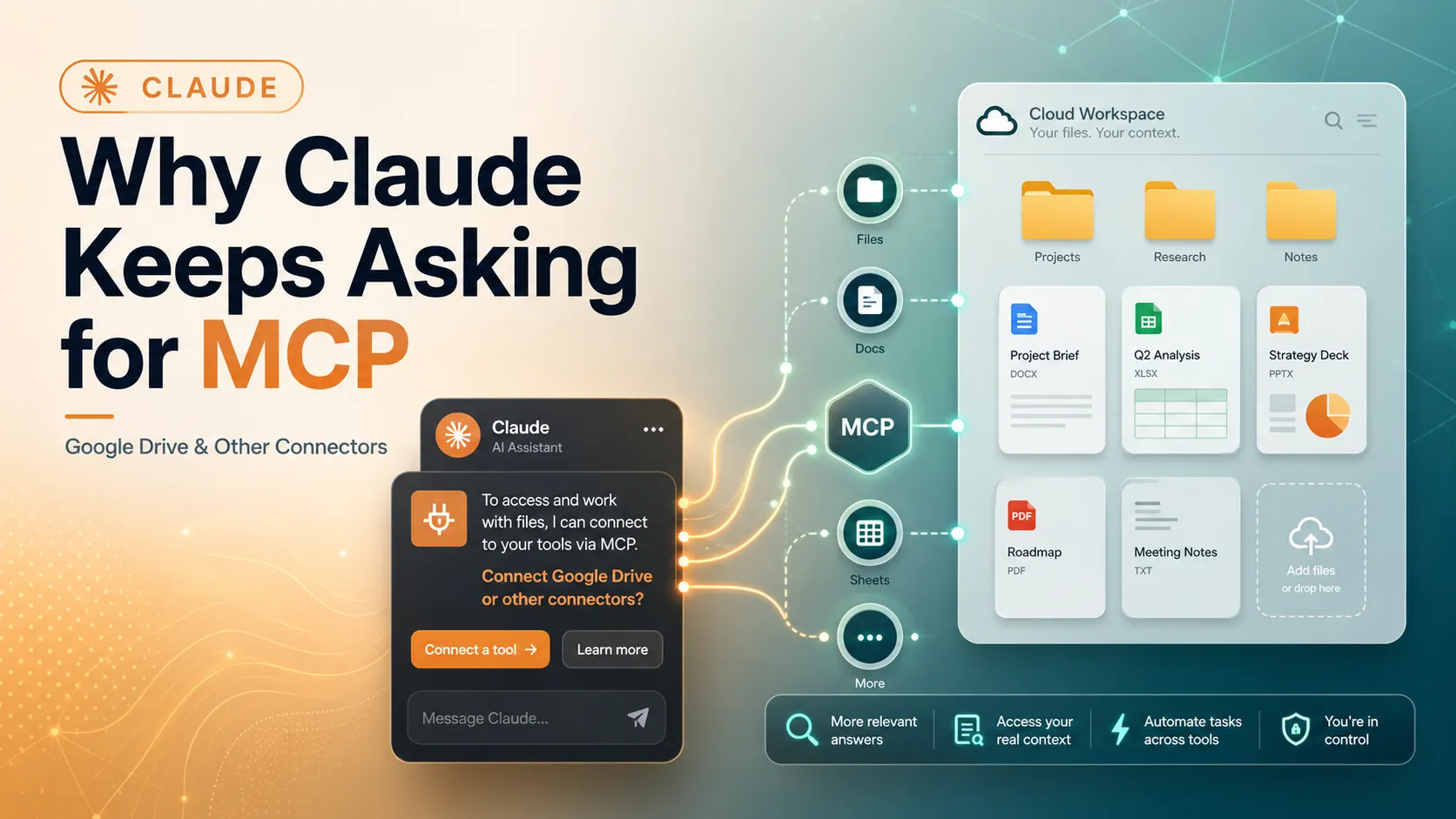
When Claude says something like “connect MCP to Google Drive”, it is usually trying to solve a context problem.
A normal chat model can only reason over:
- The text in the current conversation
- Uploaded files already attached to the chat
- Built-in tools enabled in the product
- Connected apps that the user has authorized
If the answer depends on private documents, Claude has two options: ask the user to upload the file manually, or suggest a connector that can retrieve the file directly. Google Drive is a common suggestion because many users store planning docs, spreadsheets, screenshots, PDFs, meeting notes, and exported reports there.
The deeper reason is architectural: modern AI assistants are shifting from static chat boxes to tool-using agents. MCP gives Claude a standardized way to ask an external system for context, call a tool, retrieve a file, create a document, or inspect metadata without every app needing a one-off integration. The MCP specification defines a host-client-server model and uses JSON-RPC 2.0 messages between LLM applications and external services.
In plain English: Claude asks for Google Drive MCP because the model is saying, “The useful answer is probably in your private workspace, but this chat does not currently have permission to look there.”
Connector, MCP Server, and Google Drive: What Each Term Means
These terms are often mixed together in Claude’s UI and community tutorials, but they are not identical.
Connector is the user-facing product concept. In Claude, connectors let the assistant access apps and services, retrieve data, and take actions inside connected services. Anthropic’s connector documentation says Claude inherits the user’s permissions from the connected service, so it cannot access a file or record that the user cannot access in the original system.
MCP server is the technical integration layer. It exposes tools, resources, and capabilities to an MCP-compatible host such as Claude, Claude Desktop, Claude Code, Cursor, VS Code, or another client.
Google Drive connector is a specific integration that lets Claude search, retrieve, preview, read, upload, and organize Drive files depending on the available product surface and permissions. Anthropic’s Google Workspace connector page says Claude can search and retrieve Google Docs, read Sheets, Slides, PDFs, images, and Microsoft Office files, create folders, view permissions, list recent changes, and save generated files to Drive when file creation is enabled.
A useful mental model:
| Term | What it means | User impact |
|---|---|---|
| Claude | The AI assistant or coding agent | Generates responses and decides when tools would help |
| Connector | Product-level app integration | Shows up in Claude settings and chat UI |
| MCP | Open protocol for tool/data connections | Standardizes integrations across clients |
| MCP server | External service exposing tools to Claude | Performs operations such as search, read, create, update |
| Google Drive MCP | Drive-specific MCP server or connector | Lets Claude work with Drive files after authorization |
Why Google Drive Gets Suggested So Often
Google Drive sits at the center of many knowledge workflows. That makes it one of the first places Claude tries to route tasks that mention:
- “My docs”
- “The spreadsheet”
- “The proposal”
- “The client deck”
- “The report in Drive”
- “Meeting notes”
- “Can you update the file?”
- “Summarize everything in this folder”
Without a connector, Claude cannot reliably know which file is meant. Even if a filename is mentioned, it cannot fetch the content unless the file is uploaded or authorized through a connector.
That is why Claude may suggest Drive access during tasks such as:
- Summarizing a Google Doc
- Comparing multiple files in a folder
- Turning meeting notes into tasks
- Creating a draft report from a spreadsheet
- Finding the latest version of a deck
- Saving generated files back to Drive
- Building a project knowledge base from living documents
Anthropic’s Google Workspace connector documentation states that Google Docs added to chats and projects sync directly from Google Drive, so Claude can work with the latest version rather than a stale upload.
Built-In Google Workspace Connector vs Custom Google Drive MCP Server
A major source of confusion is that Claude can mention Google Drive, Google Workspace connectors, and MCP in the same conversation. There are two common paths.
1. Built-in Google Workspace connector
This is the easiest route for most users. Anthropic’s support documentation says Google Workspace connectors for Gmail, Google Calendar, and Google Drive are available for all Claude and Claude Desktop users, while Team and Enterprise organizations may require an owner or primary owner to enable them first.
Use this when the goal is:
- Read or summarize Drive files
- Add recent Google Docs to chats or projects
- Search for documents by natural language
- Work with Sheets, Slides, PDFs, images, or Office files
- Save generated files back to Drive when file creation is enabled
2. Custom Google Drive MCP server
This is the developer/admin route. Google’s Drive MCP server documentation describes a remote MCP server, currently in Developer Preview, that lets AI agents read Drive data, create files, download content, and inherit the same permissions and governance controls as the user.
Google’s setup path requires a Google Cloud project, enabling the Drive API and Drive MCP API, configuring OAuth consent, and adding scopes such as drive.readonly and drive.file.
Use this when the goal is:
- Building a custom MCP integration for a team
- Connecting Drive to multiple MCP clients
- Controlling OAuth, scopes, and server configuration directly
- Testing Drive access inside a developer environment
- Creating a repeatable enterprise workflow
The practical distinction is simple: use the built-in connector for normal Claude usage; use a custom MCP server when building or governing an integration.
Is Claude Advertising MCP or Google Drive?
Usually, no.
Claude can suggest apps when they match the task. Anthropic’s help center says Claude pays attention to the current conversation and can suggest a connected app when it fits what the user is doing. It also states that Claude does not take payment to recommend connected apps, and that connector order is based on likely usefulness rather than sponsorship.
That matters because “connect Google Drive” can feel like an upsell. In practice, the prompt often appears because Claude is detecting missing context.
The recommendation is more likely to be triggered by:
- A task requiring private files
- A request to update or create a document
- A reference to Drive, Docs, Sheets, Slides, Gmail, or Calendar
- A previous conversation or memory that makes a connected app seem relevant
- Tool access set to Auto or On demand
- Too many files to upload manually
However, the suggestion should still be treated critically. Claude may infer that Drive would help even when a manual upload, pasted excerpt, or local file attachment would be safer and faster.
How Claude Chooses Which Connector to Use
Claude’s connector behavior is controlled by tool access modes.
Anthropic describes three modes:
- Auto: Claude dynamically decides which connectors to load based on the task.
- Always available: connectors load at the start of the conversation.
- On demand: connectors are not loaded until Claude searches for the relevant one.
Anthropic notes that each connector takes up conversation space, and that users with 10 or more connectors may benefit from Auto or On demand to reduce context overhead.
This explains several common behaviors:
- If Claude keeps mentioning Drive, Drive may be active or considered relevant.
- If a connector appears unexpectedly, Auto mode may be deciding that it fits the task.
- If Claude adds an extra step before using a tool, On demand mode may be searching for the right connector.
- If responses get less focused after enabling many tools, tool descriptions may be consuming useful context window space.
For power users, the best default is usually:
Tool access: On demand
Google Drive: enabled only for document-heavy chats
Write actions: approval required or blocked
Untrusted files: processed in a separate chat with tools disabled
What Claude Can Do After Google Drive Is Connected
Depending on the connector, plan, admin settings, and file permissions, Claude may be able to:
- Search Drive by natural language
- Retrieve Google Docs
- Read file metadata
- Preview files
- Read text from Sheets, Slides, PDFs, images, and Office files
- Create folders
- Upload files
- Save Claude-generated files to Drive
- View file permissions
- List recent Drive changes
Anthropic also notes an important limitation: Claude extracts text content only from Google Drive files, and embedded images in documents are not processed.
For developers using Google’s remote Drive MCP server, Google lists tool operations such as search_files, read_file_content, get_file_metadata, get_file_permissions, list_recent_files, create_file, copy_file, and download_file_content.
The key point: the connector is not just a file picker. It can become an action layer. That is useful for automation, but it also makes permission design important.
Privacy: What Actually Changes When You Connect Google Drive
Connecting Drive does not mean Claude gets unrestricted magical access to all files forever. It means the user authorizes a connector to access certain Google data under specific permissions and product rules.
Important privacy details:
- Claude inherits source-system permissions. If the user cannot access a file in Drive, the connector should not access it through Claude.
- Each action Claude takes through Google Workspace connectors requires explicit approval, according to Anthropic’s Google Workspace documentation.
- Anthropic says data retrieved through Google Workspace connectors is stored with the associated chat and can be deleted by deleting that chat. It also states that Gmail, Drive, and Calendar connector data is not used to train Claude models.
- Third-party connected services process data under their own infrastructure and terms, so users should review requested access and disconnect services that are no longer needed.
For Google accounts, Google’s own account help explains that users can review what a linked app can access and remove access from the linked apps page; removing access prevents the app from accessing the Google Account, though related features may stop working.
Security Risks: The Part Most Tutorials Skip
The biggest MCP risk is not that Claude “wants Drive.” The bigger risk is tool-enabled reasoning over untrusted content.
Google’s Drive MCP documentation explicitly warns about indirect prompt injection: if an AI client processes untrusted documents, hidden instructions inside those documents may hijack the session and cause the model to modify, steal, or delete data. Google recommends using trusted tools, being cautious with untrusted inputs, and carefully reviewing all actions.
Academic research also supports caution. A large-scale study of 1,899 open-source MCP servers found general vulnerabilities in 7.2% of servers and MCP-specific tool poisoning in 5.5%, concluding that MCP introduces security and maintainability risks beyond traditional software vulnerabilities.
For practical users, the security lesson is clear:
- Prefer official or reviewed connectors.
- Avoid random MCP servers with broad Drive access.
- Use read-only scopes when possible.
- Block write/delete actions unless required.
- Do not process hostile, scraped, or user-submitted files in a Drive-enabled chat.
- Separate “research chats” from “action chats.”
- Review every proposed file operation before approval.
MCP makes Claude more useful because it gives the model hands and eyes. The tradeoff is that hands and eyes need guardrails.
Should You Connect Google Drive?
The right answer depends on the job.
Connect Google Drive when:
- The task depends on many living documents
- The files change often
- Manual upload would be slow or error-prone
- Claude needs to compare folders, metadata, or recent changes
- The user wants Claude to save outputs back to Drive
- The files are low-risk or already intended for work collaboration
Avoid connecting Google Drive when:
- One uploaded PDF or pasted excerpt is enough
- The Drive contains sensitive personal, legal, financial, medical, or client data unrelated to the task
- The MCP server is unofficial or unreviewed
- The task involves untrusted files from strangers
- The required OAuth scopes are broader than the task needs
- The user does not need write actions
A good decision rule: if the task is one-off, upload the file; if the workflow is repeated, connect the app with limited permissions.
How to Stop Claude From Asking About Google Drive or MCP
There are several levels of control.
Turn off a connector for one conversation
Anthropic says users can disable an app for a single conversation from the chat’s connector menu. Once disabled, Claude will not use that app in the current thread.
Use this when the connector is useful generally, but not for the current task.
Disconnect the app entirely
If Drive access is no longer needed, disconnect it from Claude’s connector settings. Anthropic’s connector guidance says users can manage connected services, disconnect them, modify settings, and review permissions from the Connectors section.
Use this when Claude keeps suggesting a connector that should not be part of the workflow.
Revoke Google account access
Disconnecting inside Claude is not the only cleanup step. Google also lets users review linked apps, inspect access, and remove access from Google Account settings.
Use this after testing third-party or custom MCP servers.
Change tool access mode
If too many connectors are active, switch to On demand so Claude only searches for tools when needed. Anthropic recommends On demand for large connector libraries or conversations that are hitting length limits.
Add a tool-use instruction
For sensitive workflows, add a direct instruction at the start of the chat:
Do not use Google Drive, Gmail, Calendar, or any MCP connector unless explicitly instructed.
If a task seems to require external files, ask for an upload instead of suggesting a connector.
Do not create, edit, delete, or move files without a separate confirmation.
This does not replace permission controls, but it reduces accidental tool routing.
Common Misunderstandings
“Does Claude already know what is in my Google Drive?”
No. Without authorization or uploaded content, Claude does not have access to Drive files. A connector prompt is a request for access, not evidence that access already exists.
“Does MCP mean Claude can do anything in my account?”
No. MCP exposes specific tools. The actual power depends on the server, OAuth scopes, source-system permissions, admin controls, and approval settings.
“Is Google Drive MCP better than uploading files?”
Not always. Uploading is often better for one-off analysis. Drive connectors are better for repeated workflows, changing files, multi-document projects, or saving outputs back to Drive.
“Why does Claude mention MCP when I only asked about a document?”
Because Claude’s integration layer is increasingly MCP-based. Anthropic’s connector directory says connectors are powered by MCP, and the MCP standard exists to connect AI applications to external systems.
“Can my company control this?”
Yes. Team and Enterprise owners can enable connectors at the organization level, require individual authentication, and restrict action categories such as allowing read access while blocking document creation or editing.
Best Practice Setup for Most Users
A safe, practical setup looks like this:
- Use the built-in Google Workspace connector instead of a random community Drive MCP server.
- Keep Drive off by default and enable it only in document-heavy chats.
- Use On demand tool access if several connectors are installed.
- Allow read actions first; block or require approval for write actions.
- Review OAuth scopes before connecting.
- Delete connector-heavy chats when they contain sensitive retrieved content that is no longer needed.
- Revoke Google access for abandoned experiments.
- Do not expose untrusted documents to a session that can write to Drive.
For teams, add governance:
- Maintain an allowlist of approved connectors.
- Separate read-only research connectors from write-capable automation connectors.
- Require approval for create, update, delete, send, or share actions.
- Audit OAuth grants periodically.
- Train users to recognize indirect prompt injection in documents and web content.
Conclusion
Claude keeps telling users to connect MCP to Google Drive because AI assistants are becoming context-aware tool users, and many useful answers depend on private files that are not available in the chat.
The recommendation is not automatically bad. In the right workflow, a Drive connector can turn Claude from a passive chatbot into a practical document assistant that finds, reads, compares, and saves work. But Drive access should be treated like a real integration, not a harmless convenience.
The best next step is simple: connect only the tools the task truly needs, keep permissions narrow, use On demand access, and disconnect or revoke anything that is no longer part of the workflow. For one-off tasks, upload the file. For repeated document workflows, use the connector—but configure it like production infrastructure, not a toy.
Continue Reading
More articles connected to the same themes, protocols, and tools.
Referenced Tools
Browse entries that are adjacent to the topics covered in this article.