ArticleJuly 14, 202647
How to Run Claude Code Automatically Without Repeated Permission Prompts
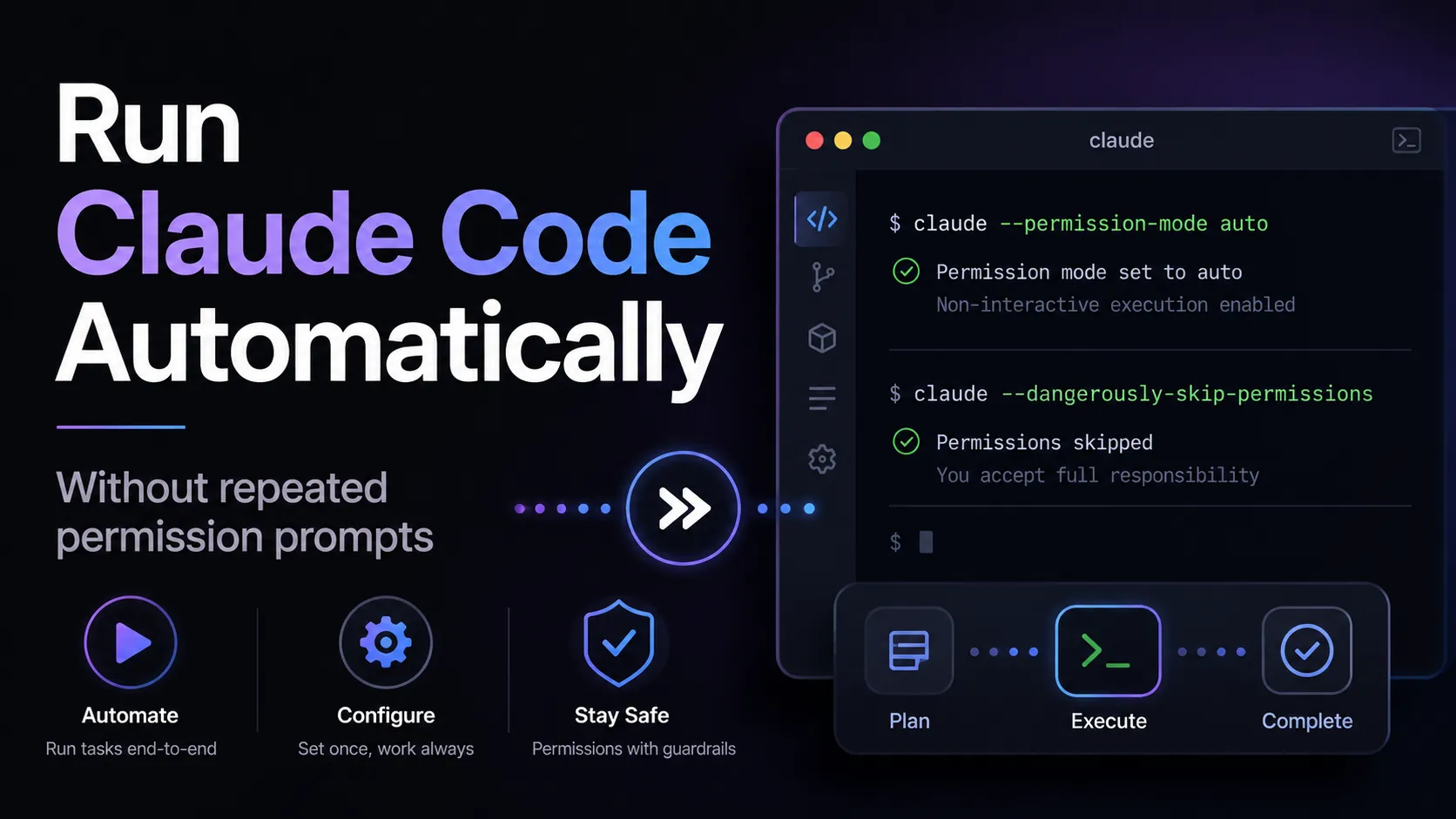
Claude Code can run without repeated confirmation prompts by starting it with claude --dangerously-skip-permissions or claude --permission-mode bypassPermissions. For most daily development, auto mode is the better default because it removes routine prompts while retaining safety checks. Use full bypass only in an isolated repository, container, or virtual machine, and block secrets, destructive commands, publishing, and production deployment.
Start Claude Code in bypass mode:
bash claude --dangerously-skip-permissions
The equivalent command is:
bash claude --permission-mode bypassPermissions
Both commands let Claude edit files, run shell commands, and use tools without ordinary permission dialogs. Explicit deny and ask rules, managed organization policies, and blocking hooks can still apply.
For a shorter macOS or Linux command, add an alias:
bash echo 'alias claude-auto="claude --dangerously-skip-permissions"' >> ~/.zshrc source ~/.zshrc
Then run:
bash claude-auto
Keep the normal claude command unchanged so sensitive projects can still use restricted modes.
auto is the best balance for everyday work, while bypassPermissions is intended for isolated environments where uninterrupted execution matters more than interactive review.
| Mode | What runs automatically | Best use |
|---|---|---|
default | Reads and low-risk operations | Sensitive repositories |
acceptEdits | Routine file edits | Coding with command review |
auto | Most approved development actions | Long local development tasks |
dontAsk | Only explicitly allowed tools | CI and locked-down scripts |
bypassPermissions | Almost everything | Containers, VMs, disposable environments |
For most developers, auto should be the daily default. Full bypass mode should be reserved for trusted repositories and isolated systems.
Put the default mode in the user-level file ~/.claude/settings.json:
json { "permissions": { "defaultMode": "bypassPermissions", "skipDangerousModePermissionPrompt": true } }
This configuration makes Claude Code start in bypass mode without showing the dangerous-mode warning every time.
A safer everyday default is:
json { "permissions": { "defaultMode": "auto" } }
Use the user-level settings file rather than a repository-level configuration when enabling broad automatic permissions. This prevents an untrusted project from silently changing the security level of Claude Code.
Combine bypass mode with deny rules for secrets and destructive commands, plus ask rules for actions that should retain a human checkpoint:
json { "permissions": { "defaultMode": "bypassPermissions", "skipDangerousModePermissionPrompt": true, "deny": [ "Read(./.env)", "Read(./.env.*)", "Read(./secrets/**)", "Read(~/.ssh/**)", "Read(~/.aws/**)", "Bash(git push --force *)", "Bash(git push -f *)", "Bash(git reset --hard *)", "Bash(rm -rf *)" ], "ask": [ "Bash(git push *)", "Bash(npm publish *)", "Bash(wrangler deploy *)", "Bash(vercel --prod *)" ] }, "sandbox": { "enabled": true, "autoAllowBashIfSandboxed": true } }
The deny rules create hard boundaries around sensitive files and dangerous commands. The ask rules retain manual approval for publishing, deployment, and remote Git operations.
Do not expose bypass sessions to production credentials, SSH keys, cloud administrator tokens, payment systems, or live customer databases.
Use auto mode for uninterrupted development with automated safety review:
bash claude --permission-mode auto
Use acceptEdits when Claude should edit files automatically but still request approval for most shell commands:
bash claude --permission-mode acceptEdits
Use an allowlist when only routine development tools should run automatically:
bash claude --allowedTools "Read" "Edit" "Bash(pnpm test *)" "Bash(pnpm lint *)"
This setup lets Claude inspect code, edit files, run tests, and lint without granting deployment, publishing, or Git push access.
Use non-interactive print mode with -p. For a controlled CI job, combine it with dontAsk and an explicit allowlist:
bash claude -p \ --permission-mode dontAsk \ --allowedTools "Read" "Edit" "Bash(pnpm test *)" \ "Run the tests, fix failures, and print a concise summary."
For a disposable container where unrestricted execution is acceptable:
bash claude -p \ --permission-mode bypassPermissions \ "Run the test suite, fix all failures, and stop when the tests pass."
dontAsk is usually better for CI because the job can use only pre-approved tools. It avoids interactive prompts without granting the agent unrestricted access to the entire machine.
Claude Code can still pause when an ask rule requires approval, a deny rule blocks the action, an organization policy disables bypass mode, a hook rejects the tool call, or the task requires information that was not provided.
External authentication prompts can also interrupt execution. Commands involving GitHub, npm, Cloudflare, Vercel, databases, or remote servers may stop when credentials expire or interactive login is required.
Tasks should therefore include a clear objective, completion condition, allowed commands, and instructions for handling failures.
A strong autonomous prompt defines the scope, verification steps, and stopping condition:
text Inspect the project, identify the cause of the failing tests, implement the smallest safe fix, run linting and the full test suite, and stop only when all checks pass. Do not publish, deploy, push commits, delete data, or modify environment files.
This structure reduces unnecessary questions because Claude knows what it can change, how to verify the result, and which operations are prohibited.
For larger coding tasks, add checkpoints:
The recommended configuration depends on the environment:
| Environment | Recommended mode | Additional protection |
|---|---|---|
| Daily local development | auto | Sandbox and secret-file deny rules |
| File editing with command review | acceptEdits | Manual approval for shell commands |
| CI pipeline | dontAsk | Strict allowedTools list |
| Disposable container | bypassPermissions | No production credentials |
| Production repository | default or acceptEdits | Deployment and database restrictions |
The most practical setup is auto for normal coding, dontAsk for CI, and bypassPermissions only inside a disposable or tightly isolated environment.
Use claude --permission-mode auto for normal development, dontAsk with explicitly allowed tools for CI, and bypassPermissions only for trusted work inside an isolated environment. The safest automatic workflow allows file editing and testing while blocking secrets, destructive Git commands, package publishing, production deployment, and live database access.
More articles connected to the same themes, protocols, and tools.
Browse entries that are adjacent to the topics covered in this article.