Codex CLI
Codex CLI is OpenAI’s open-source terminal coding agent that runs locally in your project directory. It can read files, edit code, run commands, use MCP tools, and work with the same Codex agent available across OpenAI’s app, IDE, web, and cloud surfaces.
Choose Codex CLI when you want OpenAI’s coding agent inside a terminal workflow with local repository access, sandboxing, approvals, MCP, skills, and scriptable automation. Choose an AI IDE or prompt-to-app builder if you need a visual development environment or a less technical product-building flow.

Pricing Plans
Free
Included Codex access for quick coding tasks with limited usage.
Go
Lightweight Codex usage for smaller coding tasks.
Plus
Includes Codex on web, CLI, IDE extension, and iOS, plus latest Codex models and credit extension.
Pro
Higher Codex usage limits than Plus, including Pro-only access to GPT-5.3-Codex-Spark research preview.
API Key
Use Codex in CLI, SDK, or IDE extension with API token billing; cloud features are not included.
Business
Team workspace with Codex seats, credits, admin controls, SAML SSO, MFA, and no training on business data by default.
Enterprise & Edu
Enterprise-grade Codex access with SCIM, EKM, RBAC, audit logs, usage monitoring, data residency, and retention controls.
Core Features
1Terminal coding agent
- Runs locally from the command line inside a selected project directory.
- Reads files, writes changes, runs commands, and helps complete coding tasks.
- Built in Rust and published as an open-source project.
2Model and provider options
- Supports GPT-5.5, GPT-5.4, GPT-5.4 mini, and GPT-5.3-Codex-Spark where available.
- Can authenticate with ChatGPT plan access or an API key.
- Supports custom providers, Azure OpenAI, Amazon Bedrock, and local OSS mode with Ollama or LM Studio.
3Local control and safety
- Approval policies control when Codex pauses before running generated commands.
- Sandbox modes limit file and network access.
- Local history persistence can be configured or disabled.
4Customization
- AGENTS.md provides repository-specific instructions.
- Skills and plugins package reusable workflows.
- Subagents support parallel specialized agents for exploration or implementation.
5Ecosystem integration
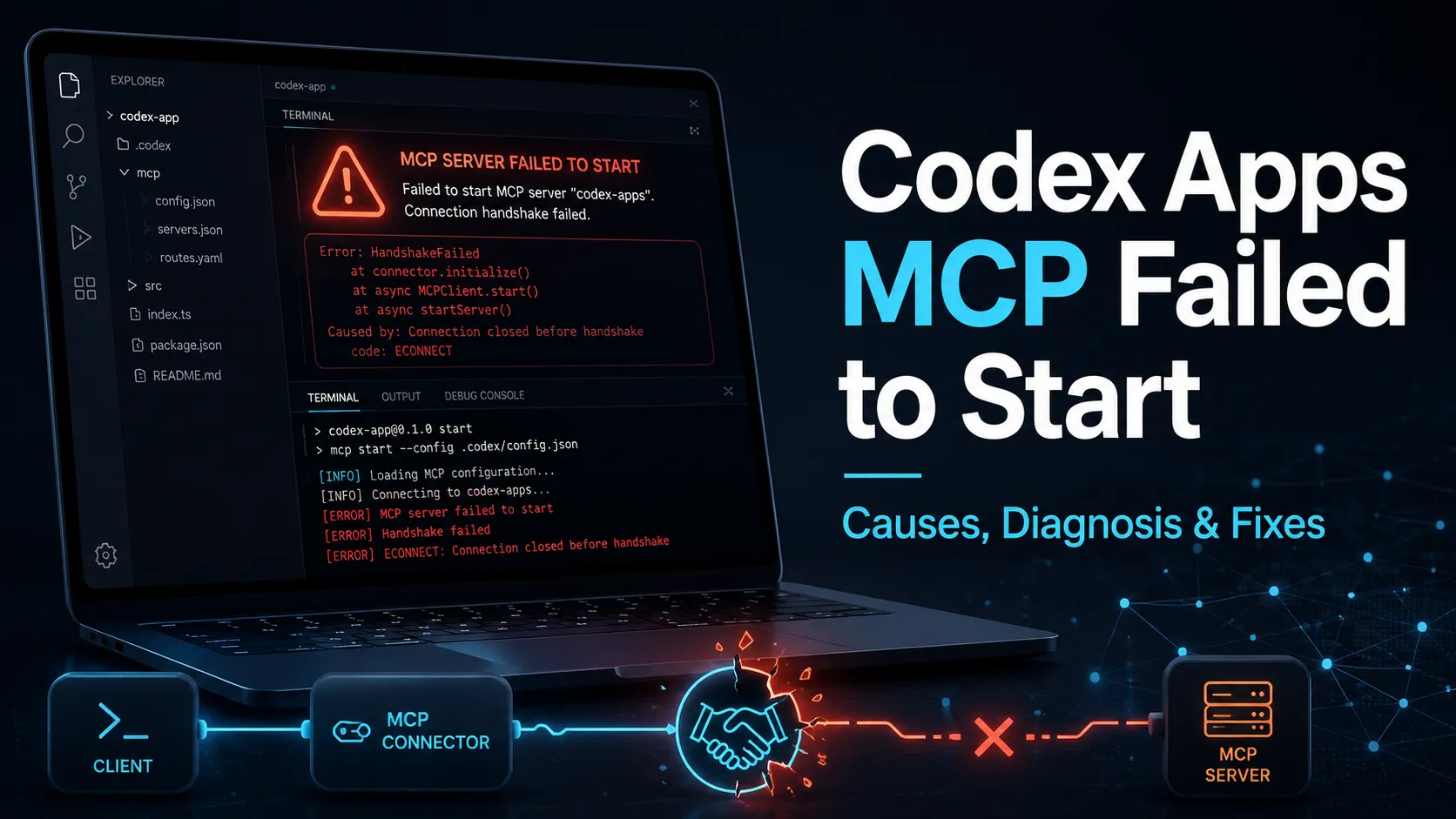
- MCP support connects Codex to tools, documentation, browser workflows, and services such as Figma.
- Codex IDE extension shares the same agent and configuration as the CLI.
- Codex SDK, non-interactive mode, and GitHub Actions support scriptable automation.
Pros
- Open-source terminal agent backed by OpenAI’s Codex ecosystem.
- Works locally in existing repositories without requiring a new IDE.
- Strong model options for complex coding and faster routine tasks.
- Supports API-key, ChatGPT-plan, custom provider, and local OSS workflows.
- Good safety surface with approvals, sandboxing, config, and history controls.
- Shares concepts with Codex IDE, app, SDK, cloud, and GitHub workflows.
Cons
- Requires terminal comfort and configuration discipline.
- Usage limits and credits vary by model, task size, and plan.
- Cloud features are not available when using only API-key authentication.
- Local model quality depends heavily on the selected OSS model and hardware.
- Not primarily an inline autocomplete tool.
- Agentic file and shell actions still need human review before production use.
Why Choose Codex CLI?
Codex CLI is strongest when the developer wants an OpenAI-native coding agent inside the same terminal workflow already used for Git, tests, package managers, scripts, and deployment commands. It is not a visual app builder and it is not mainly an autocomplete layer. Its value comes from letting Codex inspect a local project, reason about the requested task, modify files, run commands, and iterate with the developer in the loop.
The main reason to choose it over a browser app or desktop IDE is control. The CLI exposes configuration for models, providers, approvals, sandboxing, project instructions, MCP servers, hooks, skills, subagents, and local history. That makes it powerful for developers who want to tune how the agent behaves, but it also means the best results come from disciplined setup rather than one-off prompting.
Core Workflow
A practical Codex CLI workflow starts in a clean Git state. Launch Codex in the project directory, ask it to inspect the relevant code, request a plan for anything non-trivial, and then let it implement a scoped change. Afterward, review the diff, run tests, and use follow-up prompts for targeted fixes instead of asking for a broad rewrite.
For larger tasks, the safer pattern is staged delegation: exploration first, plan second, implementation third, verification last. AGENTS.md should document project-specific rules such as package manager, test commands, style conventions, architectural boundaries, files to avoid, and review expectations. For multi-part work, subagents and skills can turn repeated workflows into reusable building blocks instead of long prompts.
Use Cases
Codex CLI fits repository-native engineering work: debugging failing tests, updating APIs, generating test coverage, refactoring modules, modernizing dependencies, explaining unfamiliar systems, and automating repeatable tasks. It is especially useful when the task needs both code changes and command execution.
It can also work well for teams that want the same Codex agent across multiple surfaces. A developer can use the CLI locally, the IDE extension inside a VS Code-compatible editor, the Codex app for parallel task management, and GitHub workflows for review or automation. The CLI remains the most direct surface for developers who prefer explicit terminal control.
Comparison to Alternatives
Compared with Claude Code, Codex CLI is OpenAI-native and benefits from OpenAI’s Codex model ecosystem, while Claude Code is built around Anthropic’s Claude models and their agentic coding workflow. The better choice often depends on model preference, organization policy, and where the team already pays for AI access.
Compared with Aider, Codex CLI is more connected to a broader first-party product surface, while Aider remains attractive for developers who want a lightweight, Git-centered, model-flexible open-source workflow. Compared with OpenCode, Codex CLI has deeper OpenAI integration, while OpenCode is more provider-agnostic by default.
Compared with Cursor or Windsurf, Codex CLI is less visually integrated but more terminal-native. Cursor and Windsurf are usually better for developers who want AI editing, chat, autocomplete, and navigation inside a single editor. Codex CLI is more appealing when the developer wants a powerful agent that fits beside any editor and can be governed through config, sandboxing, and shell permissions.
Best Configuration
For personal use, start with GPT-5.5 for complex tasks and switch to smaller models for routine edits when usage matters. Keep approval prompts on until the workflow is trusted. Use workspace-write sandboxing carefully, and avoid enabling network access unless the task truly requires it.
For team use, standardize AGENTS.md, approved MCP servers, model defaults, sandbox profiles, local history rules, provider routing, and hooks. Sensitive repositories should define stricter approval behavior and avoid unnecessary MCP context because every connected tool can increase both privacy exposure and token usage. Teams using Business, Enterprise, or Edu plans should also align Codex access with RBAC, compliance logging, workspace credits, and data-retention policies.
Migration Notes
Developers moving from Claude Code, Aider, or OpenCode should compare the same real tasks rather than judging only from a first prompt. Use one bug fix, one refactor, one test-generation task, and one repo-exploration task. Evaluate diff quality, command behavior, token usage, permission prompts, model switching, and how well the tool follows project instructions.
Teams adopting Codex CLI should pilot it on non-critical repositories before allowing broad shell access in production-adjacent codebases. The safest rollout is gradual: read-only exploration, small edits, test generation, then larger refactors after the team has reviewed how Codex behaves with its code, tooling, and security boundaries.
Best For
- Terminal-first developers
- Local repository editing
- Multi-file bug fixes
- Refactoring
- Test generation
- Codebase exploration
- OpenAI model users
- Developers who want configurable approvals and sandboxing
- Teams already using ChatGPT or OpenAI API
- Automation through Codex SDK or GitHub Actions
Not Ideal For
- Non-technical users who want a visual app builder
- Developers whose main need is inline autocomplete
- Teams that require a fully provider-neutral hosted product
- Users who do not want to manage terminal setup or configuration
- Projects where AI agents are not allowed to run shell commands
- Workflows that require cloud Codex features while using only API-key authentication
Privacy Notes
Codex CLI runs locally and can read project files, edit code, run commands, and persist local session history under CODEX_HOME unless configured otherwise. Data sent to models depends on authentication method, selected provider, ChatGPT workspace settings, API organization settings, MCP servers, and whether local OSS mode is used. Users should avoid exposing secrets in prompts, source files, command output, or connected tools, and should configure approvals, sandboxing, ignored paths, and history persistence for sensitive repositories.
Alternatives
Sources
Update History
- Jun 14, 2026: Created entry with current Codex CLI positioning, pricing plans, supported models, open-source status, local provider support, MCP, skills, subagents, sandboxing, approvals, and enterprise controls.
Related Tools
More listings in a similar part of the directory.
Codex CLI Articles
Guides, comparisons, and launch notes connected to this listing.